Animazing is a Blender add-on by Fatih that groups tools for character animation, the Graph Editor, keyframes, and timeline setup. The Superhive product listing identifies version 1.1, a GPL license, and lists Blender versions 3.0, 3.1, 3.2, 3.3, 3.4, 3.5, 3.6, 4.0, 4.1 and 4.2. Check the listing for compatibility details before installing it with another Blender release.
Tools for character animation
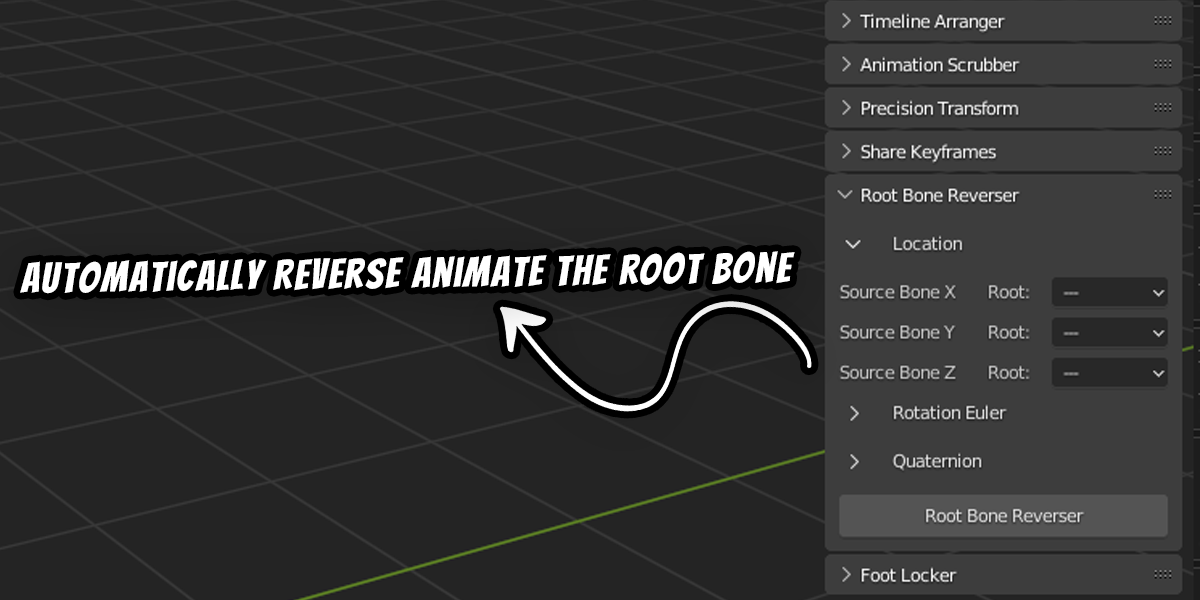
Root Bone Reverser can make an animation stay in place by reverse-animating the root bone. Set transform orientation to Local, select the controller that moves the character, then shift-select the root bone so it is selected last. Identify the character's direction of movement or rotation, then choose the corresponding axis in the menu and run the tool. The listing describes exporting the result with the Only Deform Bones option for use in a game engine.
Foot Locker counter-animates a selected foot controller over a selected range. This can help keep a foot steady while the root bone moves.
Graph Editor and keyframe controls
Auto Frame brings the active curve into view and zooms to the area around the current frame. Its Frame Range setting controls how many frames appear on each side. The pie menu and side panel also have Frame All and Frame Selected options. The pie menu uses F by default; its shortcut can be changed or disabled in Preferences under Graph Editor Generic.
Animation Scrubber lets you move between keyframes by moving the cursor. Adjust its Sensitivity setting to change how cursor movement affects playback-head speed.
Share Keyframes adds keyframes to selected bones at the frames used by a source bone. Select the bones to receive keys, then select the bone with more keyframes last as the source. To apply the operation across the rig, select a single bone and use All Bones, or select a timeline range on the source bone and enable Only for the selected range to limit where keys are added.
Transforms and timeline setup
Precision Transform provides dedicated buttons for precise transform operations across different axes. Timeline Arranger adjusts the timeline to the length of the selected animation with one click, which can help when organizing imported animations for repetition.
Shortcuts and controls
Animazing's buttons can be assigned shortcuts or added to Quick Favorites. Hovering over a button can show the expected bone selection order. These controls are useful when switching among the add-on's separate animation tasks.
Animazing may suit Blender animators who work with character rigs, in-place clips, Graph Editor curves, or repeated keyframe and timeline adjustments. Its tools act on selected bones, curves, animations, and frame ranges, so check the documented selection steps for the operation you plan to use.