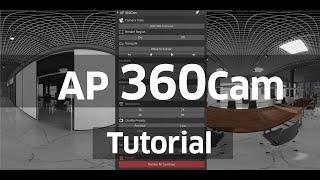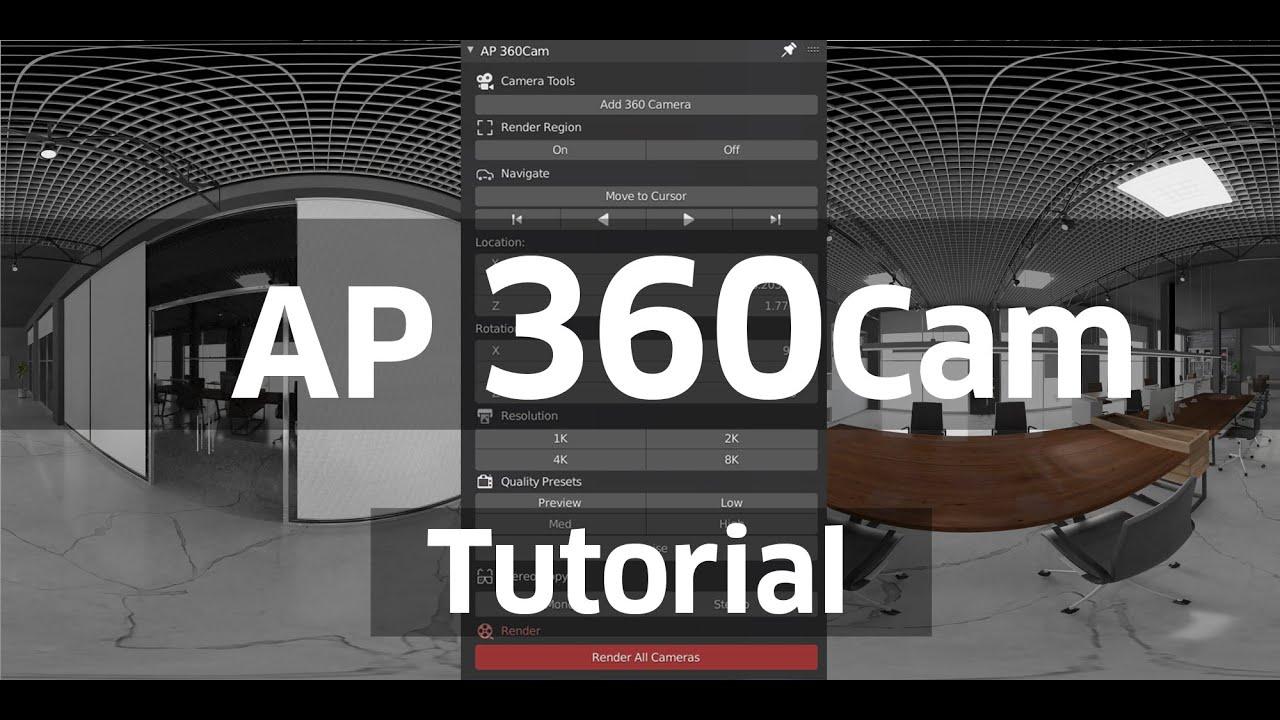
Ap 360Cam is a Blender add-on by Alex Pearce for setting up panoramic cameras and rendering multiple views from one scene. Its Add 360 Camera tool creates an equirectangular camera, sets up stereoscopic over-under output, adds a timeline marker, and makes the new camera active.
Set up and navigate panoramic cameras
The camera tool sets the camera height to 1.77 metres and locks its Z location and X and Y rotation. You can pan by rotating on Z, or unlock the controls when you need a different position or angle. A crosshair helps with alignment. Each camera gets a marker on the timeline at the next frame, so you can step between views and render them as a sequence.
Navigation controls jump to the first, previous, next, or last camera and make the selected camera active. You can also move the selected object to the 3D cursor at the configured height, or edit its location and rotation with X, Y, and Z vectors. The add-camera shortcut is Shift-Ctrl-Right Mouse Button.
Choose resolution and sample presets
Resolution controls set the scene to equirectangular dimensions: 1k is 1024 × 512, 2k is 2048 × 1024, 4k is 4096 × 2048, and 8k is 8192 × 4096. Quality presets set the sample count to 16 for Preview, 100 for Low, 250 for Medium, or 1,000 for High. These are scene settings; the add-on documentation does not promise a particular render time or image quality.
The stereoscopy controls switch between Mono, described as normal 2D, and Stereo, which uses multiview over-under. Render Region limits the viewport to the equirectangular image.
Render the camera sequence
Render all Cameras renders the cameras set up in the scene. It writes images to an ap360 folder beside the saved .blend file, so save the project before using the command. The documentation warns that another run overwrites images already in that folder. For a different output location, use Blender's regular Render Animation command and set the destination in Output Properties.
Check the compositor and Blender version
The Denoise control sets up a denoise pass in the compositor. The developer's documentation warns that it deletes existing compositor nodes, so use it only when the compositor is empty.
The product page lists Blender 2.8, 2.81, 2.82, 2.83, and 2.9, and identifies the license as GPL. It does not list compatibility with newer Blender releases. Check the product listing before installing, and consult the developer documentation or tutorial video for the setup details.