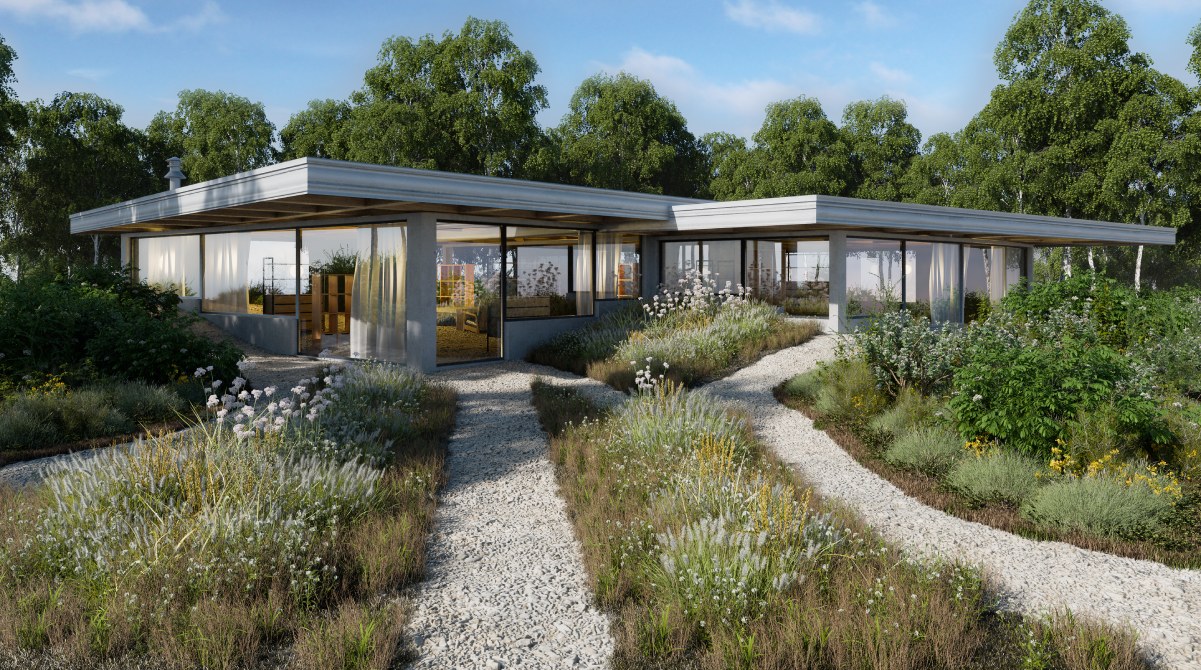
Baga Grove - Evermotion is a Blender GeoPack made by Antoine Bagattini in partnership with Evermotion. Draw on a surface to place vegetation: smaller assets settle near the grove’s edges while larger ones sit toward the center. The Superhive listing describes it as a tool for creating groves without a complex scattering setup.
Scatter vegetation and use your own assets
You can scatter assets included with the pack or use your own. Select assets in Blender’s Asset Browser or in the 3D view, then select a surface and use J > Scatter. The Asset Browser also has a Scatter command. At least one surface must be selected to add a grove, though you can draw on any surface.
Baga Grove also lets you create and save custom groves through the BagaPie GeoPack system. The Superhive listing says understanding GeoPack is essential for creating custom groves.
Install the GeoPack
- Confirm your Blender version is within the listed 4.0 to 5.2 range, then install BagaPie, which is free and included with Baga Grove.
- In BagaPie preferences, open GeoPack and set an asset storage location if one is not already set.
- Choose Install Pack, select a BagaGrove volume, and wait for installation to finish.
- Open the library with
V > BagaGrove, then choose a grove.
The product documentation page includes an installation video. A full tutorial is also linked from the listing.
Viewport options and compatibility
Camera Culling improves performance by not rendering objects outside the camera view. Proxy uses simplified models for complex objects to speed the workflow, and the particle display setting can show only a percentage of instances for smoother viewport navigation. The listing says Baga Grove is intended for foreground detail and cautions against extensive scattering.
Superhive lists the pack as free under the GPL license, with Blender compatibility from 4.0 to 5.2. Check the current product listing for updated compatibility details.