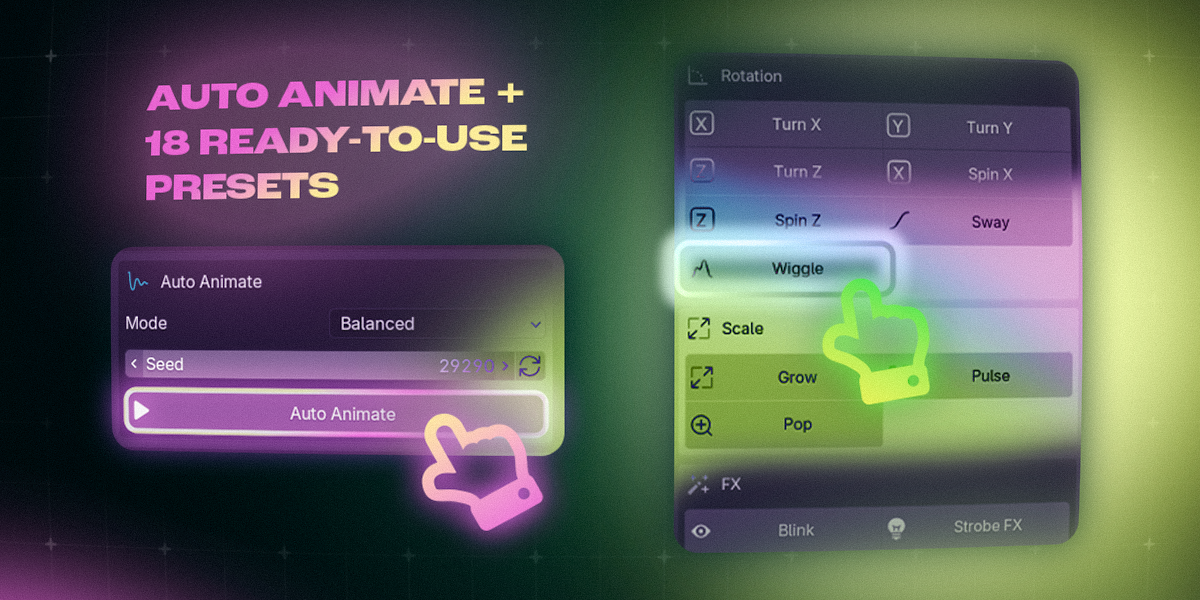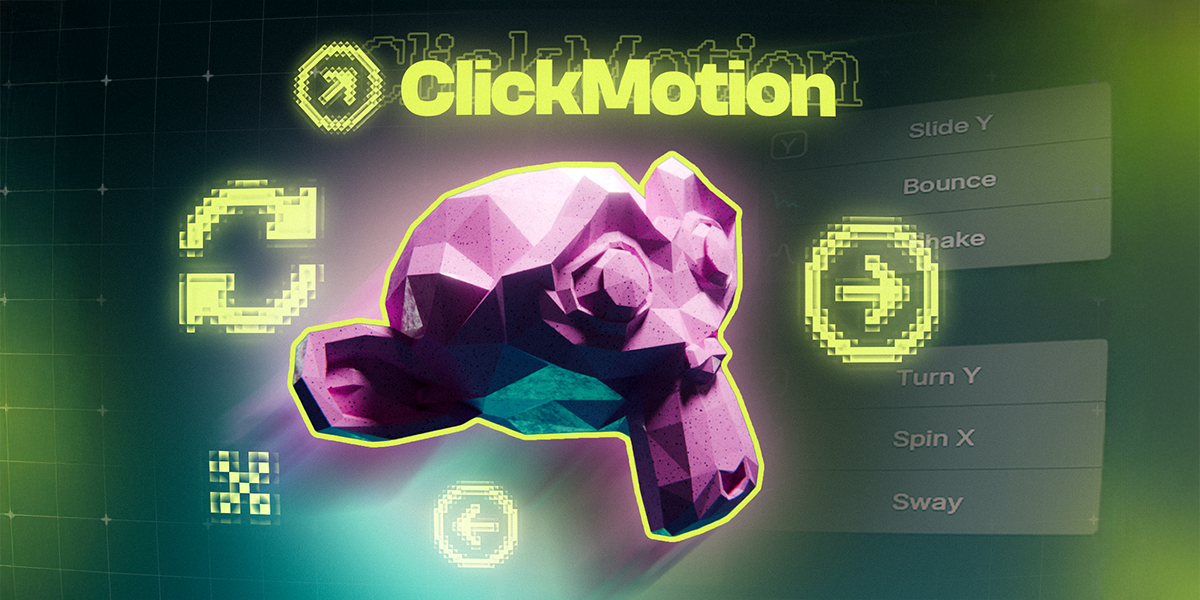
Click Motion is a Blender add-on for applying keyframed object animation presets. Choose a motion, rotation, or scale and FX preset for selected objects, or use Auto Animate to create a variation.
Choose an animation preset
Motion presets include Slide on the X, Y, or Z axis, Bounce, Float, and Shake. Rotation options include Turn on each axis, Spin, Sway, and Wiggle. For scale and effects, the choices include Grow, Pulse, Pop, Blink, and Strobe FX. Auto Animate offers Balanced, Chaos, and Cinematic modes.
Adjust timing and variation
Set the animation speed and strength, then use the frame delay to stagger timing across multiple objects. Loop modes repeat or ping-pong the motion. A seed control makes Auto Animate variations repeatable. The standard amplitude range is 0.01 to 10.00; custom amplitudes can be set to any non-negative value outside that range. FX Speed controls Blink and Strobe frequency.
Apply and clear motion
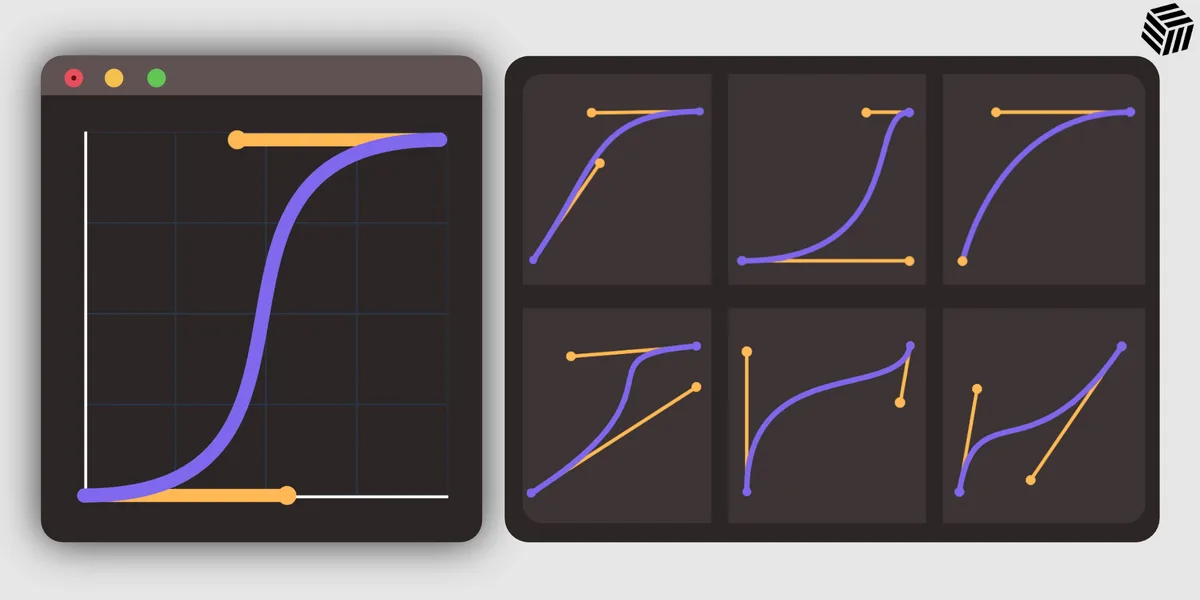
Select one or more objects in the View3D area, move the timeline to the intended starting frame, and configure speed, strength, loop, curve style, object delay, and variation seed. Apply a preset or choose Auto Animate. When you want to remove the add-on's animation, use Clear ClickMotion Animation. The listing says this clears only curves created by Click Motion and skips objects with protected animation channels.
Install the matching package
For Blender 4.2 or later, install the ClickMotion V1.2.0 extension ZIP from Preferences under Get Extensions and Install from Disk. For Blender 3.6 or later, use the legacy ZIP through Preferences under Add-ons and Install from Disk. Enable Click Motion, then open its panel in the View3D Sidebar (N-Panel). Check the Click Motion product listing for the current packages and release details.