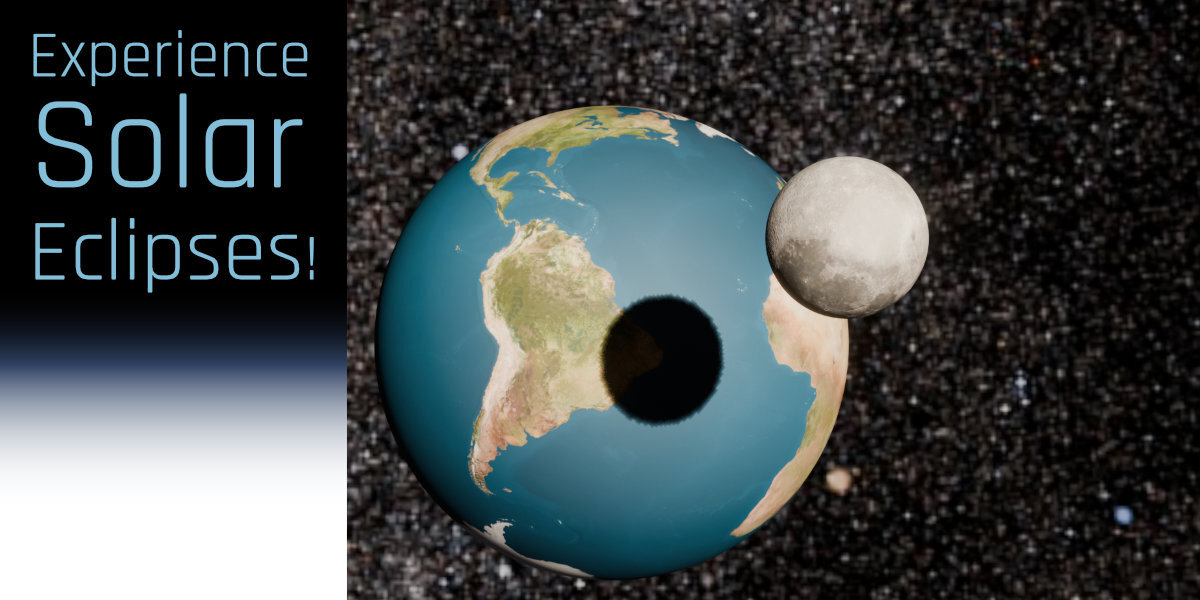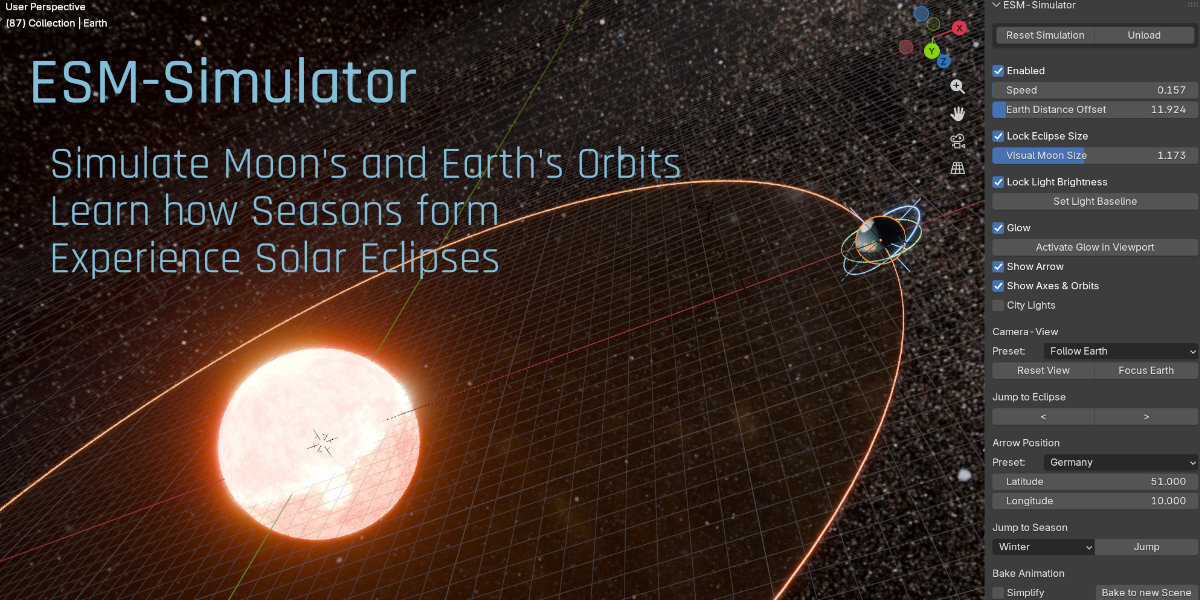
Earth-Sun-Moon Simulator, also called ESM-Simulator, is an interactive, real-time Blender simulation for exploring the motions of Earth and the Moon. Watch the Moon orbit Earth, follow its phases from different viewpoints, and see how its shadow creates a local solar eclipse. The controls also make the simulation useful for astronomy lessons, experiments and animated scenes.
Explore orbits, phases and eclipses
Turn on the visual guides to see Earth’s orbit around the Sun, its rotation axis and the Moon’s orbit around Earth. Follow the changing Moon phases or watch the Moon’s shadow move across Earth. Camera presets provide ready-made views of the system, including angles that show the motion from space.
You can change the relative distances between the celestial bodies for a clearer overview or a slightly more realistic arrangement. The Earth Distance Offset setting changes how close the bodies appear. Lock Eclipse Size can keep the Moon’s apparent size consistent when you adjust that distance.
Follow the sky from a chosen location
Choose a location preset such as the USA, Germany, China or the North Pole, or enter a longitude and latitude. A large red arrow marks the selected place. From that viewpoint, follow the Sun or Moon across the sky and watch how the changing season affects daylight. The simulation illustrates long summer days in the Northern Hemisphere and the Sun remaining above the horizon near the polar circle.
At sunrise, a blue sky blends into the scene. After sunset, a starry sky appears and city lights glow on Earth’s dark side. The blue sky slows the simulation, so it may take longer to preview the motion, though it can add atmosphere to a render.
Set the timing, lighting and animation
Adjust the simulation speed and many other parameters, then keyframe them to create motion such as a speed ramp. Lock Light adjusts sunlight as the distance changes so the light reaching Earth stays consistent. In the viewport, the Glow control can show the Sun’s glow when the view is set to Rendered. Camera presets and camera offset animation help frame the system for a cinematic view.
The documentation gives a useful timing reference: at speed 1, one simulation second represents one day, and a year passes in about 135 seconds. Treat this as the simulator’s playback scale when planning a lesson or animation.
Use the Artemis II feature as an experiment
The included Artemis II feature simulates a flight around the Moon. The developer describes it as experimental rather than realistic. The rocket attempts to circle Earth, head to the Moon, orbit it and return. Its path can look bumpy depending on the positions of Earth and the Moon; the available sliders let you adjust the flight path. The documentation recommends either setting the season start to autumn or setting Set Start Here to around April with the standard settings.
Bake before rendering an animation
The product documentation warns that Blender may crash if you render the animation directly. Save your scene, then use Bake to new Scene. This creates a baked scene with the movements converted to keyframes and the simulation’s drivers and dependencies removed. For long animations, Simplify can reduce keyframes on linear motion to the start and end points. You can then edit the baked animation in Blender’s Graph Editor.
For setup steps and parameter details, read the Earth-Sun-Moon Simulator documentation. The product listing has the current compatibility and licensing details.