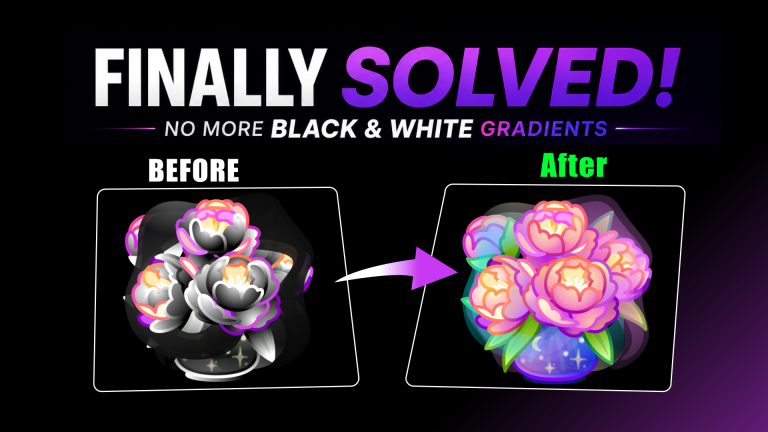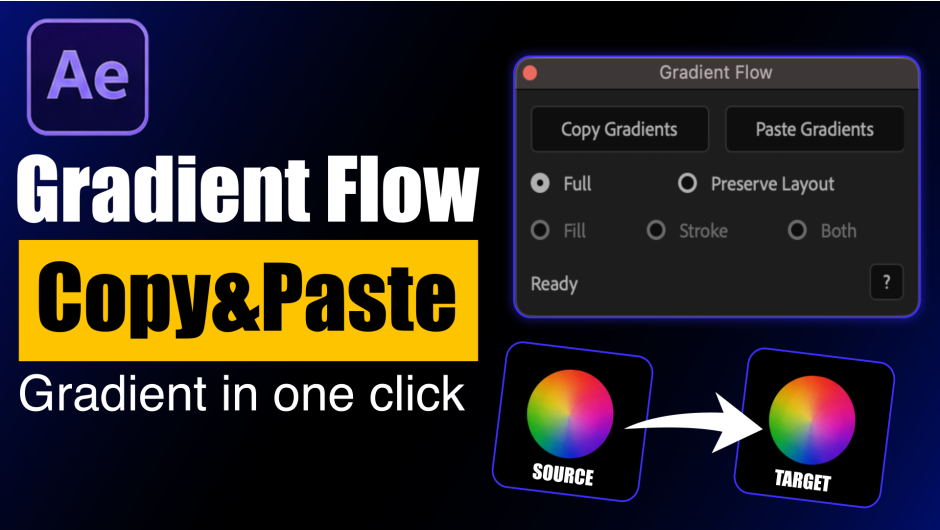
Gradient Flow moves gradients between shape and solid layers in After Effects. It suits motion designers, animators, and UI artists who need to reuse a look across multiple elements or revise colors across existing artwork.
Transfer Fill and Stroke gradients
Copy a gradient from one layer, select one or more target layers, then choose Fill, Stroke, or Both. The source and destination choices are independent, so a Stroke gradient can be pasted into a Fill and a Fill into a Stroke. A single copy can also populate both. Gradient Flow creates the selected gradient on a target that does not already have one.
Choose whether to keep each target's layout
Full mode copies the gradient with its layout. For strokes, that includes colors, gradient positions, angle, and scale. Preserve Layout mode applies the source colors while keeping the target's existing gradient structure and positioning. Use Full when targets should match the source closely. Choose Preserve Layout when each target should keep its gradient geometry but share the source colors.
Apply changes across layers
Select several targets after copying to paste one gradient across them. The status bar reports how many layers succeeded and failed, which helps identify incomplete transfers in a large selection. This workflow can apply color updates across motion graphics, UI animation elements, or branded content.
Compatibility and licensing
Gradient Flow is listed for After Effects 2026, 2025, 2024, 2023, 2022, 2021, 2020, and CC 2019. Aescripts' general license guidance says a Single User License can cover up to two computers used at different times, unless a product's terms specify otherwise; this license type does not require the Floating License Server. Floating licenses require that server on the same network and allow one user per license at a time. The Gradient Flow listing also displays a server-required notice, so check the selected license type and product EULA before purchase.