Import From is a narrow ScriptUI panel for Adobe After Effects that opens the native import dialog at a folder you choose. Its shortcuts point to the folder containing the active project, nearby parent folders, or saved favorites. It suits editors and motion designers who repeatedly import assets stored alongside project files or in a few regularly used folders.
Use folders relative to the project
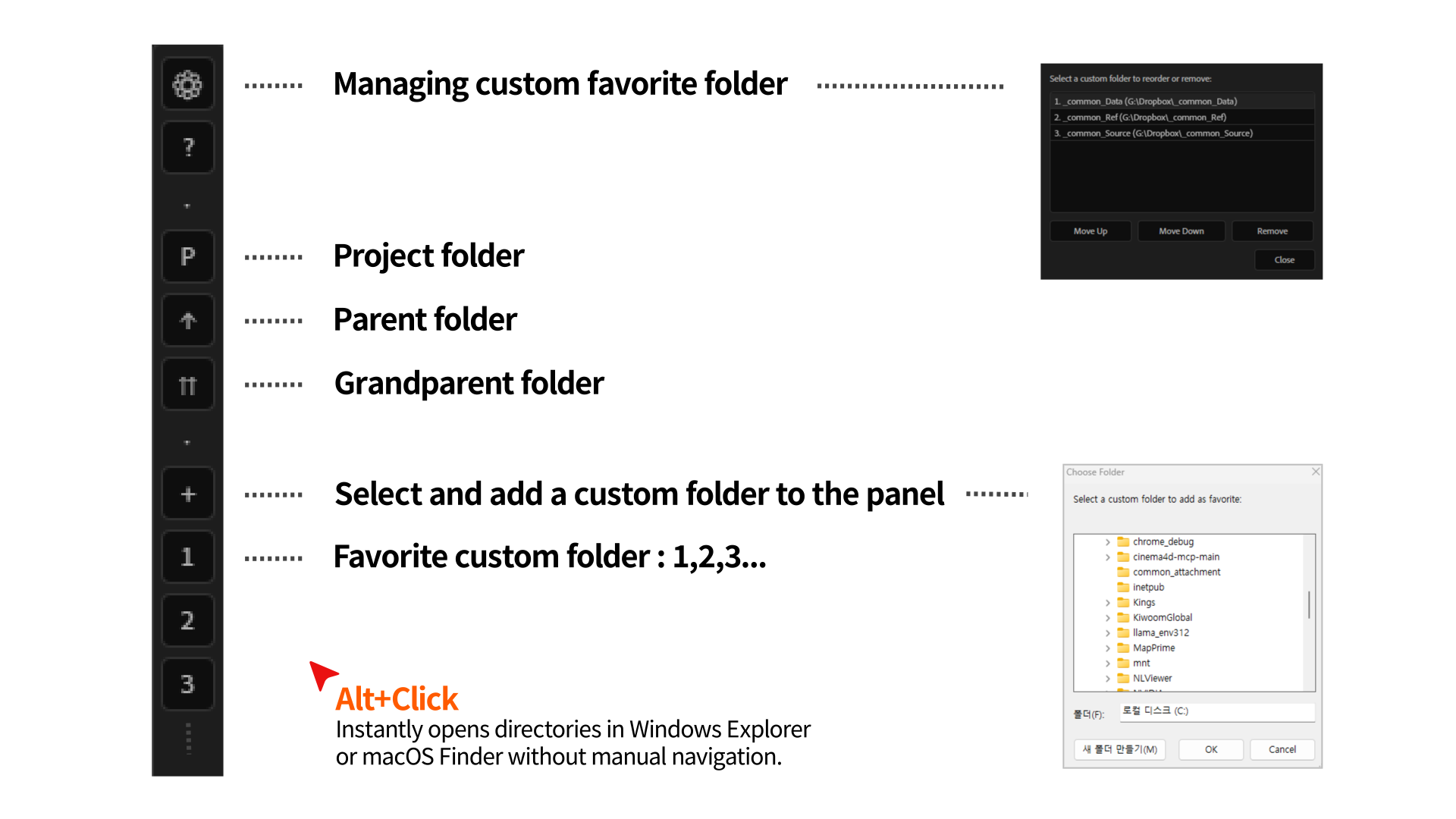
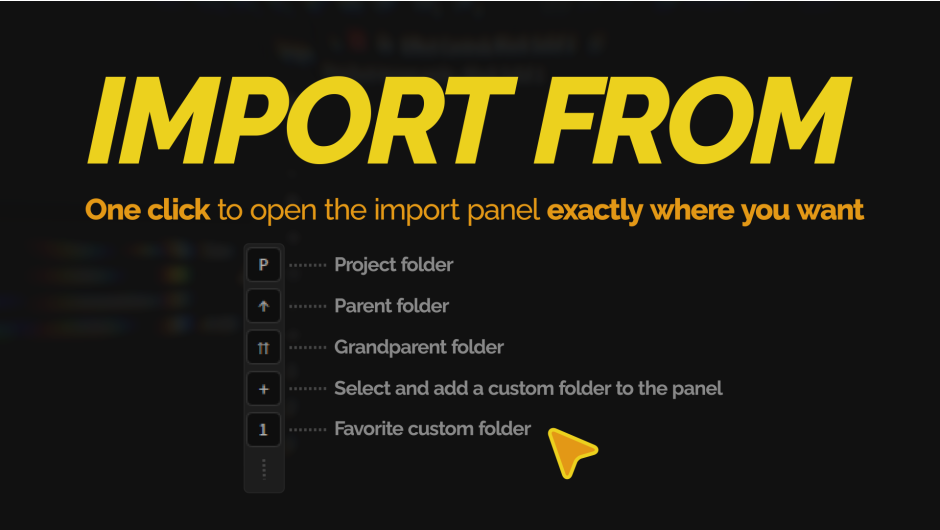
The P button targets the folder containing the current .aep file. The up-arrow buttons target its parent and grandparent folders. These paths follow the active project's location, which helps when a project and its assets move together. The project must be saved before these relative-folder buttons can work.
For example, if a project file is in Project/Ae and its images are in Project/Footage, the parent-folder shortcut opens Project so you can navigate to the footage. Hover over a button to see its path and display name before using it.
Save and open favorite folders
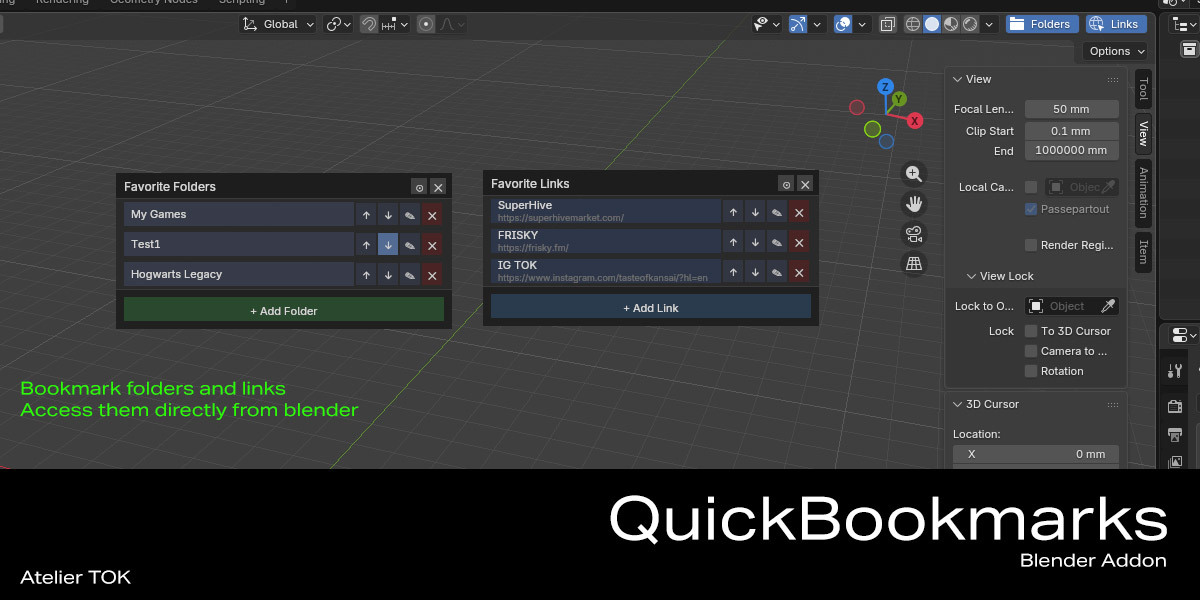
Use the plus button to add a custom folder as a favorite. Numbered buttons open those saved folders in After Effects' import dialog. The gear button lets you reorder or remove favorites. The favorites list is stored in After Effects preferences, so enable “Allow Scripts to Write Files and Access Network” in Scripting & Expressions preferences if you want custom folders to persist. If favorites disappear after restarting After Effects, check this setting.
Alt-click a folder button on Windows, or Option-click it on macOS, to open that folder in Explorer or Finder instead of the import dialog. The panel is 30 pixels wide and can be docked in the workspace.
Installation and compatibility
The product page recommends installing and licensing through the aescripts + aeplugins Manager app, which also supports trials. For manual installation, copy Import From.jsx into After Effects' ScriptUI Panels folder, restart After Effects, then choose Window > Import From.jsx and dock the panel where you want it.
The listing names compatibility with After Effects 2026 through CC 2019. Its EULA grants one copy and requires an appropriate license for additional users or copies, so check the offered license terms if you need to install it across a team.