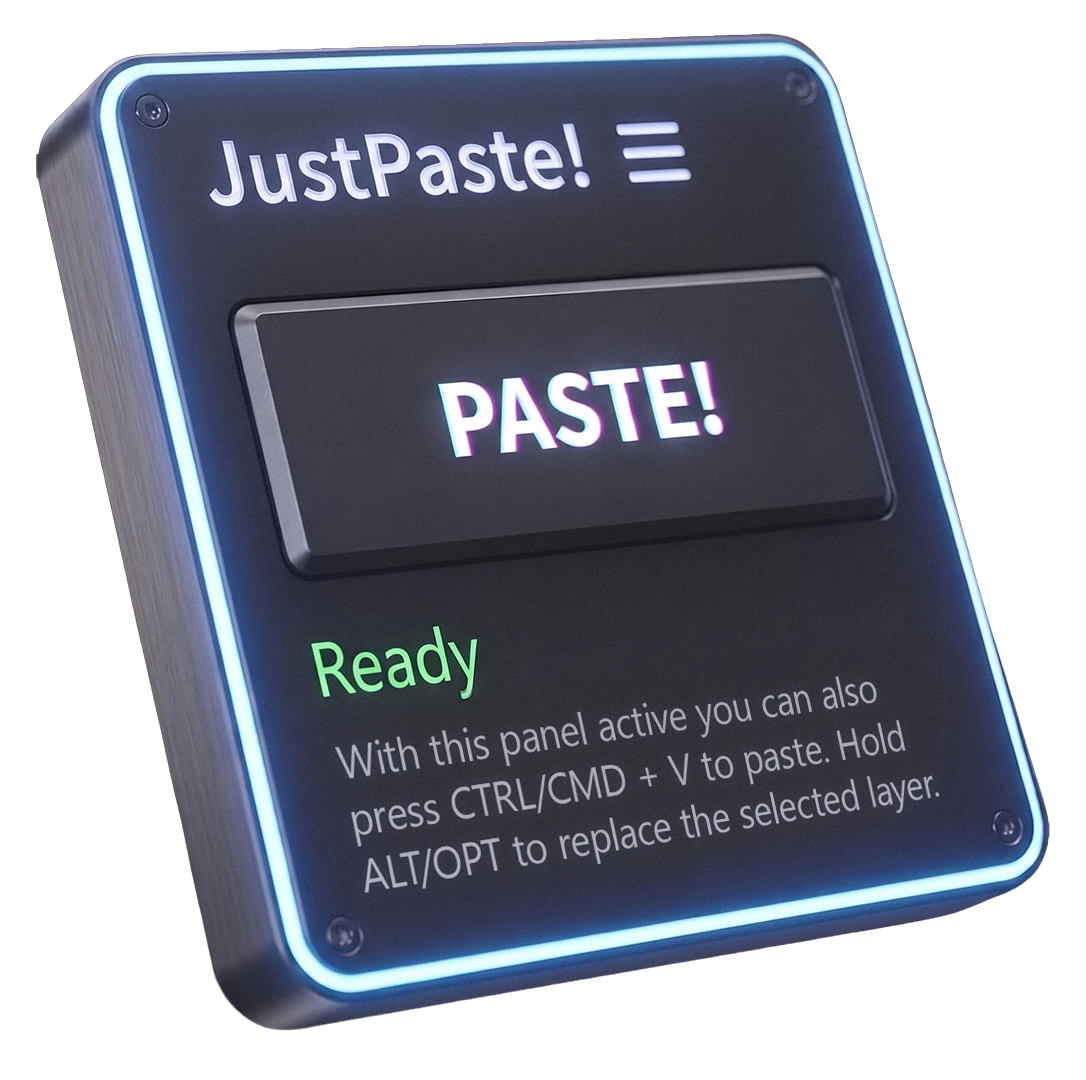
JustPaste! imports copied images, links, and files into an After Effects composition. Copy an asset, then paste from its panel or use the panel shortcut. The extension saves the file beside the After Effects project in a folder you choose, imports it, and adds it to the active composition. If the project has not been saved, JustPaste! prompts you to save it before continuing.
It suits After Effects work where assets arrive from browsers, design apps, or local folders and need to be imported into a comp. The same workflow can handle one asset or a group of files copied in Finder or File Explorer.
Paste assets and replace layer sources
JustPaste! accepts clipboard images and vectors, including common raster formats, animated GIFs and WebP, and SVG. You can also paste raw SVG code, data URIs, and Base64 image data. For links, copy the link to an image, video, audio file, or PSD; JustPaste! downloads and imports the file.
For a new version of an existing asset, select footage, solid, or precomp layers, then hold Alt (Option on Mac) and click PASTE!, or press Ctrl+Alt+V / Cmd+Option+V with the panel active. The replaced layer keeps its keyframes, effects, masks, name, and timing. Text and shape layers cannot be replaced because they have no source.
You can also launch paste or Paste and Replace from KBar, File > Scripts, or another script launcher. The Ctrl/Cmd+V shortcut works while the JustPaste! panel is active. The supplied scripts open the panel if it is closed, then paste.
Choose how files enter the project
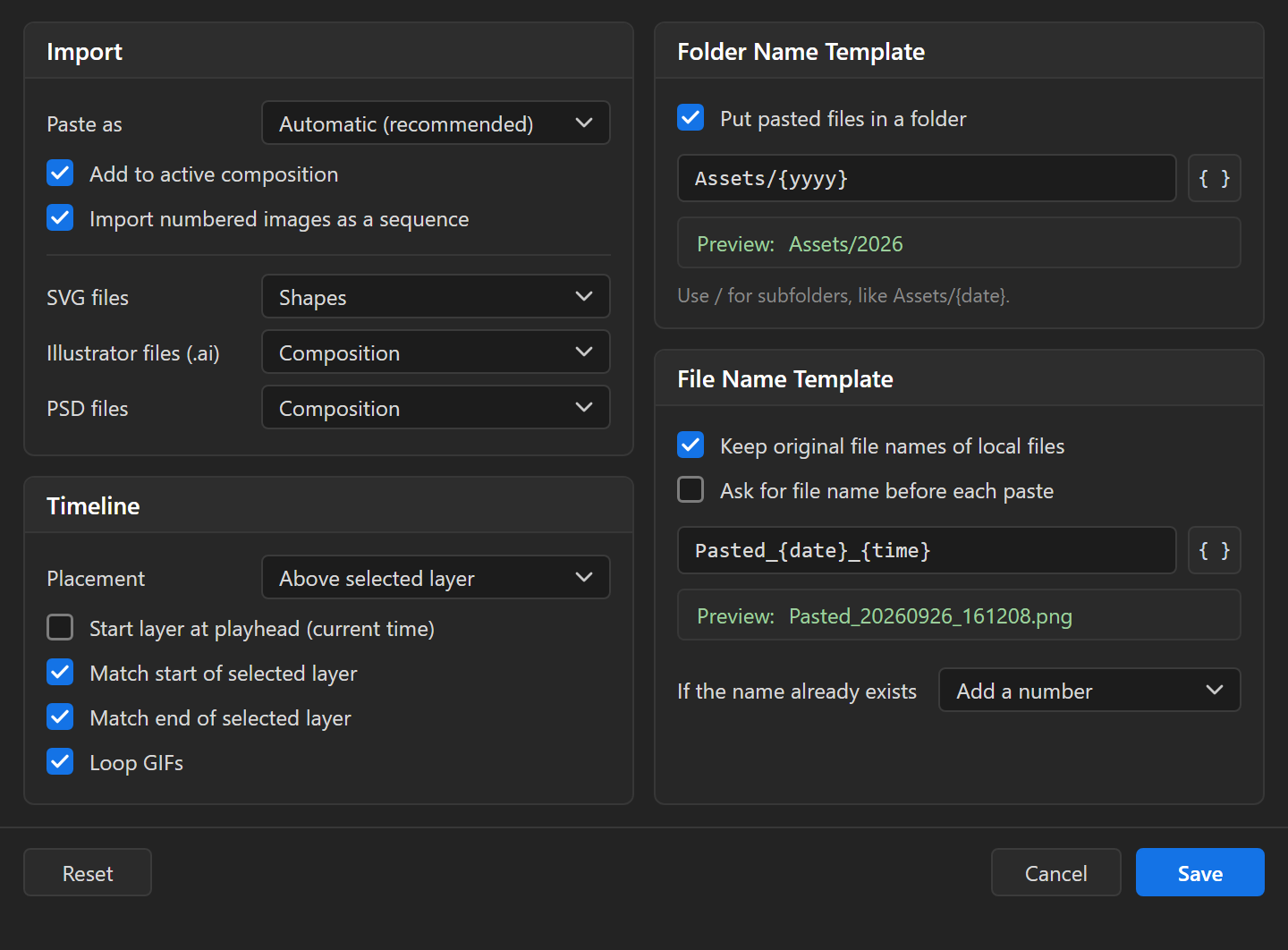
Files copied from Finder or File Explorer can include images, video, audio, PSD, Illustrator, and EPS files. Numbered frames can be imported together as an image sequence; the setting is off by default. PSD and Illustrator files can be imported as layered compositions or as footage; SVG and Illustrator artwork can also be converted to editable shape layers where supported. Animated GIFs and animated WebP files can be looped to the end of the composition or the selected layer; looping is off by default.
Automatic format selection can preserve transparency as PNG, retain the original JPG for browser photos, or save vectors as SVG. Settings can instead make pasted images use PNG, JPG, or SVG. Pasted layers can be placed at the top or bottom of the timeline, or above or below the selected layer, and their start can follow the playhead or the selected layer's start or end.
Compatibility, file access, and licensing
The listing specifies After Effects CC 2019 (16.0) or newer on Windows 10 or 11 and macOS. Importing SVG requires After Effects 2026 (26.0); on older releases the SVG is saved beside the project but cannot be imported. The listing also notes that WebP import requires a recent After Effects release. For local files, format support depends on the importer in the installed After Effects version. If file creation still fails after saving the project, the product FAQ recommends checking that Allow Scripts to Write Files and Access Network is enabled in After Effects scripting settings.
The listing uses Name Your Own Price, with $5 shown as the suggested amount. Individual buyers may pay any amount; businesses and teams must pay the suggested price for a valid license. The EULA grants one copy for one user and restricts use to one computer at a time. Multiple users or computers require the appropriate license for each user and copy.