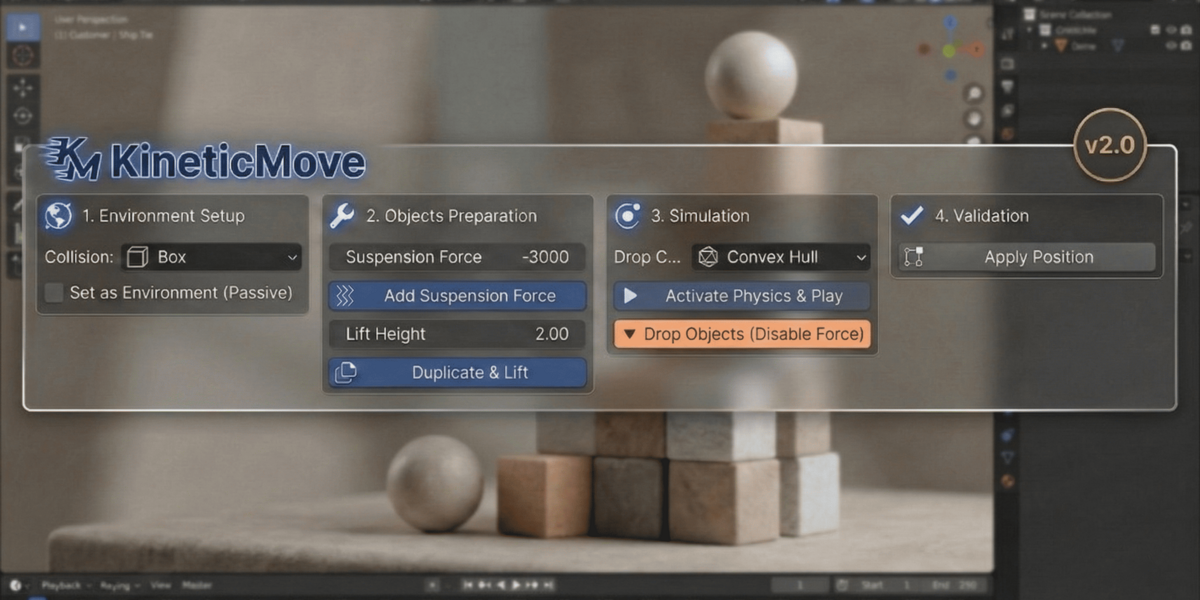
KineticMove is a Blender add-on for positioning objects with rigid body dynamics. Its controls sit in the 3D View sidebar, where you can apply collision shapes, start simulations, and adjust settings while objects interact. The workflow is aimed at physics-assisted object placement rather than manual adjustment of rigid body settings.
Collision shapes and object controls
KineticMove lists Box, Sphere, Mesh, Capsule, and Cylinder collision shapes. It can apply rigid body physics to multiple objects, duplicate and lift objects with a single click, and set an object’s origin to its geometry. These controls bring collision setup and positioning into the same Blender panel.
Arrange objects with suspension force
The product FAQ describes using a suspension force to hold objects in the air while you arrange them. Its default negative strength pulls objects toward the force field’s center. When the layout is ready, Drop Objects switches off the force so the objects fall. The panel’s suggested sequence is to mark the floor and walls as the environment, add the suspension force and lift objects, activate physics and play the simulation, then validate to bake the result. The FAQ says you can return to earlier steps as needed.
KineticMove creates a rigid body world automatically the first time you set an environment or start a simulation. The creator lists game development, animation, architectural visualization, and product design as possible uses. Superhive’s listing names Cycles, Eevee, and Octane as render engines used.
Check compatibility and see the workflow
The listed Blender compatibility details differ: the catalog record says Blender 4.0 to 5.0, Superhive’s product details list 4.0 to 5.2, and its FAQ says Blender 4.2 LTS and later, including 5.x. The product FAQ says Blender reports an incompatible version before installation. Superhive marks the add-on as Blender Extension compatible and lists a GPL license. See the product documentation, product FAQ, or tutorial video for more information.