LayerRender is an After Effects effect for exporting an intermediate stage of a composition. Add it to an adjustment layer above the layers you want included, then use that layer’s in and out points to set the output range. This suits projects where a client needs previews of intermediate work without a composition-wide render.
Set the render range and output
- Add LayerRender to an adjustment layer above the layers to render.
- Set the adjustment layer’s in and out points. Place the playhead within its active section before rendering.
- Choose an output folder and filename. The filename extension tells LayerRender which container to use.
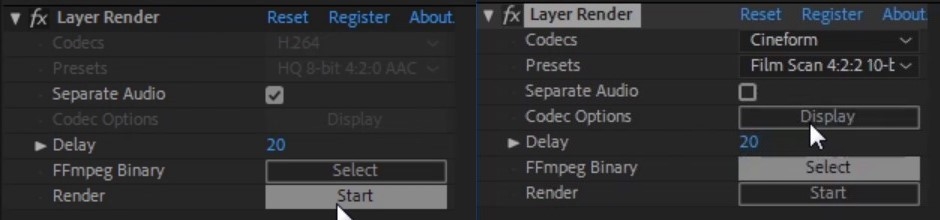
- Choose a codec and preset, then adjust codec settings through the Options window if needed. Set the composition resolution to Full before rendering.
LayerRender supports VP9, H.264, H.265, DNxHD, Cineform, and ProRes. Presets determine whether the render uses RGB or RGBA and 8-bit or 16-bit output; some include an alpha channel. The effect works with 8-, 16-, and 32-bpc compositions. The product page recommends 32-bpc and Full resolution for optimal use. Cineform and ProRes support 16- and 32-bpc only. An optional Separate Audio setting creates a companion audio file.
FFmpeg and memory requirements
If FFmpeg is not found in the system path, LayerRender downloads it automatically. You can use a custom FFmpeg installation by placing it in the system path. The product page advises reserving at least 4 GB of RAM for other applications because of FFmpeg’s memory requirements.
Trial and compatibility
The trial renders H.264 at up to 720p without a watermark. Codec, preset, and codec-option controls remain disabled until you enter a license code. The product description lists After Effects CC 2017 through 2021 as tested, with macOS 10.12 or later and Windows 7 or later. It does not confirm compatibility with newer After Effects versions.
The listed license allows one copy on one computer at a time. Additional copies or users require an appropriate license for each.