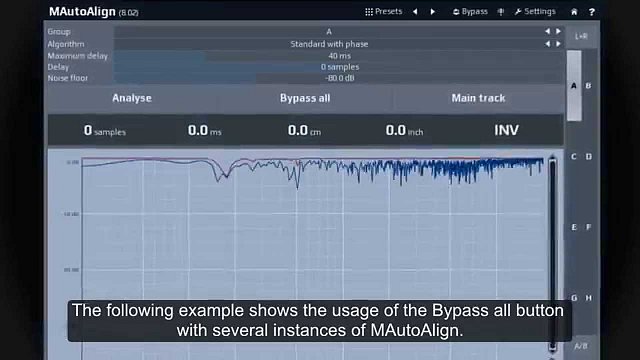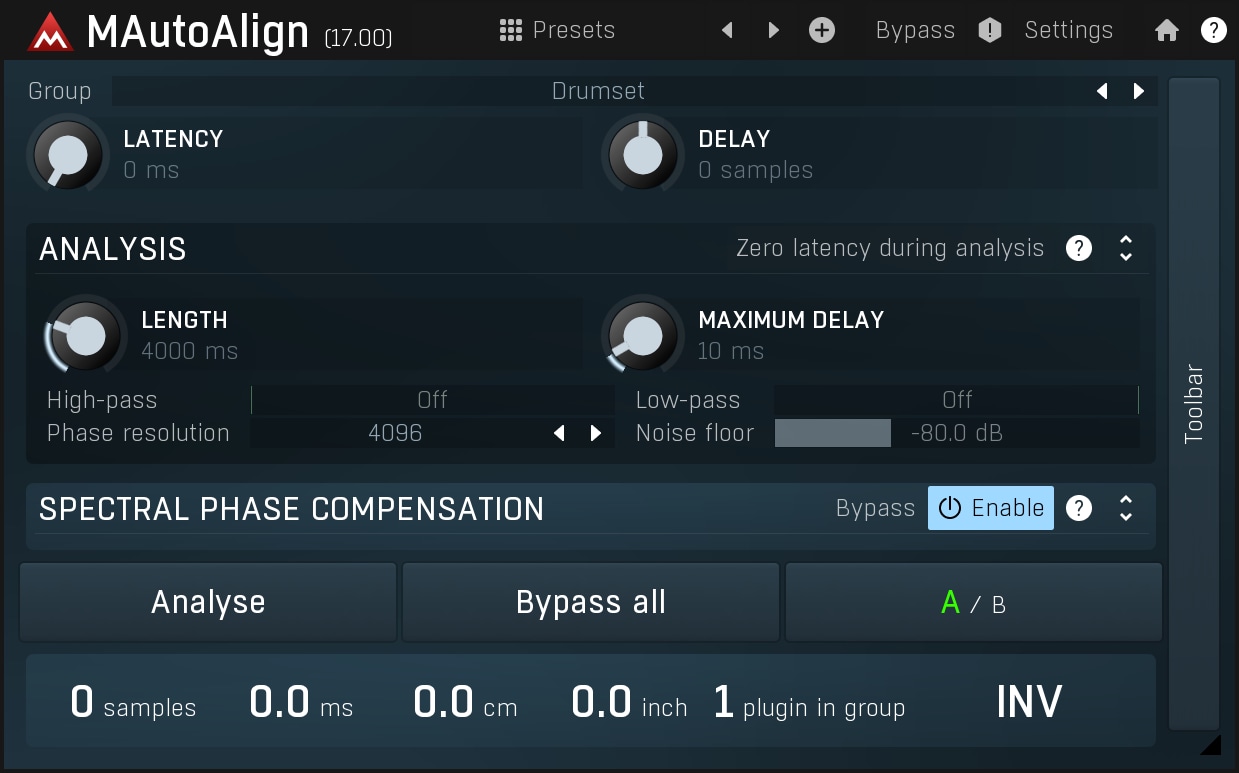
MAutoAlign is an audio plugin for aligning recordings where several microphones capture the same source. Add an instance to each track you want to align, play a representative section, then press Analyze on one instance. The plugin finds the other instances in its group and calculates track delays and polarity inversions. The setup does not require side-chain routing.
Align tracks that share a source
Tracks in the same group are analyzed together, so keep unrelated sources in separate groups. For drums, a common starting point is to group the close microphones together; if the result is unsatisfactory, try separate groups for individual drums. If overheads collide with the close-mic group, first mix the close microphones to a bus, then align the overheads with that bus. Room microphones may be worth aligning with one another if they are far enough apart. MeldaProduction's manual recommends aligning microphones on the same drum, such as snare top and bottom, together. Choose a section where every microphone is picking up the performance; a silent track is unlikely to align correctly.
The standard mode changes timing with delay and may invert polarity. It applies no filtering, so it leaves the signal otherwise unchanged. You can review the calculated delay in samples or milliseconds and adjust it manually if needed.
Optional spectral phase compensation
For frequency-dependent phase differences, MAutoAlign can analyze and apply spectral phase compensation. This can help when microphones, equipment, or earlier processing such as equalization have changed the phase, including when comparing a processed signal with its dry version.
This mode adds latency and is intended for mixing rather than live use. It works best when the phase relationship is stable, such as with close microphones and little noise or room ambience. Results can be unhelpful with unpredictable ambience, and aggressive correction may smear drum transients. Use the plugin's Bypass control to compare the compensated sound while keeping latency consistent, then trust what you hear.
Analysis and plugin-chain placement
Run analysis while the session plays a representative, reasonably loud passage. Results can vary with the material being analyzed, so try another section if the first result does not sound right. Placing MAutoAlign first in the insert chain gives it a more natural input. Placing it after processors such as an equalizer or delay lets it account for phase changes from those effects. If repeated analyses of the same passage produce erratic results, temporarily disable latency-inducing plugins; some hosts may report timing information inconsistently.
Compatibility and licensing
MeldaProduction lists Windows 10 or 11 (64-bit) with VST, VST3, or AAX hosts, and macOS 10.14 or newer (64-bit) with VST, VST3, AU, or AAX hosts. The listed processors are Intel or AMD with SSE2 on Windows, and Intel, AMD, or Apple Silicon on macOS. Linux is not directly supported, though the developer says running the plugins through Wine may be possible. Check the system requirements for host-specific notes.
MeldaProduction says activation uses licence files and requires neither a dongle nor internet access. The personal licence lets its holder use MAutoAlign on all their computers, but only that person may operate it. Check MeldaProduction's licensing terms if several people will operate the plugin.
The MAutoAlign manual covers grouping, analysis controls, spectral compensation, and troubleshooting in more detail.