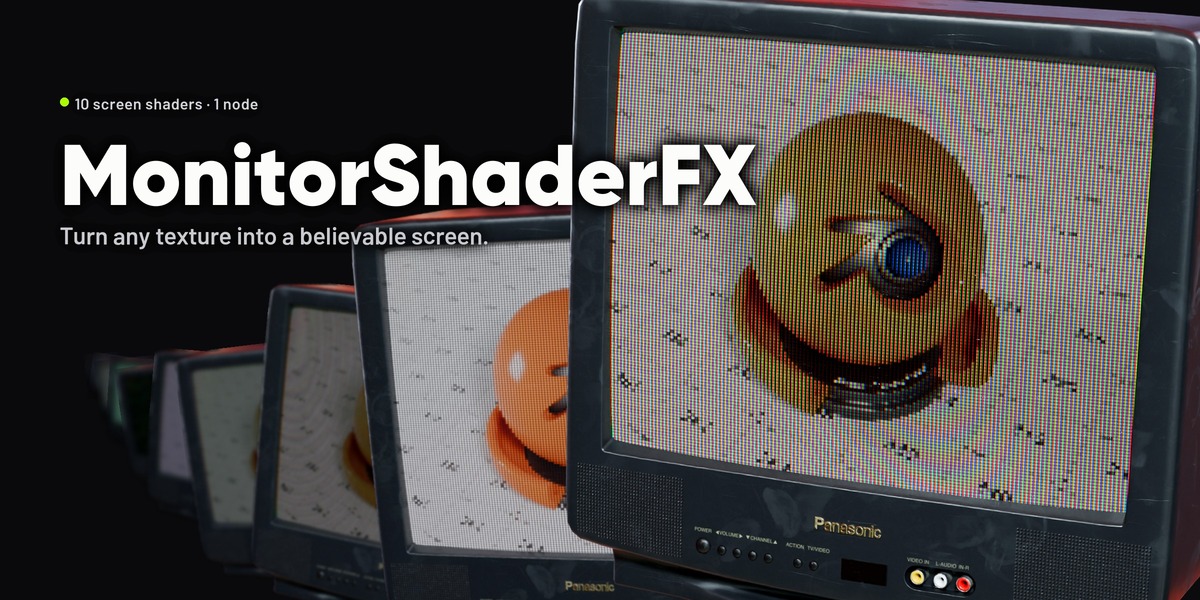
MonitorShaderFX is a procedural Blender shader that turns an image, video, or texture into one of ten display looks. A single FX Monitor node group covers CRT, LCD, OLED, Phosphor, Retro, E-Ink, Matrix, LED, Plasma, and Flip-Dot. The product documentation says each look is generated at the sub-pixel level inside the shader, and the node group works in Cycles and EEVEE.
The mode dial switches the display treatment while the same image or movie remains connected. This can suit TVs, arcade cabinets, LED billboards, and screen elements in motion-graphics work.
Ten display modes
- CRT: RGB aperture-grille stripes, scanlines, screen curvature, and bloom.
- LCD: A back-lit RGB sub-pixel grid.
- OLED: A deep-black RGB dot matrix with per-pixel emission.
- Phosphor: A green monochrome terminal look with persistence glow.
- Retro: A warm amber monochrome display.
- E-Ink: Matte, high-contrast electronic paper without glow.
- Matrix: Animated falling green glyphs.
- LED: A round LED dot-matrix or video-wall panel.
- Plasma: Fine RGB cells with a warm glow.
- Flip-Dot: A mechanical black-and-white flip-disc board.
Shader controls and the Monitor Coords helper
FX Monitor exposes controls for Pixel Gap, edge Softness, sub-pixel Grid, Scanline, Glow or bloom, Vignette, background Color, Tint, Contrast, Brightness, Emission, and image Contrast and Offset. The included Monitor Coords node group prepares the UVs before the image texture. It adds curvature, resolution snapping, cell and image aspect controls, plus scale, offset, and flip options for framing the content.
For animated looks such as Matrix rain, rolling scanlines, and CRT flicker, connect a driver to the Time input using the example expression #frame/24. Speed scales the animation rate, and Flicker adds noise.
Set up a screen material
- Open
MonitorShaderFX.blend, or add its folder as a Blender Asset Library. - Drag the FX Monitor node into a material.
- Wire Texture Coordinate → Monitor Coords → Image Texture → FX Monitor → Material Output.
- Connect an image or video, choose a Mode from 0 through 9, and adjust the screen controls.
- For an animated mode, add the Time driver described above.
The MonitorShaderFX documentation describes the node chain and controls in more detail.
Included files, compatibility, and license
The download documentation lists the MonitorShaderFX.blend file with two Asset Browser node groups, FX Monitor and Monitor Coords, filed under the Monitor FX catalog. It also includes a demo scene with ten labelled screens and a hero render rig. The marketplace details list Blender 4.2–5.2; the documentation says the shader was built in Blender 5.1 and describes compatibility from Blender 4.2 LTS onward. Check the current product listing if you use a version outside the listed range.
The listing displays “Mit” in its license field. The documentation describes use under the Superhive marketplace license for renders, animations, games, and client work, and says not to redistribute or resell the shader itself. Check the current marketplace terms before sharing a project file that contains the node group.