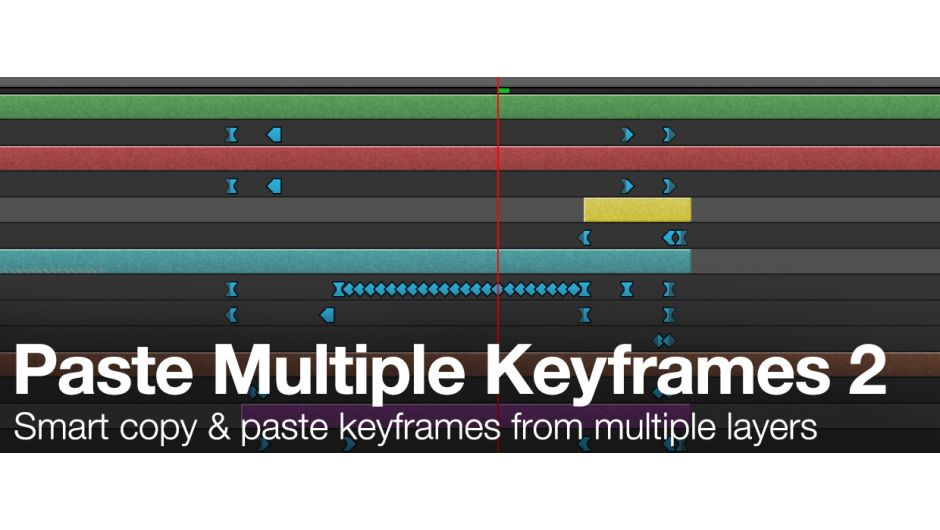
Paste Multiple Keyframes 2 is an After Effects script by Adam Katz for copying and pasting keyframes from several layers in one operation. Select the keyframes you want to reuse, move the time slider to where the first pasted keyframe should sit, then click Paste.
Copy selected keyframes across layers
Use it when an animation needs the same timing pattern on several layers.
Control looping and transferred properties
The script supports looping. Version 2.0.12 added an option to loop each property according to its own time range, so properties with different spans can repeat on their individual timing. That release also added a checkbox for copying and pasting keyframe colors. Its changelog records fixes for loop pastes beyond two repetitions and for pastes starting at the same time as an existing keyframe.
The "Do not copy" option is intended for very large sets, such as hundreds or thousands of keyframes on an individual layer. Enabling it speeds up pasting but omits easing and temporal or spatial properties. The developer gives tracking and motion-capture keyframes as examples where interpolation may not be needed. Leave the option off when those properties need to transfer. When run without an interface, the script defaults to copying all easing, temporal, and spatial properties and pasting one loop.
Choose a panel or GUI-less setup
Paste Multiple Keyframes 2 can run with an interface or without one. The developer says to install the interface version in After Effects' ScriptUI Panels folder and the GUI-less version in the Scripts folder. The no-interface setup can also be used with ft-Toolbar. See the developer's instructions for installing and running scripts for setup details.
Compatibility and limits
The developer lists compatibility with After Effects 2026, 2025, 2024, 2023, 2022, 2021, 2020, CC 2019, CC 2018, CC 2017, CC 2015.3, CC 2015, CC 2014, CC, CS6, CS5.5, CS5, and CS4. The listing identifies version 2.0.12, with a changelog entry dated December 18, 2023.
One documented limitation is support for custom keyframe values in plugins or effects. The developer names Levels Histogram and Hue/Saturation Channel Range as examples that do not work with the script. Check the developer's product page for its compatibility and option details.