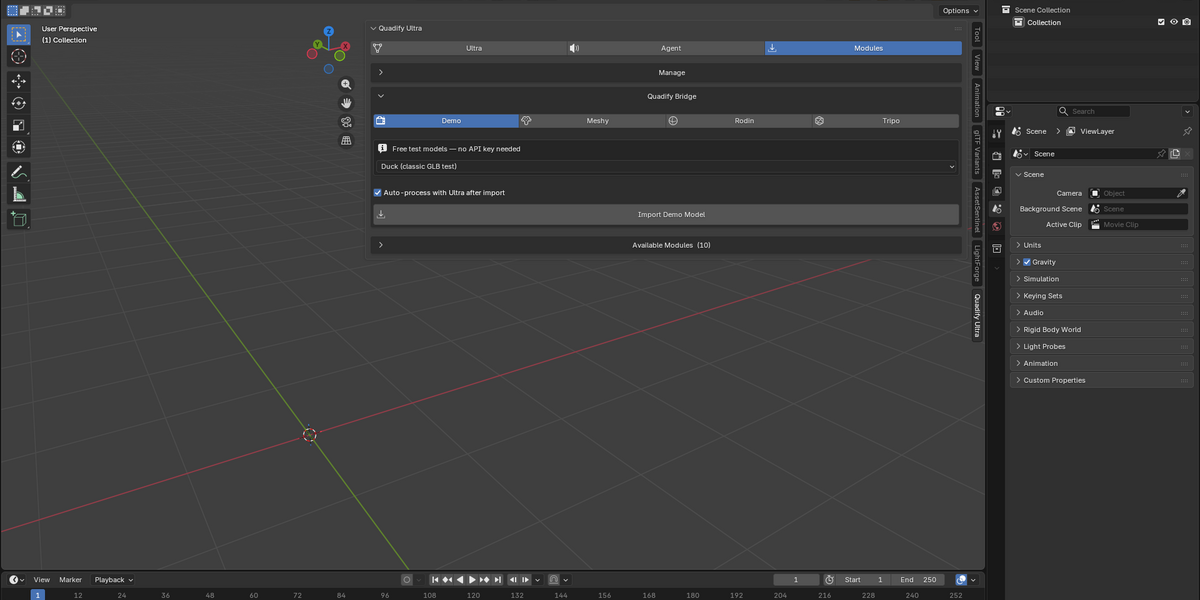
Quadify Bridge brings AI-generated meshes from Meshy, Rodin, and Tripo into Blender. Its panel can queue generation requests, import completed results in the background, set up materials, organize objects, and export meshes. Quadify Ultra can add automatic topology processing; the product listing calls its integration optional, while version 1.0.0 documentation requires Ultra 1.3.0 or later to install Bridge.
Generate and import meshes
The product overview describes a queue for text or image prompts to Meshy or Tripo. Bridge polls for completed results and imports them as they finish. You can also browse generation history from Meshy, Rodin, and Tripo, then download a selected result without leaving Blender. For Meshy image-to-3D requests, use a JPG or PNG file.
The Superhive listing's feature section describes prompt submission to Meshy or Tripo, but its Requirements section requires a free or paid Meshy account for text and image generation and Rodin or Tripo accounts for imports. The account requirements for Tripo generation remain unclear; confirm them with Anvil Interactive Solutions before relying on that option.
Organize meshes and materials
On import, Bridge detects albedo, normal, roughness, and metallic maps and connects them to Blender material nodes. It names each mesh from the prompt, places it in a named collection, and can normalize it to a target bounding-box size. Variation Compare lays out several results from one prompt side by side, with spacing and a maximum variant count you can adjust.
The panel can export selected meshes as FBX, GLB, or OBJ. You can set an output folder once, then export from the same panel.
Optional cleanup with Quadify Ultra
Bridge imports raw meshes when Ultra processing is off. With Quadify Ultra installed, its Smart Convert step routes the mesh through Ultra's topology pipeline to produce quad-dominant topology. A Quality Pass checks quad coverage and flags remaining issues. The Auto-process toggle controls whether this processing runs on import.
Automation and connected tools
The product overview advertises a built-in MCP server with eight tools for operations such as importing, generating, listing history, remeshing, validating topology, and sending a mesh to Unreal Engine. It names Claude Desktop, Cursor, and custom MCP-compatible clients. The overview also describes a Meshy webhook listener and transfer to Unreal Engine 5 through the Quadify Suite receiver.
Version 1.0.0 of the Superhive documentation places the Unreal Engine 5 connection in Phase 3 of the roadmap, while the current product listing describes the transfer as available. Anvil's current Quadify site says its Bridge Receiver accepts transfers from the Quadify Bridge Blender add-on over a local named pipe. Confirm compatible Bridge and Receiver releases with Anvil before relying on the transfer.
Requirements and setup notes
The Superhive product page specifies Blender 5.0 or later and supports Windows, macOS, and Linux; its Details metadata lists Blender 5.0 to 5.1. Confirm compatibility if you use a later release. The Superhive documentation, version 1.0.0, requires Quadify Ultra 1.3.0 or later and directs installation through Ultra's Modules tab; the product listing says Bridge can also run standalone. These publisher sources disagree, so check the current documentation and FAQ for the supported installation path; confirm with Anvil Interactive Solutions whether Bridge runs standalone before choosing a setup.
Demo mode includes six Khronos sample models and does not need a provider account or API key. For provider use, the documentation says keys are stored in Blender's user directory and sent only to the provider's own API. Very large meshes, over 100 MB, may time out on slow connections.
AnyPlugins marks its catalog entry as free. The supplied Superhive product details list an MIT license but do not show a price, so verify current download and licensing terms on the publisher listing.