Rigflow is a Blender add-on by AlbertoFX for creating armatures by drawing bone paths in the viewport. Its Draw Mode turns a free-form stroke into a segmented chain, while Extrude Mode creates bones one at a time. This approach suits organic forms such as limbs, spines and tails. The Superhive product listing describes the add-on's features and license; its documentation explains the basic workflow.
Draw or extrude bone paths
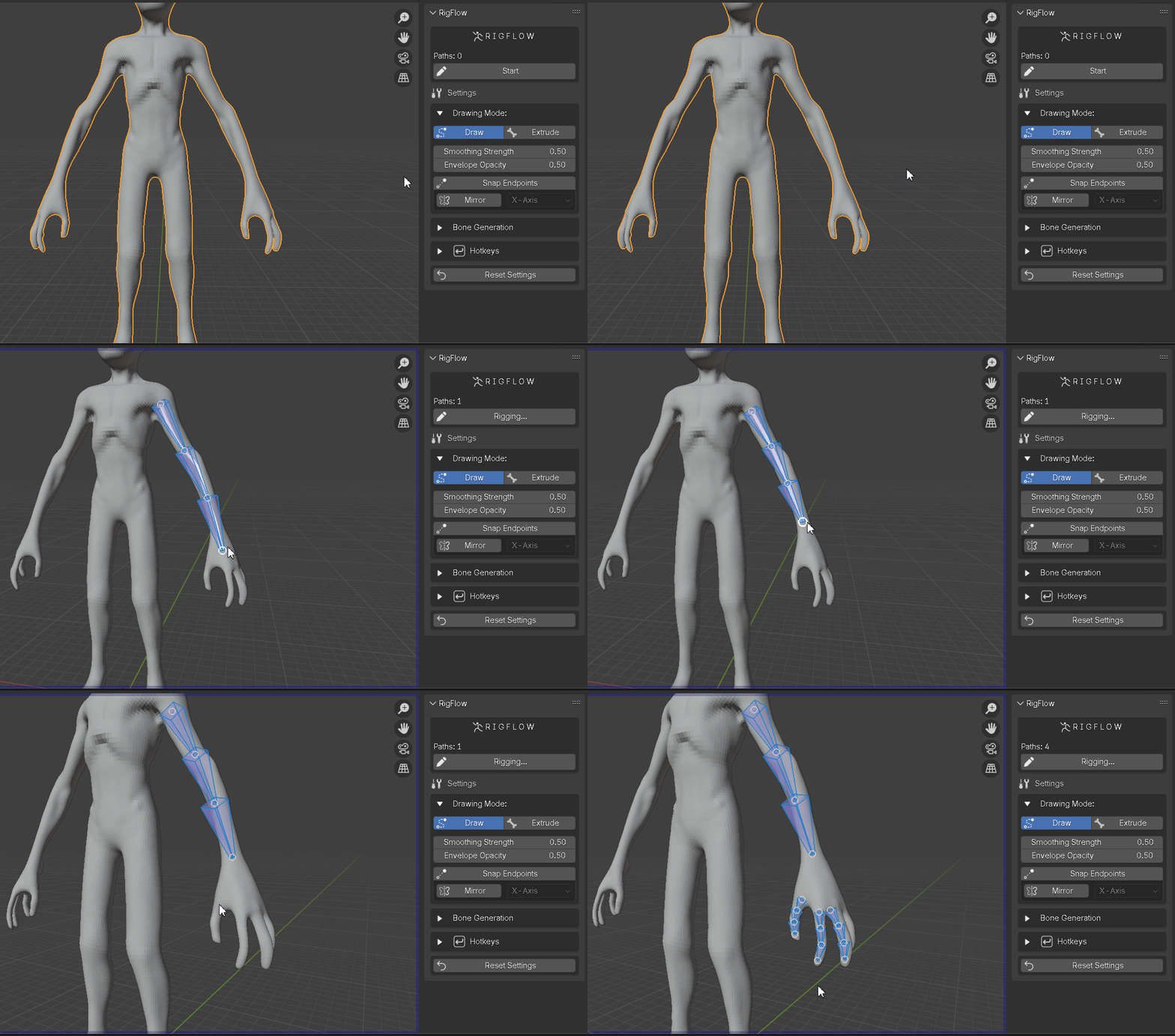
In Draw Mode, sketch a path to create a chain, then use Bone Segments to set how many bones it contains. Smoothing Strength controls how much smoothing is applied to a freehand path. Extrude Mode gives you more direct control by creating each bone with a click and drag.
While drawing, Rigflow provides a live view of the bone structure and its volume envelopes. You can adjust envelope opacity, then drag joint handles, including intermediate joints, to refine placement. Mirror Mode duplicates paths across the X, Y or Z axis, which can help when building symmetrical character rigs.
Join paths and generate an armature
Path snapping can connect endpoints to existing bone paths. Auto-Connect parents bones whose heads and tails meet, allowing separate paths to form a connected hierarchy. When the layout is ready, Generate Bones creates an armature and connects the bones. The generated armature is named RigBoneArmature.
- Select the mesh you want to rig, open the Rigflow panel in the 3D View sidebar, and click Start.
- Hold Ctrl while left-clicking and dragging on the mesh to draw a path.
- Release Ctrl, then drag the joint handles to adjust the path.
- Click Generate Bones. If Auto-Parent with Weights is enabled, Rigflow parents the active mesh to the new armature using automatic weights.
The workflow includes Undo with Ctrl+Z and a Clear All function. You can adjust smoothing, snap distance, mirror axis and bone count.
Version and license details
The Superhive listing identifies Blender 5.1, while the AnyPlugins summary says Blender 4.3 to 4.4. These supplied sources disagree, and the documentation does not resolve the supported range. Check with AlbertoFX before relying on compatibility with a particular Blender release. Superhive lists the add-on under the GPL license; review the license details for your intended use.