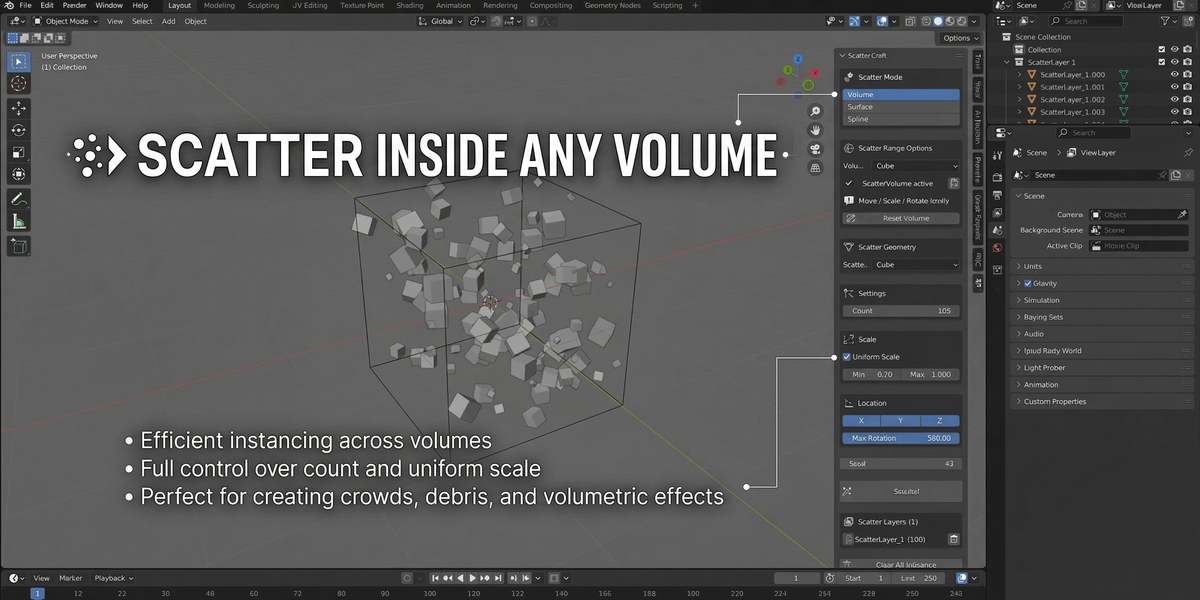
ScatterCraft is a Blender add-on for placing objects through volume, surface, and spline scattering. Use a volume to fill a defined region, a surface to distribute objects across a mesh, or a spline to arrange them along a curve. Each scatter is saved as its own named layer.
Choose a scatter mode
In Volume mode, choose a cube, sphere, or custom mesh as the scatter region. For a cube or sphere, use Set Scatter Range to add a wireframe volume, then move, scale, or rotate it to position the region. A custom mesh from the scene can define a region with a different shape.
Surface mode places objects on a selected mesh. Set an offset if objects clip into the surface, and enable Align to Normal to orient them to the mesh. This is useful for distributing items such as rocks across terrain or leaves along a branch.
Spline mode arranges objects along a curve or Bezier spline. Radius controls how far from the spline objects can land, while Min Spacing sets the gap between objects along it. Turn on Live mode to update the scatter as you edit the curve. When the arrangement is ready, freeze it into a new layer.
Set geometry and variation
Choose default cubes or spheres as the scatter geometry, or select a custom object from the scene. Count sets how many objects to place. Scale Min and Max define a random scale range, and Uniform Scale keeps the axes matched. You can enable random rotation by axis and set the maximum rotation for each enabled axis. Changing the seed produces a different arrangement with the same settings.
The documentation recommends keeping Count low while positioning a volume, then increasing it for the final scatter. A low count also helps keep Live spline updates responsive while editing.
Manage scatter layers
Each time you use Scatter, ScatterCraft creates a named layer. Lock a layer to protect it from deletion, or delete an unlocked layer with its trash control. Clear All Unfrozen removes all unlocked layers at once. Freezing a live spline scatter makes it a permanent layer.
Compatibility and installation
The product listing gives a Blender compatibility range of 4.2 through 5.1, marks the add-on as Blender Extension compatible, and lists Cycles and Eevee as supported render engines. It identifies the license as GPL. To install it, download the ZIP, open Blender's Edit > Preferences > Add-ons panel, choose Install, select the ZIP, and enable ScatterCraft. In the 3D Viewport, press N and open the SC tab.
Sources: ScatterCraft product listing and ScatterCraft documentation.