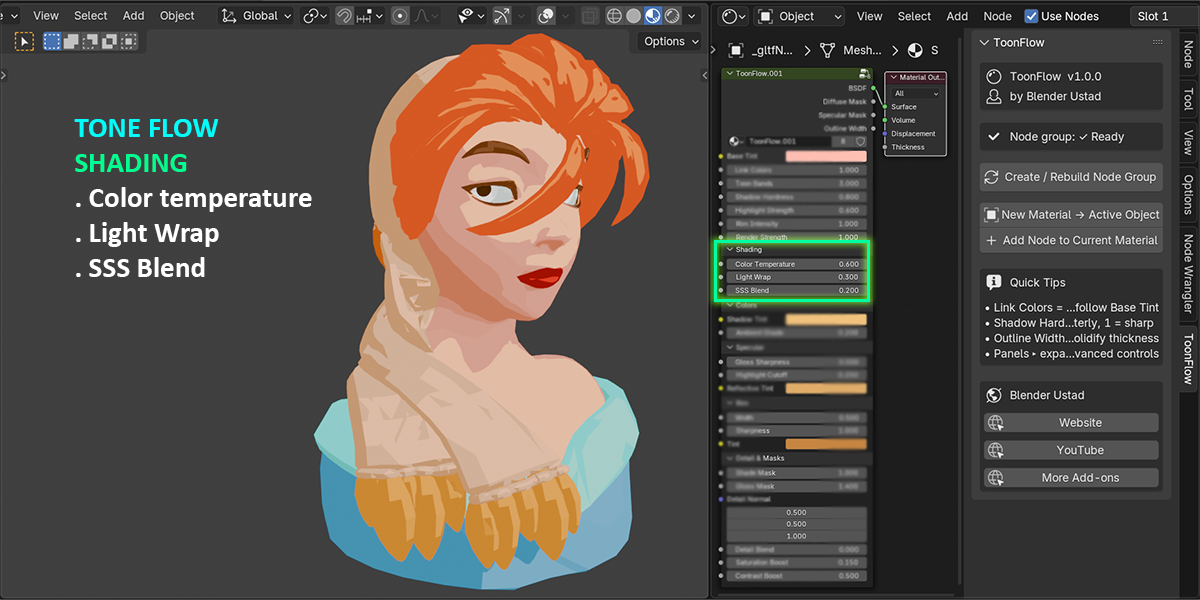
ToonFlow is a Blender add-on by blenderustad that builds a reusable node group for non-photorealistic (NPR) shading. Its controls cover stepped color bands, shadow edges, highlights and rim lighting. The group can be used across materials and objects in a scene.
Choose an engine for the toon look
ToonFlow works with EEVEE and Cycles, but they do not produce the same banded result. The documentation says the Shader-to-RGB node used for toon banding gives the stylized effect in EEVEE. In Cycles, the shader renders an emission-based result without the banded shading. Use EEVEE when you need the full stepped toon look; it also provides the real-time preview.
Adjust the shading and outlines
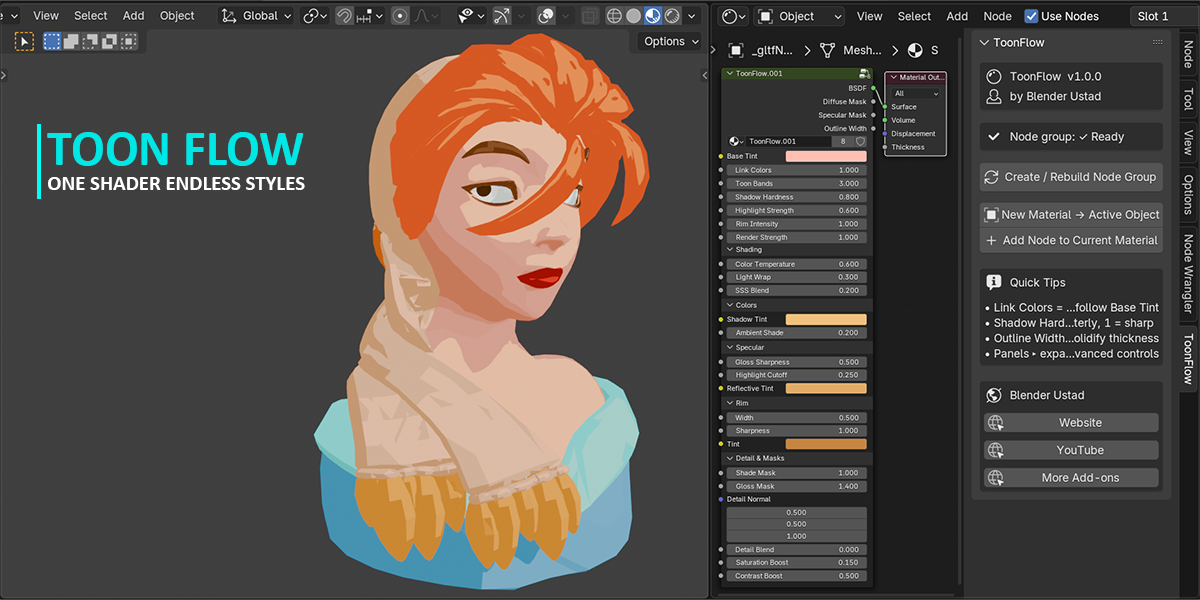
Seven main controls cover the basic look: Base Tint sets the surface color; Link Colors makes the shadow, rim and ambient tints follow it; Toon Bands selects 1 to 8 shading steps; and Shadow Hardness adjusts the edge from soft to sharp. Highlight Strength controls the GGX-based highlights, Rim Intensity adjusts edge lighting, and Render Strength fades the shader's opacity.
Five collapsible panels hold more controls. They include Color Temperature, Light Wrap and SSS Blend, plus Shadow Tint and Ambient Shade. The specular and rim controls adjust gloss sharpness, highlight cutoff, rim width, sharpness and tint. Shade and Gloss masks can be texture-driven, while Detail Normal and Detail Blend add surface detail. Saturation and contrast boosts provide further color adjustment.
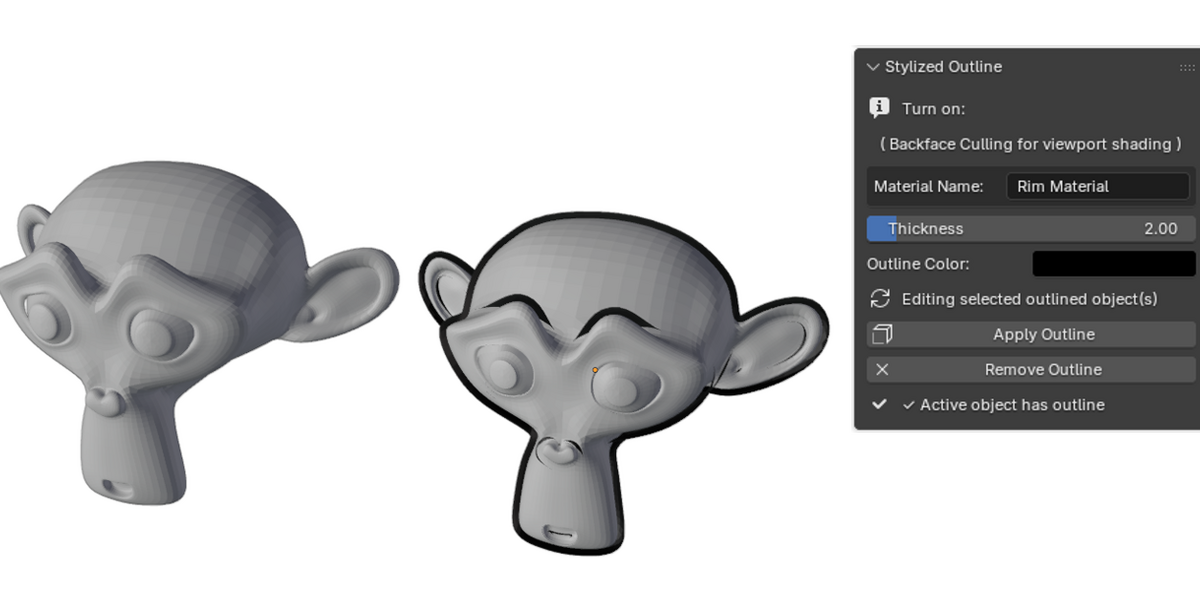
The three outputs serve different parts of a material setup. Connect BSDF to the Material Output surface. Diffuse Mask can drive texture masks or custom effects. Outline Width can feed a Solidify modifier's thickness through a Geometry Nodes attribute; it follows the inverse of the toon factor, making outlines thicker in shadow and thinner in lit areas.
Install and create a material
- Download the add-on archive from the Superhive product listing.
- In Blender, open Edit > Preferences > Add-ons > Install, choose the archive and enable ToonFlow.
- In the Shader Editor, press N, open the ToonFlow tab and click Create / Rebuild Node Group.
- Choose New Material > Active Object for a new setup, or Add Node to Current Material to add ToonFlow to an existing material. Connect BSDF to the Material Output surface.
Read the product documentation for the full setup details. Before installing, check the version information: its requirements section says Blender 3.6 LTS or newer, while the listing's separate Blender Version field says 3.1–5.2. The published details differ, so confirm support for your exact Blender release with the creator.
Note before rebuilding
Rebuilding replaces the existing node group with a fresh one. Materials remain linked to it, but custom input values reset to their defaults. Record settings you want to keep before clicking Create / Rebuild Node Group. The product FAQs also explain shared node-group behavior across materials and objects.