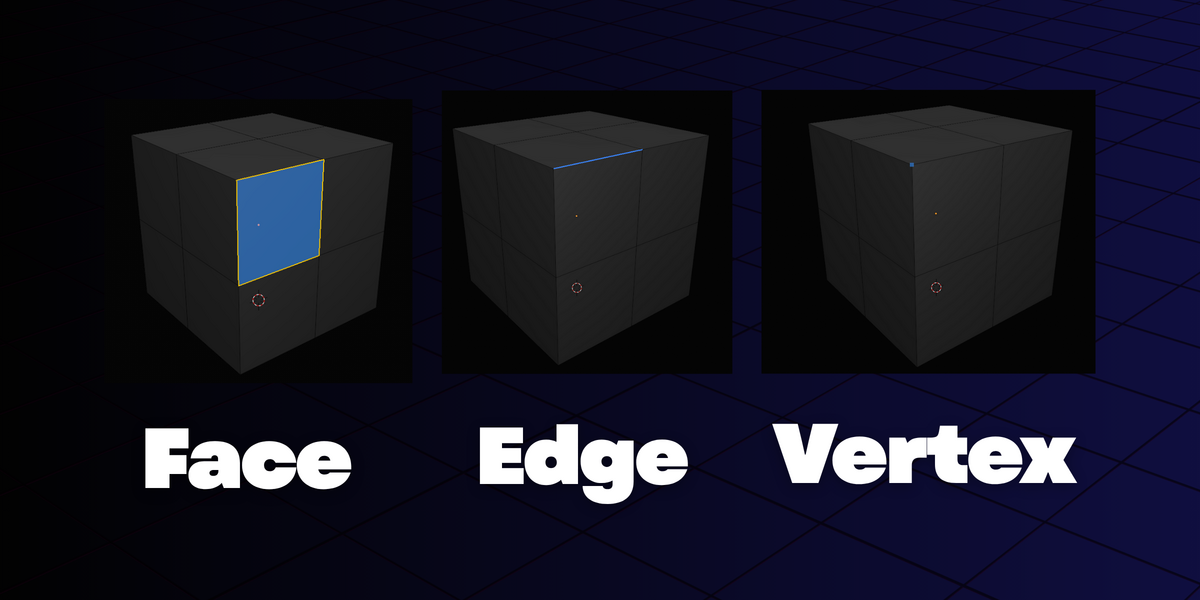
Updated! Lazy Select is a Blender add-on for selecting mesh elements in Edit Mode without switching between vertex, edge and face modes. Activate it from Vertex Select Mode with Alt+Q. As you hover, a blue highlight previews the vertex, edge or face under the pointer; click to select it.
Use Lazy Select in Edit Mode
- Enter Edit Mode and choose Vertex Select Mode.
- Press Alt+Q to activate Lazy Select.
- Hover over the mesh to preview the element, then left-click to select it.
- Press Esc to deactivate the tool.
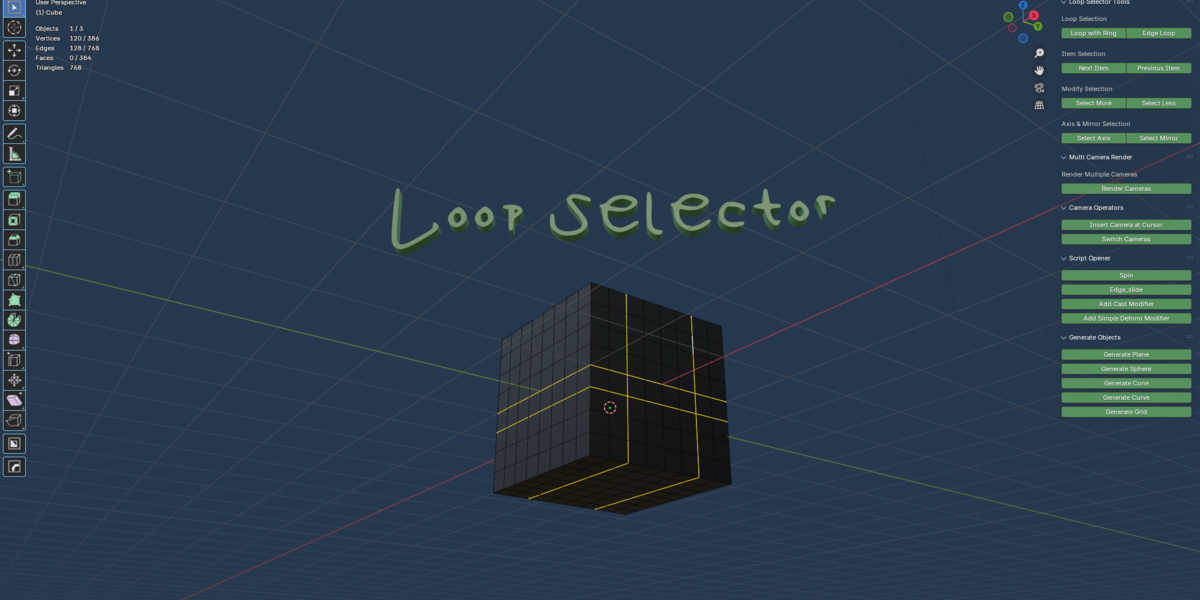
Shift+click selects multiple elements. Double-click selects edge loops, and Alt+click selects face loops. The V1.1 update added Esc as the exit shortcut and parallel loop selection, which reduces the last-edge selection case from at least four clicks in default Blender to two with Lazy Select.
Save selections and work with dense meshes
Selection Bookmarks let you save and restore face, edge or vertex selections from the N-Panel under Lazy Select. Bookmark a selection, restore it with the play icon, or rename and delete bookmarks. The add-on also supports moving and extending selections.
The latest Superhive listing says Lazy Select works with Bevel and Subdivision Surface modifiers, skips hidden faces, and handles dense meshes. When the tool is inactive, Blender shortcuts work normally.
What changed in V1.1.1
The current Superhive listing identifies V1.1.1 as the latest release and says it was updated in October 2026. Its notes describe easier vertex picking near corners, picking vertices and edges from just outside a mesh edge, and fixes for loop and ring selection on Blender 5.1 and 5.2. The listing also says Lazy Select is now a Blender Extension that can be installed and updated through Superhive in Blender. See the selection shortcuts and bookmark instructions for details.