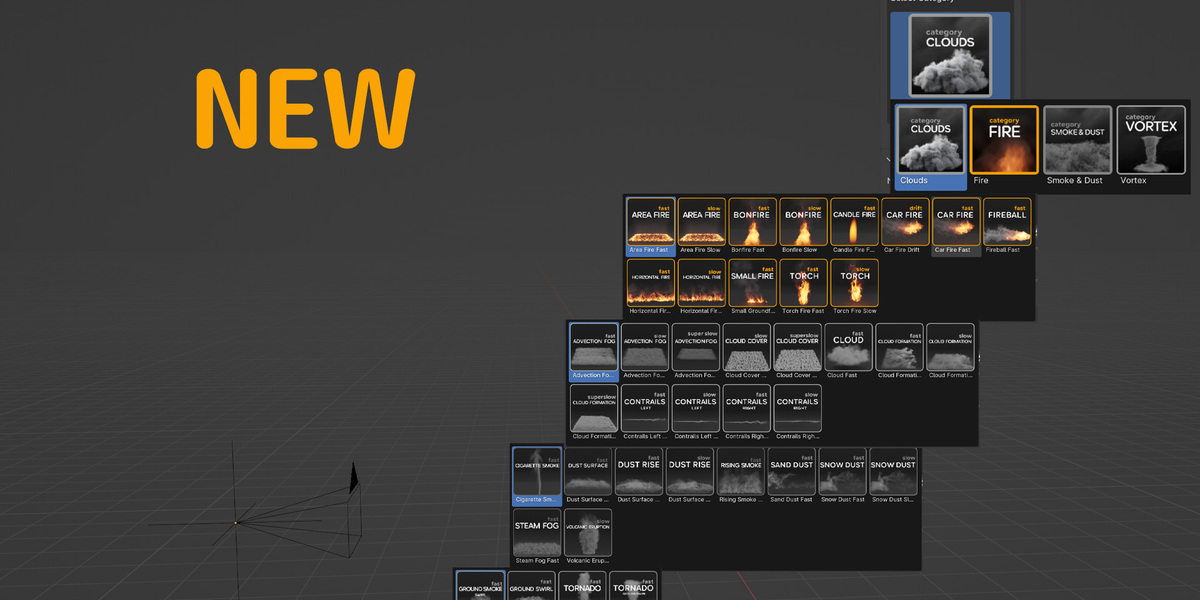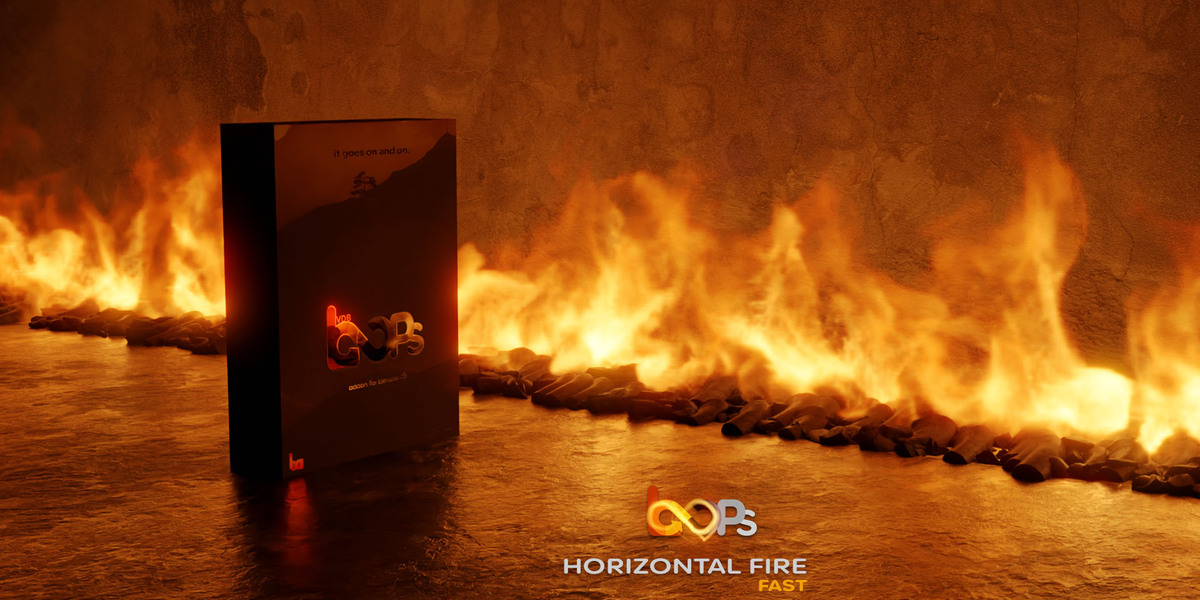
VDB Loops is a Blender add-on by Besa_Art for adding loopable VDB sequences to a scene. A sequence can end before a longer animation does; the add-on provides a categorized gallery and looping controls to fit sequences to the animation length. The gallery includes smoke, fire, clouds, and fog in different time ranges. View the Superhive product details.
What the add-on includes
The add-on keeps its shader and loop shader in the panel, so you do not need to open a separate workspace window. You can add multiple sequences and see the total frame count. The product listing says moving or scaling a sequence leaves its loop function unchanged, and describes loading as fast with smooth transitions.
AnyPlugins lists VDB Loops as free. The Superhive listing identifies the license as GPL. Check the product page for current availability and pack options.
Install and add a loop
- In Blender, open Edit > Preferences > Add-ons, choose Install, and select the add-on ZIP. Search for VDB Loops, enable it, then save preferences.
- Unzip the VDB pack into its own folder, keeping that folder free of other files. In the add-on, select the folder where you placed the pack.
- Choose a VDB sequence and click Add Loop.
- Before adding another loop, set the timeline marker to frame 1. Set the scale and position first so those transformations apply to the new loop. The product documentation notes that another start frame will start the loop elsewhere.
If you add an unwanted loop, Delete removes the last one added.
Compatibility, storage, and rendering
The Superhive listing reports Blender versions 2.82 through 4.5 and names Cycles and Eevee as supported render engines. Confirm the current listing if you use a different Blender version.
Allow enough disk space for your chosen pack: the listing gives 32 GB for the Light Pack, 50 GB for Pack Vol. 2, and 96 GB for Pack Vol. 3. Rendering VDB sequences can take time. The listing says performance varies with CPU or GPU power and that a modern graphics card using GPU computing will generally render faster.