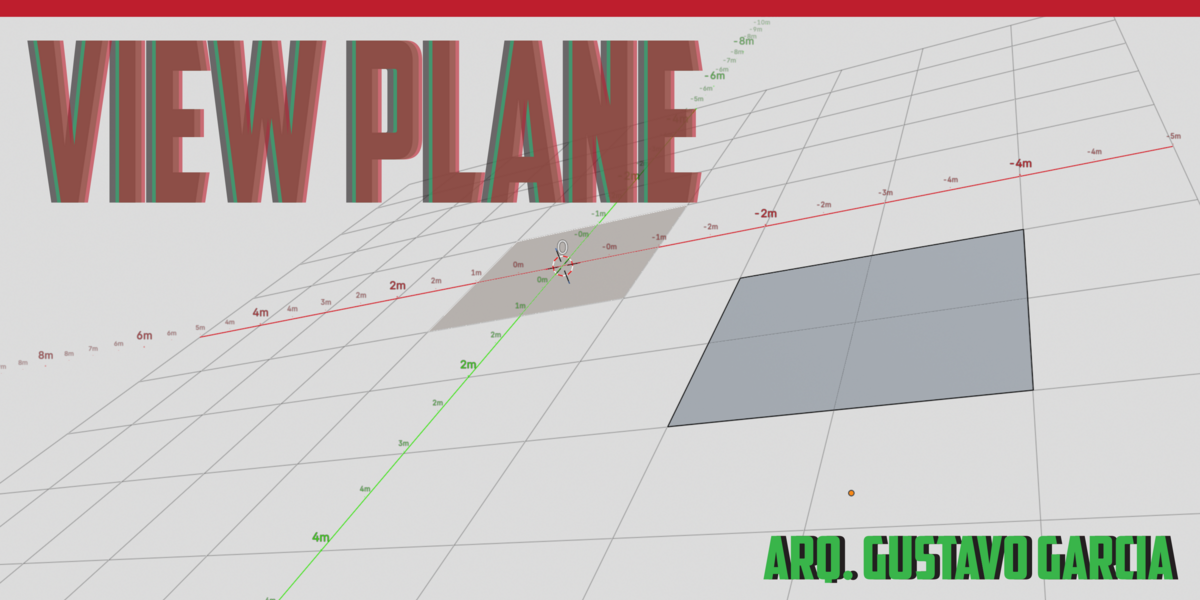
Viewport Plane is a Blender add-on for modeling with a work plane that adapts to selected geometry. Its WPlane system aligns to a face, edge, or vertex, while optional movement constraints and axis guides help orient edits. You can also create primitives directly on the active work plane.
Set a work plane from the selection
After selecting a face, edge, or vertex, WPlane aligns to that element. Red and green guides mark the X and Y axes. Movement constraints can be turned on or off, and primitives created on the plane start in its orientation. Its real-time grid displays distances in world units and synchronizes with the scene's unit system.
Model with live symmetry
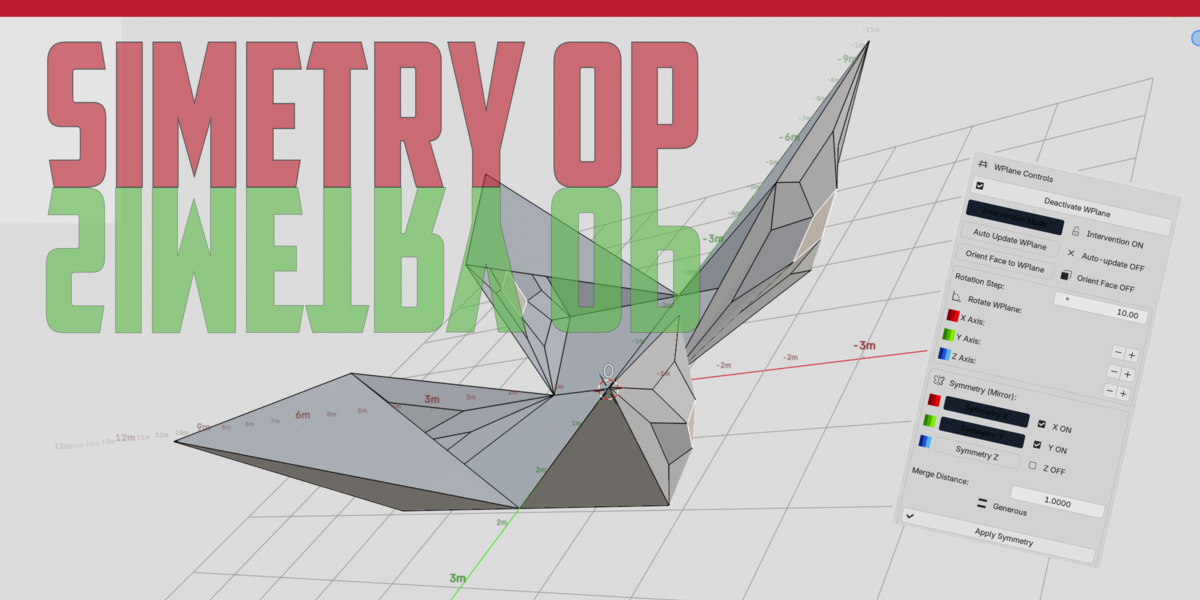
Viewport Plane mirrors geometry across the X, Y, or Z axis relative to the work plane. The reflection updates as you extrude, scale, or move geometry. An adjustable blending control sets the join tolerance, and you can apply the symmetry to make it permanent mesh geometry.
Align and rotate the viewport
View Face Ortho aligns the viewport orthogonally to a selected face and provides distance control. You can rotate around the selection in customizable steps, with 15, 45, and 90 degrees listed as examples. The documentation also describes saving viewport positions as 3D bookmarks and switching between orthographic and perspective views.
Shortcuts include:
Ctrl+Wfor WPlane controls,Alt+Wfor quick view tools, andShift+Ctrl+Wfor the master menu.Ctrl+Numpad 4,6,8, and2to rotate the view left, right, up, and down.Ctrl+Numpad 5for a front view of the face,Ctrl+Numpad 0for a rear view, andCtrl+Shift+Numpad 5for a custom angle dialog.
Create geometry on the plane
Primitives can be created directly on the work plane. The add-on provides 12 basic mesh types and five Bezier and NURBS curve types for creation in object or edit mode. See the Viewport Plane documentation for its installation directions and details about the available tools.
Who may find it useful
Viewport Plane's work planes, symmetry, and view controls suit modeling tasks in architectural and interior design, product and industrial design, 3D and game art, CAD, and 3D printing. They help when a task involves aligning geometry to a selected surface, building symmetrical forms, or changing the view around a selection.
Check Blender compatibility
The Superhive product listing shows Blender versions 4.2 to 5.0, while the documentation introduction says Blender 3.0 or higher. These published details differ, so check the current listing or ask the developer which version is supported before installing.