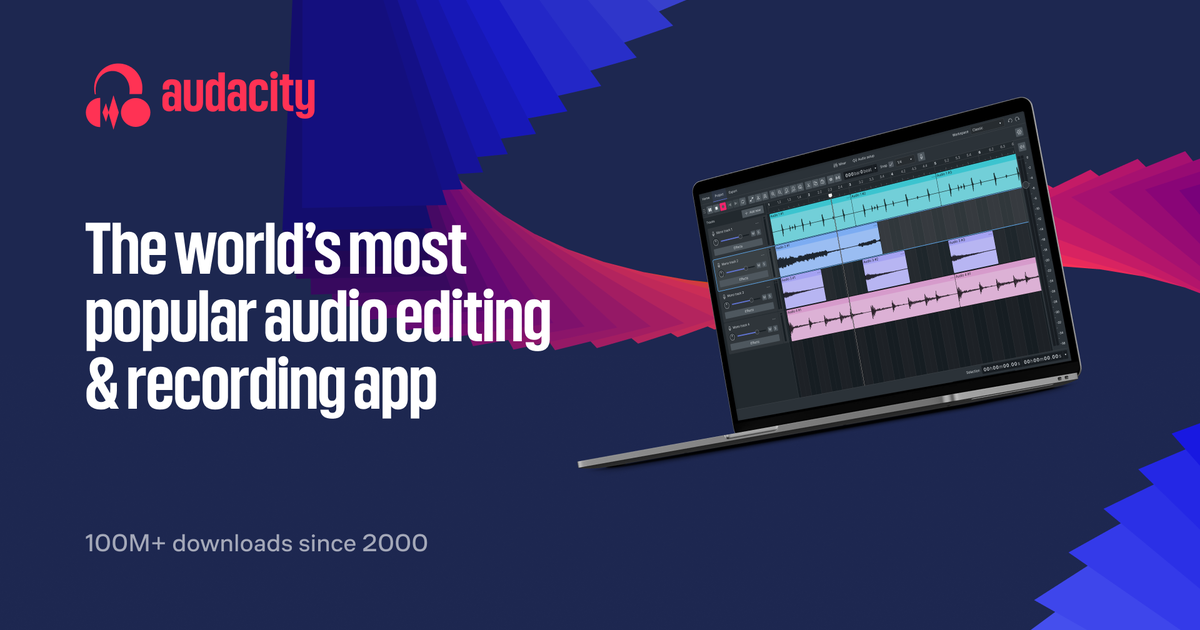
Audacity is a free, open-source desktop recorder and editor for Windows, macOS and Linux. It suits people who need to record from a microphone or mixer, edit spoken audio, work on music clips, or export files in common formats. Audacity is licensed under the GNU General Public License; see the license for its terms.
Record and edit clips
Audacity organizes recorded or imported audio as clips on tracks. You can split a clip at a mistake, trim its edges, silence a selected passage, or move and arrange clips. Trimming hides audio so you can extend the clip again later. When deleting a passage, choose whether to leave silence and preserve timing across tracks or close the gap so the later audio moves earlier. Clip gain points can shape fades or lower music beneath speech, which is useful for podcast edits.
For a first recording, connect a microphone, check the input level, record a take, then listen back before editing. The getting-started guide covers recording, basic edits, saving a project and exporting audio.
Effects, formats and analysis
Audacity includes noise-reduction tools, tempo and pitch changes, equalizers, filters and effects such as reverb. Spectrogram view displays frequency information, and Vamp analyzers can be used for scientific audio analysis. You can import, export and convert common formats such as MP3, M4A, AIFF, FLAC and WAV, including combining clips from different formats in one project.
Some formats, including M4A and WMA, require FFmpeg installed separately. The Audacity manual explains the setup and notes that FFmpeg compatibility depends on the versions in use. Read the FFmpeg installation guide before relying on those formats.
Compatibility and tradeoffs
Audacity has some DAW capabilities but lacks MIDI editing and virtual instruments. That distinction matters if your music workflow depends on composing with MIDI or built-in instruments. The official FAQ lists Audacity 4 plug-in support: VST3 and Nyquist on all supported platforms, LV2 on Linux, and Audio Unit on macOS.
You can save an editable .aup4 project locally or use optional cloud saving and sharing through Audio.com. Extra cloud storage may cost money. If you upload a project you created on your own, you retain its intellectual property, while granting Audio.com a license to host and display it. Review the Audio.com terms before sharing work there.
Audacity is available through the official download page, with a direct download option as well as MuseHub. MuseHub also provides a free selection of sounds, loops and effects for Audacity projects.