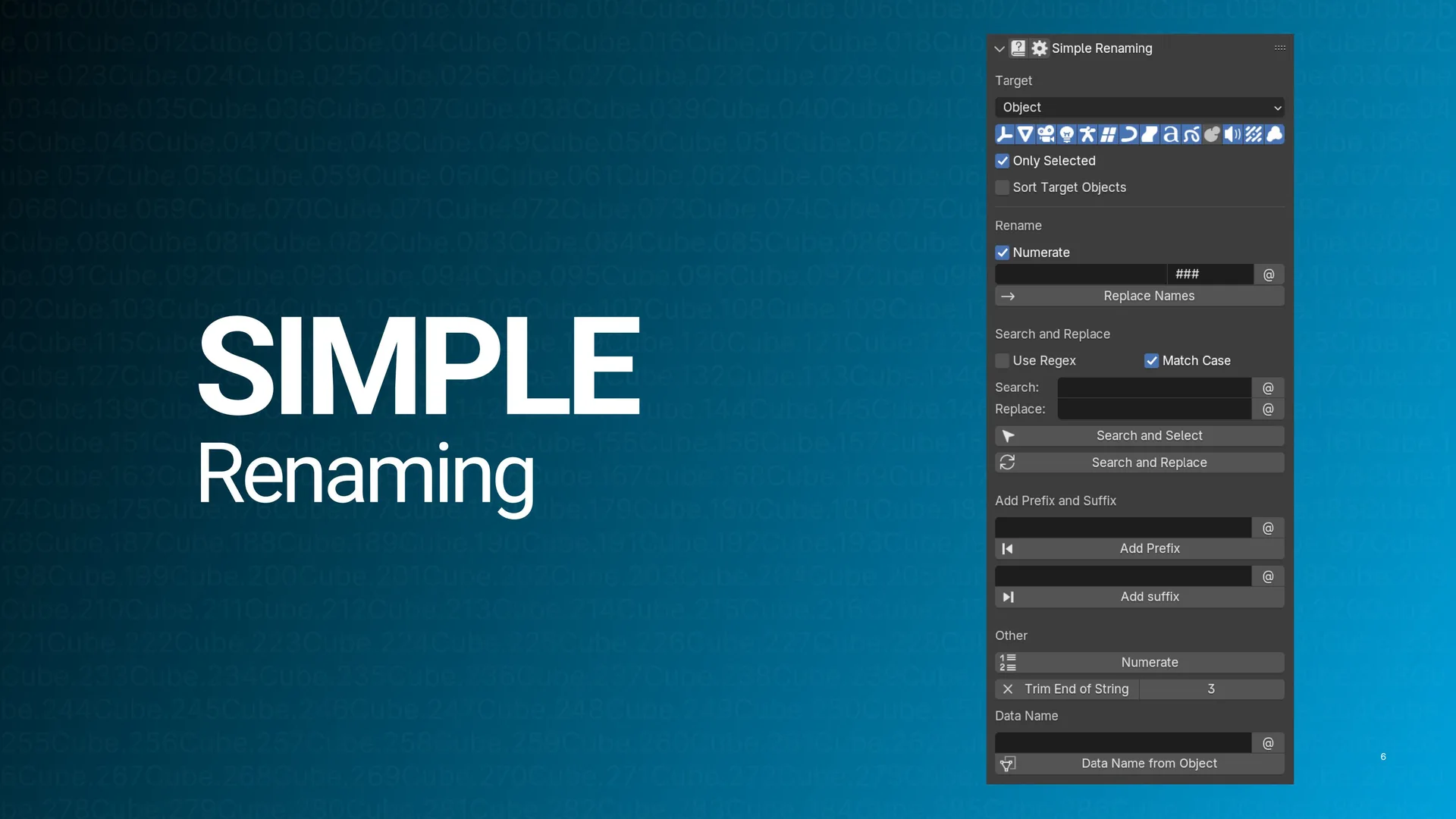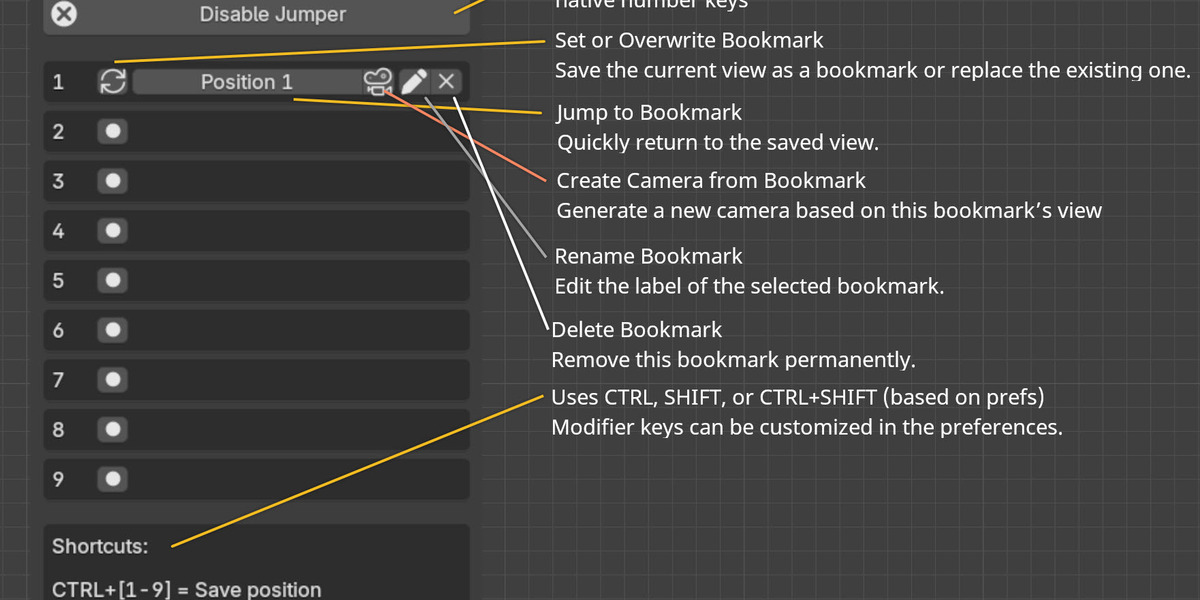
Advanced Renamer is a Blender add-on for renaming multiple objects with control over their order and name format. It works only in Object Mode and includes standard renaming, find and replace, insert text, and presets for saving configurations.
The Superhive listing gives compatibility as Blender 4.0 to 5.1. Check the product listing for current compatibility details before installing.
Choose how to change object names
Standard Rename builds names from a base name, prefix and suffix, numbering, an optional alphabet suffix, and a custom separator. You can set number padding, choose zero or a custom starting value, and place numbering at a chosen position in the name.
Find and Replace changes specific text in object names. Insert Text adds text at a chosen position, with an option to wrap it in separators. Formatting controls can convert names to uppercase or replace spaces with underscores.
Set a custom renaming order
To control numbering order, choose Start Picking Order, then click objects in sequence in the viewport. Press the right mouse button or Enter to finish, or Esc to cancel. The click order resets when you restart the tool, so set it again for each new picking session.
Save configurations as presets
Scene presets are stored in the current Blender project and suit project-specific naming setups. Global presets are kept in Blender’s user configuration directory, so they are available across projects. You can save, load, and delete presets.
Install and open the add-on
In Blender, go to Preferences, open Add-ons, choose Install, select the add-on ZIP file, and enable it. Then open the 3D Viewport Sidebar by pressing N and select the Rename tab. Select objects, choose Start Picking Order if you need a custom sequence, set the rename options, and press Apply Renaming.
It can help organize a scene hierarchy, prepare game assets, clean up imported models, and manage objects in animation or simulation scenes.