Send selected Illustrator artwork into Blender
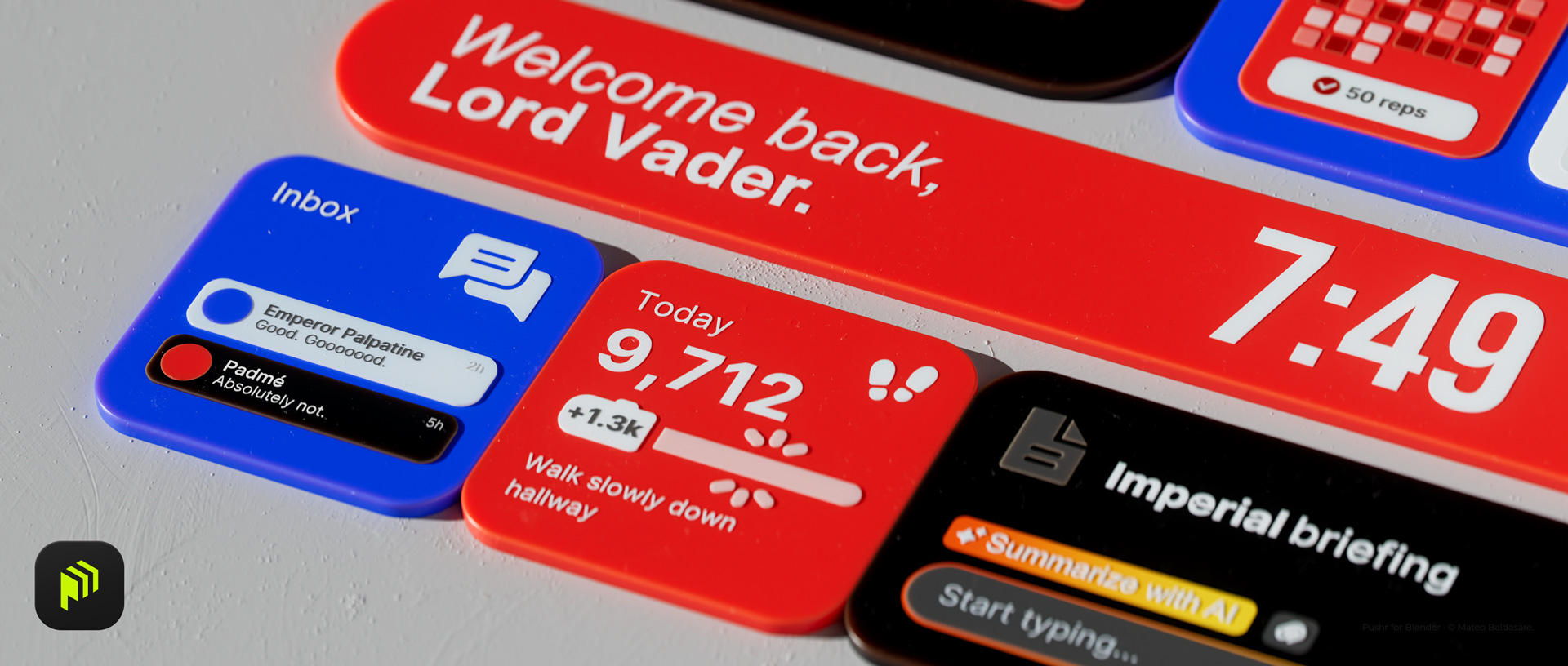
Pushr for Blender sends selected artwork from an open Illustrator document into an open Blender scene. It creates editable Blender objects from vector shapes, strokes, and text, and can bring over images, colors, and gradients. The add-on fits workflows for 3D logos and typography, UI-style product visuals, motion design frames, campaign assets, and layered illustrations. The official product listing provides current feature details and a free trial.
Pushr uses a selection-based transfer instead of the usual SVG export, import, and cleanup sequence. Choose an object, group, or complete design, set its height and depth in Blender scene units, choose Front, Top, or Side orientation, then click Push. Both Illustrator and Blender need to be open during transfer.
Control scale, placement, and scene structure
When sending artwork in separate parts, set Reference to Artboard so each push keeps its scale and position relative to the full artboard. Choose Selection when you want independent control of each object or group. Illustrator layers can become Blender collections with their names, colors, order, and sublayers preserved.
Group handling is configurable. Ungroup sends elements separately, Keep recreates groups as centered empties while leaving their contents editable, and Merge combines each group into one object. Each push arrives in its own collection. In Blender's Pushr sidebar, adjust depth, edges, forms, pivots, layout, strokes, materials, and images for a whole push, a group, or an individual object.
Update designs and keep Blender edits
After changing the Illustrator artwork, select it and click Update to refresh the corresponding objects in Blender; changes do not transfer continuously. The update keeps their animation, materials, and 3D changes. Use Replace artwork when you want to swap the source design for an object while retaining its position, animation, materials, and settings.
Pushr records which artwork was pushed inside the Illustrator document. You can push from an unsaved document, but save it before closing if you plan to use Update later.
Work with editable shapes, text, and strokes
Filled shapes arrive as Blender curves with extrusion, and their origins are centered for staging and animation. Choose among Spline, Flat, Solid, Revolve, and Inflate forms. Rectangles and rounded rectangles keep editable width, height, and corner-radius settings in the Pushr sidebar.
Text becomes Blender text objects, including Type on a Path and Vertical Type. Mixed styles can arrive as separate editable text objects grouped under one empty. Illustrator strokes arrive as curve objects parented to their fills, with caps, corners, dashes, and inside or outside alignment. Adjust stroke width and roundness in Blender, or set a stroke to Animatable so it can grow along its path.
Bring images, colors, and materials across
Linked and embedded images transfer with their masks and placement. With Form set to Solid, a transparent PNG can become a solid object along its visible outline, including holes. Clipping masks arrive cut to their mask, and symbols arrive as instances of a shared source. Changing that source updates its instances.
Pushr can create Principled materials from Illustrator colors. When material creation is off, Illustrator colors remain object colors; use Create Materials in the sidebar to build the materials later. When materials are created, objects with the same Illustrator color share one material; its name follows the swatch, and opacity becomes transparency. Linear and radial gradients become node-based materials for Eevee and Cycles. Pattern fills, freeform gradients, and gradient meshes arrive as textures.
Embedded images and textures created for patterns and gradients are packed into the .blend file. Linked images continue to use their source files; Collect images copies them to a textures folder beside the .blend file.
Requirements and artwork limits
Pushr requires Blender 4.2 or later and Illustrator 2025 or later on Windows or macOS. For Illustrator effects such as Warp and Round Corners, set Preserve to Appearance. Pushr expands supported effects on a copy of the artwork, so they arrive looking as they do in Illustrator; they do not remain live effect controls in Blender. Effects that only add pixels, such as Drop Shadow and Outer Glow, are left out.
Blender's default AgX view transform can make flat colors look muted. Set Color Management to Standard for a closer match to Illustrator.