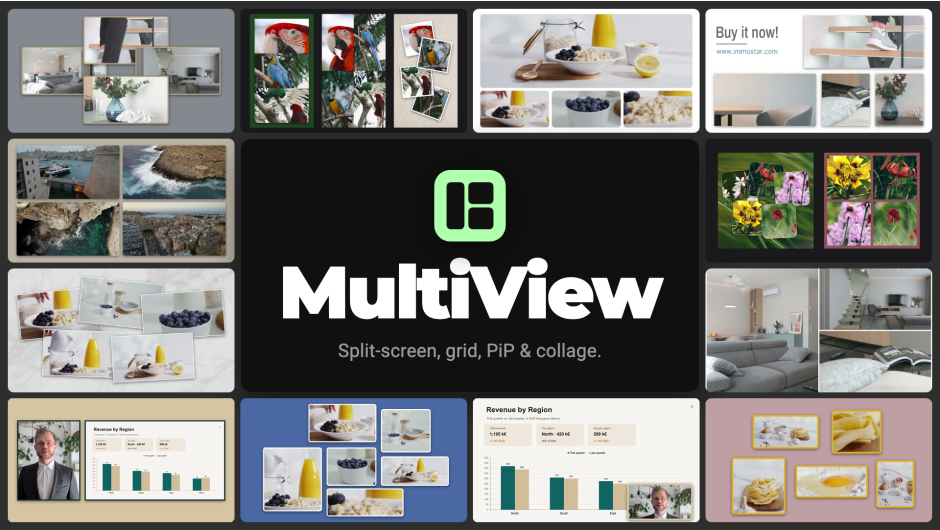
MultiView is a Premiere Pro multiviewer for arranging clips into split screens, grids, picture-in-picture layouts, and collages. Choose one of 12 presets or make a custom layout, then adjust each tile before arranging the clips into an editable nested sequence.
Build a layout from your clips
Bring clips in from the timeline or project, then choose how each field frames its source. Fill or fit a tile, pan and zoom to set the crop, and preview placements in the panel. Presets adapt to 16:9, 9:16, and 1:1 sequences, and a layout can combine HD, 4K, vertical, and square footage.
For a custom composition, draw the layout field by field. Adjust the background, spacing, margins, borders, rounded corners, and shadow. You can save a layout and its styling as a preset for reuse in other shots or projects.
Animate the grid in Premiere Pro
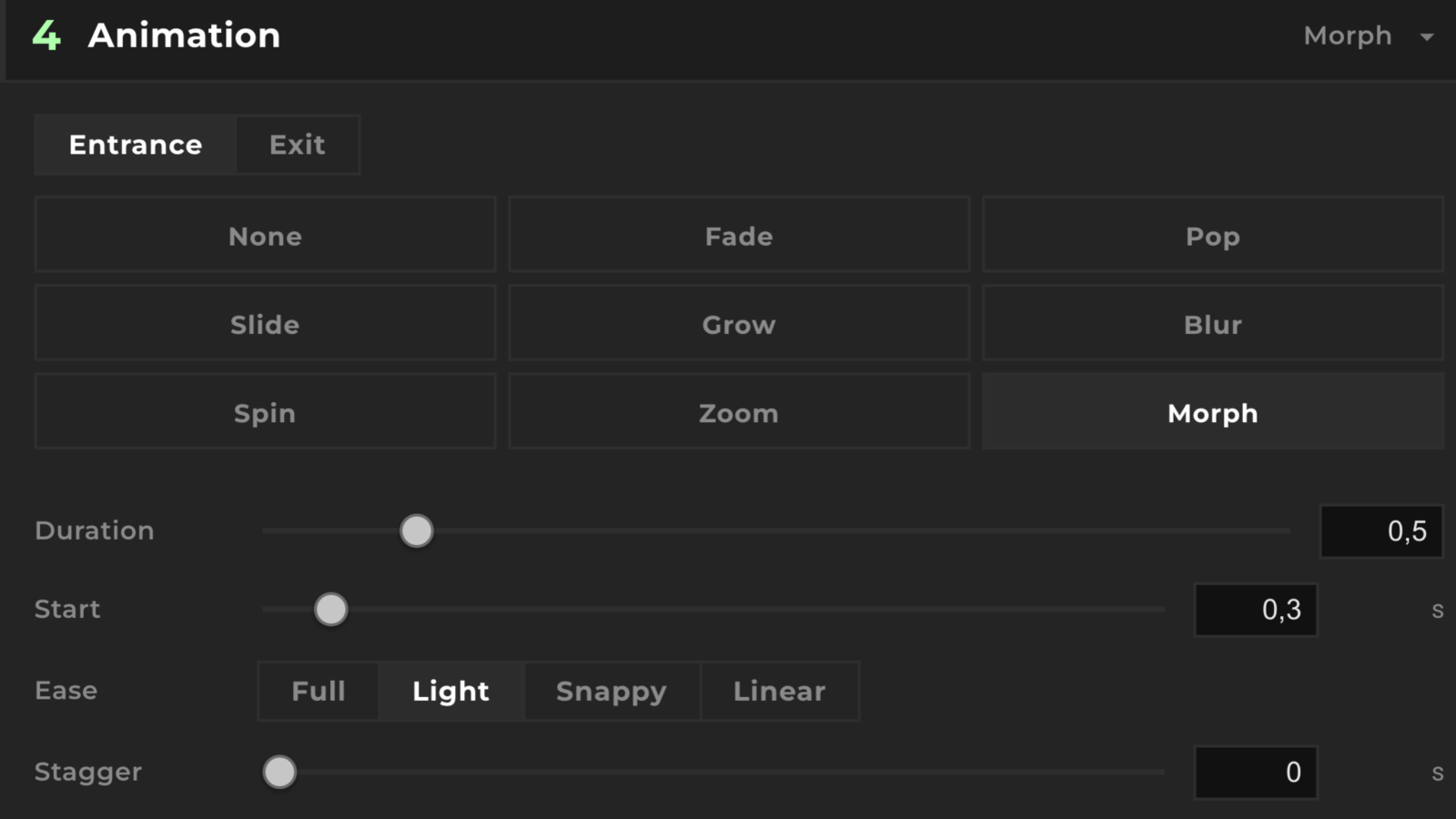
Version 1.1.0 adds entrance and exit animations: Fade, Slide, Grow, Pop, Zoom, Spin, Blur, and Morph. Apply an animation to the whole grid or to individual fields, with stagger and timing controls. The panel includes four easing curves, and the resulting keyframes remain editable in Premiere Pro.
Keep editing after arranging
When you click Arrange, MultiView builds one nested subsequence using native Premiere Motion and Crop controls. Reopen the subsequence to continue editing. To update a multiviewer already in the sequence, park the playhead on it and click Arrange again; an empty spot creates a new one. The output uses no MOGRTs or After Effects and needs no extra installation to render.
MultiView is listed for Windows and macOS and supports Premiere Pro 2023, 2024, 2025, and 2026. See the MultiView product page for the current product details and trial.