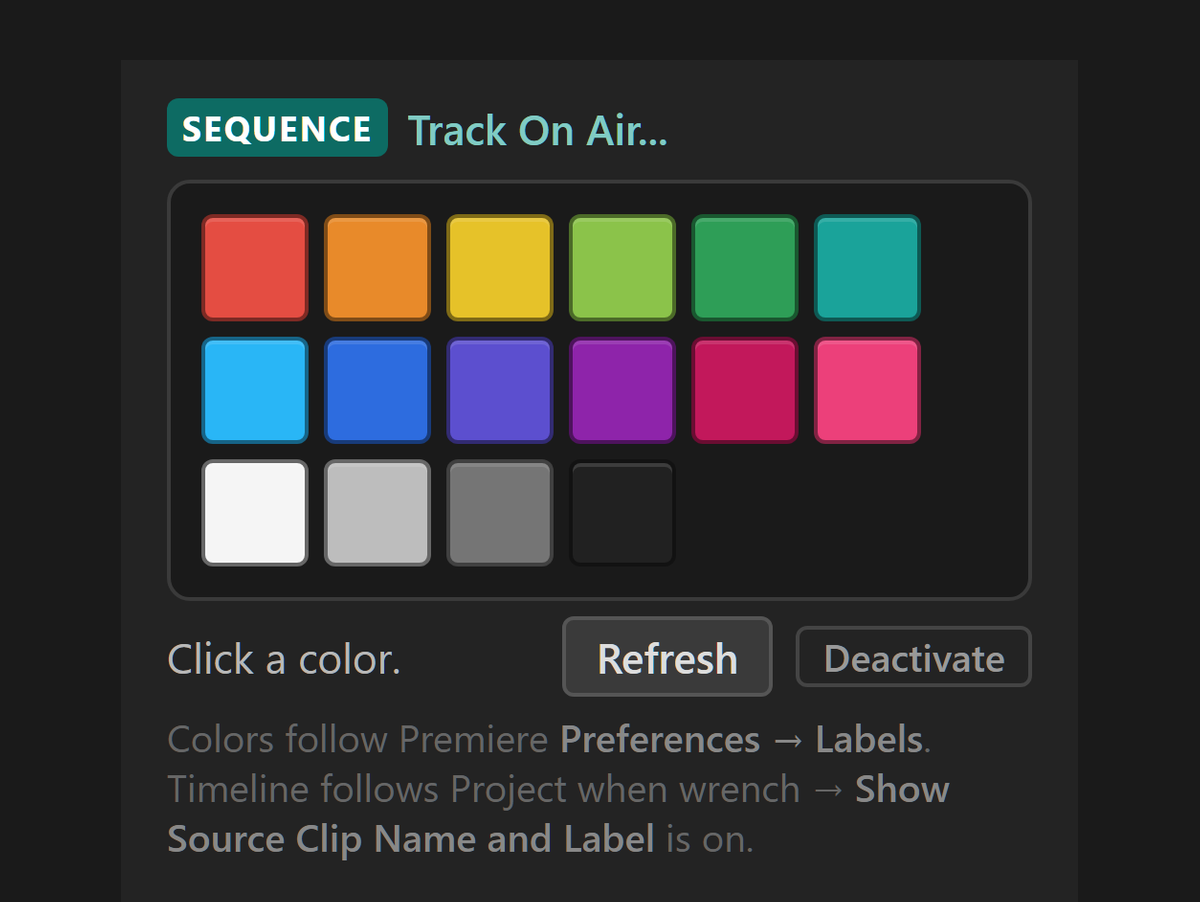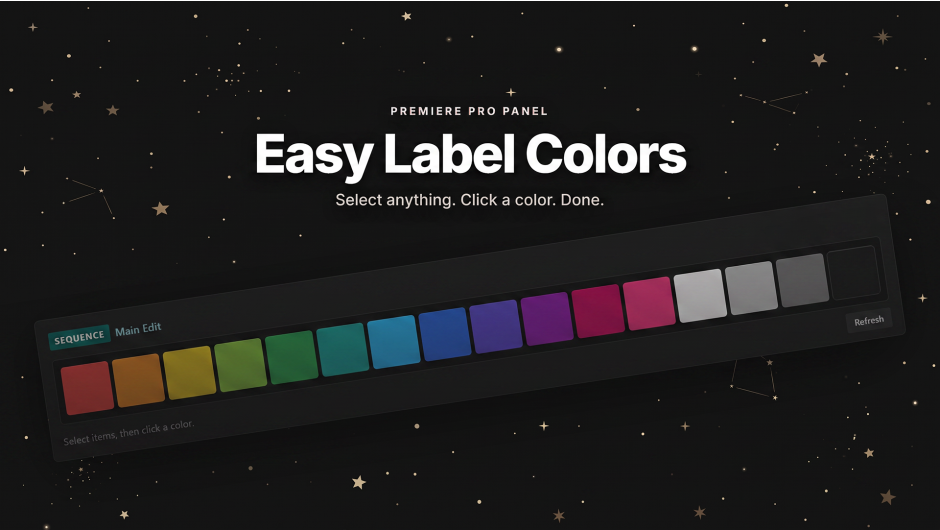
Easy Label Colors is a dockable Premiere Pro panel for applying label colors to project items and timeline clips, and for recoloring markers. Its 16 project swatches follow Premiere Pro’s Preferences > Labels palette; the marker palette includes eight Adobe marker colors. With no timeline clips selected, a swatch targets the active sequence. Per-clip coloring needs a one-time setup.
Label project items, timeline clips, and markers
In the Project panel, select clips or bins and apply one of the 16 project label colors. The swatches follow Premiere Pro’s settings under Preferences > Labels, so the panel updates when you change that palette.
In the timeline, select clips and choose a color. Clips from the same source can have separate timeline labels, while the source clip in the Project panel keeps its own color. With no timeline clips selected, the active sequence becomes the target.
For markers, place the playhead on a marker and choose a color, or set In and Out points to recolor every marker in that range. The marker palette includes eight Adobe marker colors.
Set up individual timeline clip colors
Timeline clip coloring requires a one-time setup: choose the Easy Label Colors keyboard shortcut preset in Edit > Keyboard Shortcuts, then turn off Show Source Clip Name and Label in the timeline wrench menu. On macOS, allow Premiere Pro in Accessibility the first time. The timeline feature is listed for Windows and macOS, and the Easy Label Colors preset leaves your own shortcut preset unchanged.
Fit it to your labeling workflow
Easy Label Colors suits editors who use colors to track stages or types of work, such as selects, approved clips, exports, or short and long cuts. Dock the panel in Premiere Pro and use the project palette already set in Preferences > Labels.
The product listing names Premiere Pro 2022 through 2027 as compatible. See the aescripts Easy Label Colors listing for the free trial, current version history, and product details.