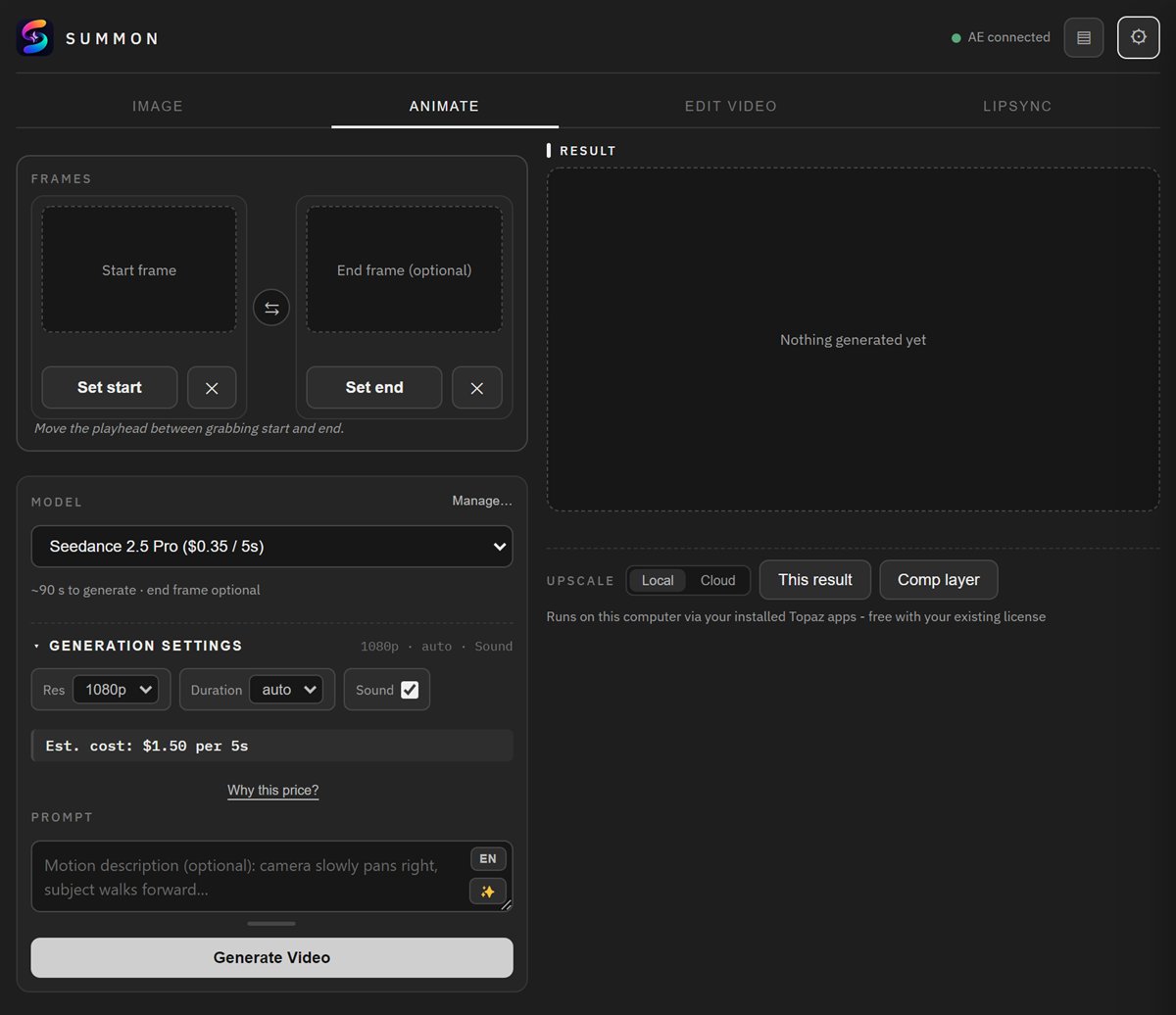
Summon is an After Effects panel for generating AI images, video and lip-sync clips within a composition workflow. It connects to models through fal.ai and can return generated footage to your After Effects project. Summon runs on Windows and macOS with After Effects 2025 and newer.
Build a shot from the playhead
In the Animate tab, the frame beneath the playhead becomes the start frame. Add an end frame to guide where the shot should finish, choose a model and set its controls. Summon shows an estimated generation cost before you run the model. When the clip is ready, you can add it to the timeline at the playhead; the footage also goes into your project bin.
Separate tabs cover image generation, video editing and lip-sync. The Edit Video workflow can replace a shot while preserving its sound. For lip-sync, provide a video and an audio track, choose a model, then return the result to the timeline.
Choose models and track generation costs
The product listing describes more than 44 built-in models. Its Model Manager syncs with fal.ai, and you can refresh it to pick up new endpoints. The listing says most new models can be used when they appear without waiting for a panel update. Each model has its own controls.
Summon is software only. Generation runs through fal.ai, so you need a fal.ai account with credit and your own API key. fal.ai bills you at its model-dependent prices; Summon adds no markup. The panel displays an estimate before generation and the cost reported by fal.ai afterward. Summon keeps a spend log for each project.
Review and reuse takes
Summon saves each generation in an organized folder next to the project file. The Activity drawer keeps the prompt, model, settings and cost with each take. You can search or filter takes by project, drag a take back into the input slots and keep the history when you rename a project.
Upscale and reframe in the panel
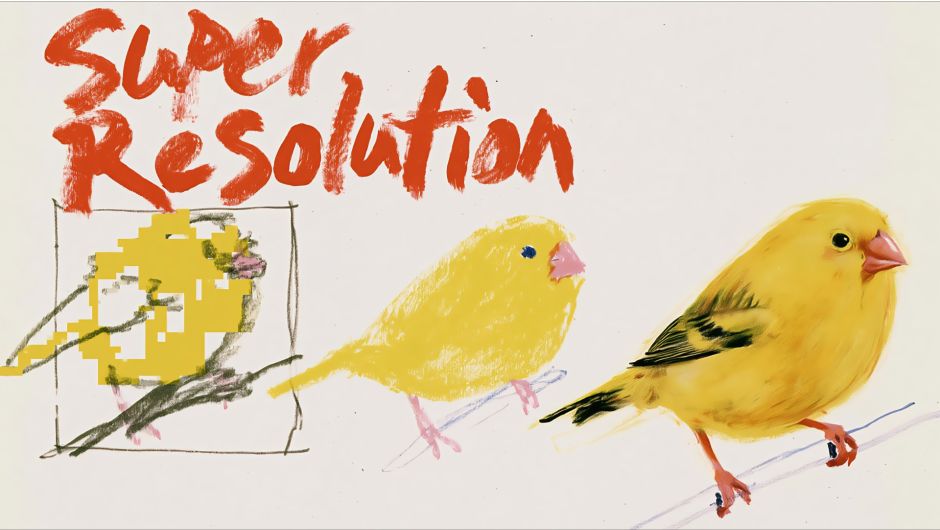
You can upscale a generated result or a composition layer in place. For 4K output, the product listing describes using Topaz apps you already own or a cloud option. To change a clip's aspect ratio, set a target ratio and let the model recompose the shot instead of simply cropping it. Review the result in Summon's built-in player before adding it to the timeline.
For current setup instructions, model details and compatibility, see the Summon product listing and Summon documentation and updates.