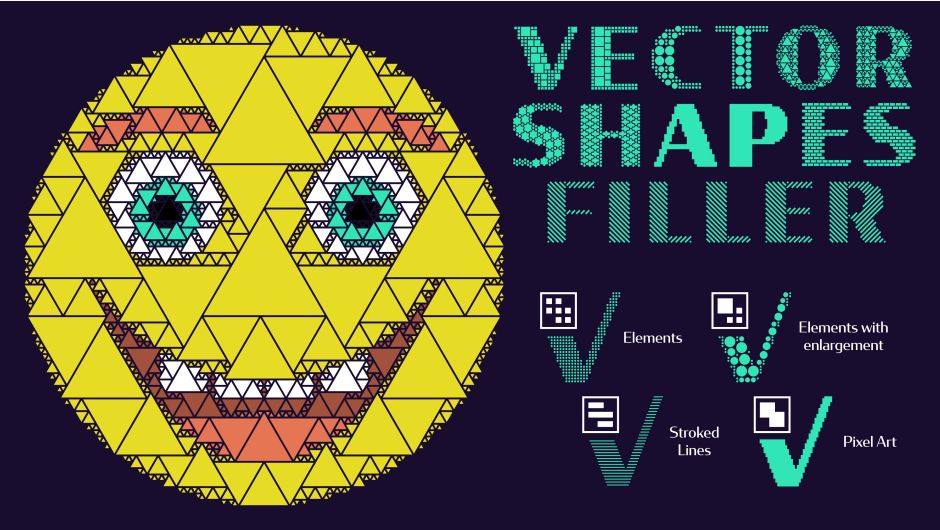
Vector Shapes Filler is an Adobe Illustrator script for filling selected artwork with repeated vector elements, stroked lines, or pixel art. It gives designers control over element size, spacing, arrangement, and the rules that decide whether an element fits within a shape. The configuration details cover 995 combinations for a single selected shape.
The output consists of complete elements at shape edges rather than clipped fragments. The chosen filling method determines how an element qualifies at the boundary.
Four ways to fill a shape
- Elements: Create shapes of a consistent size, or combine smaller elements into larger units.
- Elements with enlargement: Vary element size within the layout. The available enlargement options depend on the arrangement and element type.
- Stroked lines: Create lines across same-colored areas in a selected direction. Their color follows the selected shape’s fill.
- Pixel Art: Build each selected item with the fewest closed paths needed. You can choose whether adjacent shapes connect or have gaps.
For elements and enlarged elements, the arrangement choices are Grid, Bricks, Cells, and Isosceles triangles. Grid and Bricks support rectangles, ellipses, and symbols. Cells uses hexagons, with options to combine them into larger hexagons or rhombuses. Isosceles triangles are stacked in alternating directions. Stroked Lines and Pixel Art use the grid arrangement.
Control spacing and shape boundaries
Element dimensions and gaps are adjustable. Fine-tuning options can recalculate them to fit the width or height of the selection or artboard, with options to preserve an element’s aspect ratio. For triangle layouts, the tool can calculate two values automatically.
The filling method checks whether an element’s center is inside a shape, whether at least one path point or its center is inside, or whether all path points are inside. These rules produce different edge treatments. The script measures the vector path itself: it does not account for stroke width or applied effects.
Overlapping selections use the visible item highest in the layer order. At each position, the script creates one element with that item’s fill color.
Work with selected paths and layered output
The selection can contain paths and compound paths, including items organized in groups. Every item needs a solid color fill. If the selection includes an unsupported item, the script displays a warning. You can choose whether settings apply uniformly to items inside groups.
Results go into a new layer named Vector Shapes Filler, with sublayers for selected items and groups. Sublayers follow the selection order and use the selected item’s name; unnamed items get a name based on their sequence in the selection. This organization lets you select and post-process individual results, such as changing their color, combining some into a compound path, or applying a gradient.
Use consistent settings for a step-by-step design
For a multi-part result, place the artwork on one artboard and size the artboard to fit. Avoid overlapping components unless you want their output to stack. Record the element dimensions, gaps, and fine-tuning choices, then use the same settings for each component. Choose a filling start point tied to the artboard when the parts need to align. Process components one at a time, then replace an individual result if it needs another pass.
Configure the interface from top to bottom because later choices depend on earlier settings. Help text appears when you hover over relevant controls, and you can generate several variations by changing settings between runs.
Balance precision and processing time
Processing time depends on the number of selected items, their path complexity, and the number of elements generated. The element dimensions affect both precision and calculation time. The product documentation recommends dimensions of at least 4 by 4 pixels for faster results; smaller dimensions, down to 1 by 1 pixel, increase precision. Before a long calculation, the tool estimates the complexity and notifies you. Once processing starts, it cannot be interrupted.
Trial and Illustrator compatibility
The trial supports most setting combinations, with limits: it accepts one path and not a compound path; dimensions and gaps are fixed at 4; artboard options for sequential creation are disabled; and the Precise Connection and Pixel Art gap controls are unavailable. The product page lists compatibility from Illustrator CS4 through 2027, including the intervening CC and annual releases.