All for UE5 by Vint26 is a MaxScript for moving scene data from 3ds Max into Unreal Engine 5. Version 1.10 brings FBX export, layer-based folder setup, transform copying, camera and light transfer, color copying, UVW tools, and GPULightmass INI settings into one script. The developer lists it as free and provides it as an .mzp package on the Vint26 product page.
Organize layers and export FBX
Choose a destination path or use the folder structure created from 3ds Max layer names. You can build that structure for all layers or selected layers, with an option to include or exclude Layer 0. The script copies the structure to the clipboard so you can paste it into the Unreal Engine Outliner with Ctrl+V. FBX export can include all scene objects or only selected objects, with an option to include or exclude Layer 0. Vint26 notes that objects already exported to Unreal Engine are replaced on later exports, so the Import window does not appear again for those objects.
For instance objects, Vint26 recommends moving them to [0,0,0] during export and copying each object's position with CopyTransform. For objects that should remain in place, such as walls, ceilings, or floors, Vint26 recommends disabling that option and resetting their position in Unreal Engine to [0.0, 0.0, 0.0].
Transfer transforms, cameras, lights, and colors
Copy an object's Position, Rotation, and Scale from 3ds Max to Unreal Engine. To bring transform data back from Unreal Engine, select the object in the Outliner, press Ctrl+C, then use Find from memory in the script. You can match the copied object by name or use the currently selected 3ds Max object.
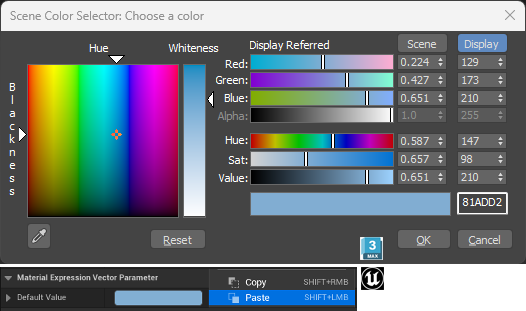
The camera tool copies one selected camera at a time. It supports VRayPhysicalCamera and CoronaCam. The light tool can copy multiple lights: VRayLight (Plane) and CoronaLight (Rectangle) map to RectLight, while VRaySun and CoronaSun map to DirectionalLight. The color tools copy colors in either direction and include an optional gamma adjustment.
Prepare UVs and configure GPU Lightmass
The UV section can add a UVW Map modifier or Unwrap UVW, separately or together. Open UV Editor is available after adding Unwrap UVW to a single object. The GPULightmass section changes settings in the INI file; Vint26 gives a default BaseLightmass.ini path for Unreal Engine 5.3, so check the configuration path for the engine version you use.
Install the script
Drag the .mzp file into the 3ds Max viewport. Open Customize > Customize User Interface > Toolbars, choose the Vint26 category, create a toolbar, and drag the All for UE5 v1.10 command onto it. Restart 3ds Max to finish setup. The catalog profile lists 3ds Max 2024 as tested and includes an Unreal Engine FBX import note for newer engine versions.