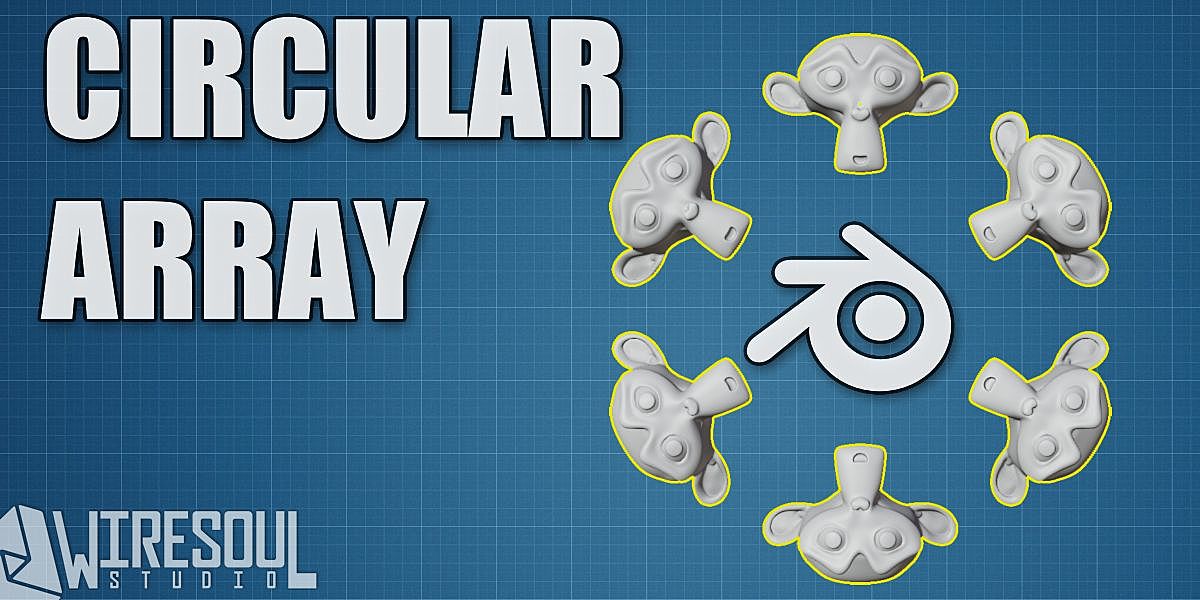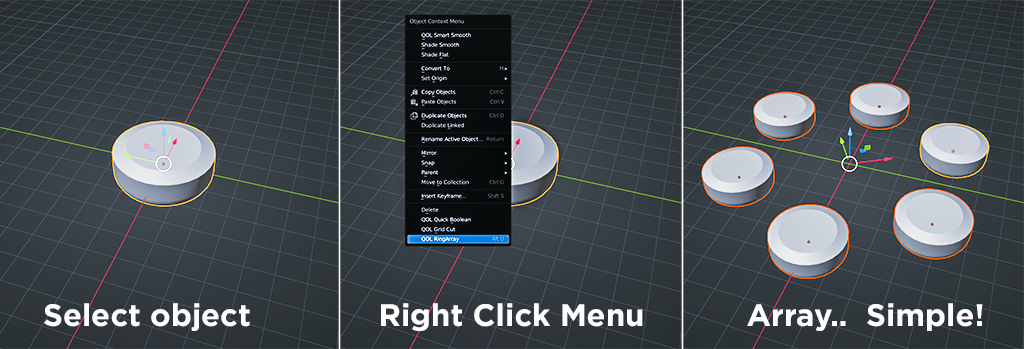
Arraytool is a Blender add-on for arranging repeated objects along a straight line, around a center, or along a curve. You can work with one editable mesh or use a collection for multiple objects and non-mesh items.
Choose an array method
- Straight Array: Set the count, distance, rotation, and scale in the Array-Simple panel.
- Circular Array: For a single editable mesh, choose the 3D cursor or the object as the center, then set an align axis, count, radius, rotation, and scale.
- Curve Array: Choose a curve as the path. You can bend objects along it or use an object carrier to avoid deformation. Fit type, distance, rotation, and scale are controlled in the Array-Curve panel.
Set up a collection target
To array multiple objects, place them in the same collection, set Target Type to Collection, and select that collection. Choose a reference object to set the array's starting location for straight and circular layouts. A collection's circular array uses the 3D cursor as its center. Collection controls also let you choose between instances and Reset Children, with an optional random setting and seed for variation.
Lights, text, and curves can be arrayed through a collection; they cannot be used as a single-object target. This makes the target choice important when a scene combines geometry with those object types.
Check the modifier limit
If a collection contains lights, text, curves, or other objects that are not editable meshes, Arraytool's ARR.GN modifier cannot be applied to those items because they cannot be realized as instances. You can keep the modifier in the project and render with it enabled. Check the collection before applying the modifier if you need a baked result.
See the Arraytool documentation for setup details and the product listing for current product information.