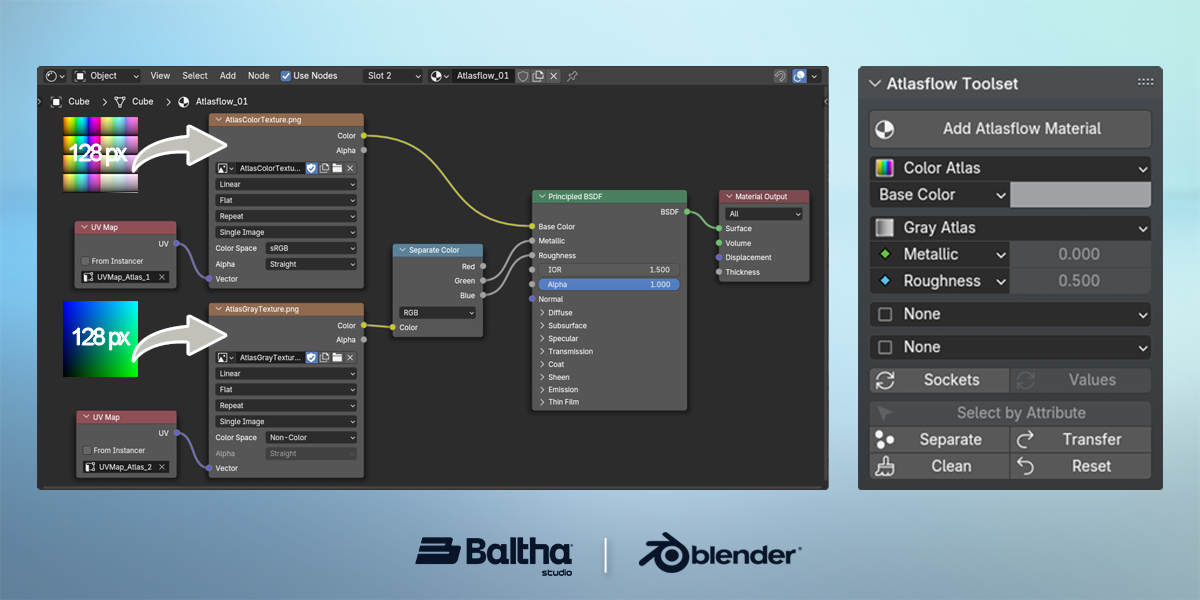
Atlasflow - Ultimate Color Atlasing is a Blender add-on from Baltha Studio for assigning PBR values to individual faces or groups of faces within one material. It uses UV maps with color and gray atlases, so a mesh can have per-face material variation without a separate material for each face. The product listing describes 128×128 atlas textures weighing under 16 KB and says a material can use up to four atlas textures. The product listing says this approach reduces draw calls and simplifies material management for game assets and stylized models. See the Atlasflow product listing and its documentation.
Add and edit an Atlasflow material
Select a mesh and choose Add Atlasflow Material. Atlasflow creates the required UV channels and transfers the default PBR values from the object's existing materials to those channels. It keeps the original materials and UV channels, so they remain available. You can also add an Atlasflow material to a mesh without existing materials and set it up from scratch.
In Edit Mode, select a face or group of faces and adjust their PBR values. Base Color, Metallic and Roughness are selected by default. Emission Strength is a special case: it applies to the whole object, while the other listed properties can be edited per face. The documentation notes that changing the color value can control apparent emission brightness when separate Base Color and Emission Color control is not needed.
Color and gray atlas properties
Color atlases can map Base Color, Emission Color, Specular Tint, Sheen Tint or Coat Tint. Gray atlases can map Metallic, Roughness, Alpha, Specular IOR Level, Transmission Weight, Coat Weight, Coat Roughness, Sheen Weight or Sheen Roughness. You can combine atlas textures in one material, up to four. Adding or removing an atlas also adds or removes its UV channel and related shader nodes.
Organize faces and materials
Select by Attribute selects other faces with the same PBR attributes as the active face. Separate by Attribute splits the object by those attributes. Transfer copies traditional material values from another joined object into the Atlasflow atlas.
Clean removes other materials and UV channels from the object, keeping only those used by the atlas material. The documentation says unused materials may also be removed from the Blender file if nothing else uses them, so check the file before using Clean. Reset removes the Atlasflow material and its UV channels, then restores traditional PBR materials while maintaining the object's current look.
Check UV and glTF limits
Each atlas needs a dedicated UV channel. Engine limits vary, and a channel may already be reserved for lightmapping. The documentation says two channels are often enough for the typical Base Color, Metallic and Roughness setup; a third can be used for Emission. Check the channel limits in your target engine before choosing how many atlas properties to use.
Atlasflow is described as ready for glTF 2.0 export to .glb or .gltf, using UV maps rather than custom data. Its documentation identifies a limitation for alpha: glTF 2.0 combines alpha into the RGBA Base Color texture, which means it shares that texture's UV mapping and can make the exported model look different from the Blender version. The documentation recommends exporting objects that use alpha separately from fully opaque objects.
Compatibility and installation
The product listing specifies Blender 4.2–5.0. To install, download the Atlasflow .zip file, then use Blender's Edit > Preferences > Add-ons > Install from Disk command. Check the listing for current compatibility details before installing.