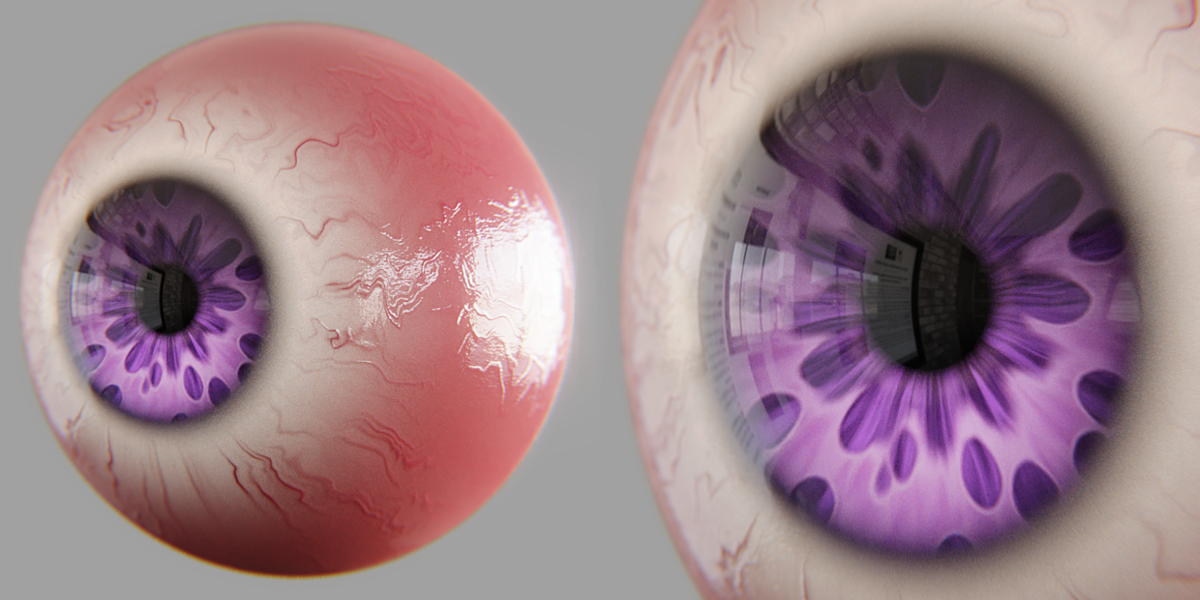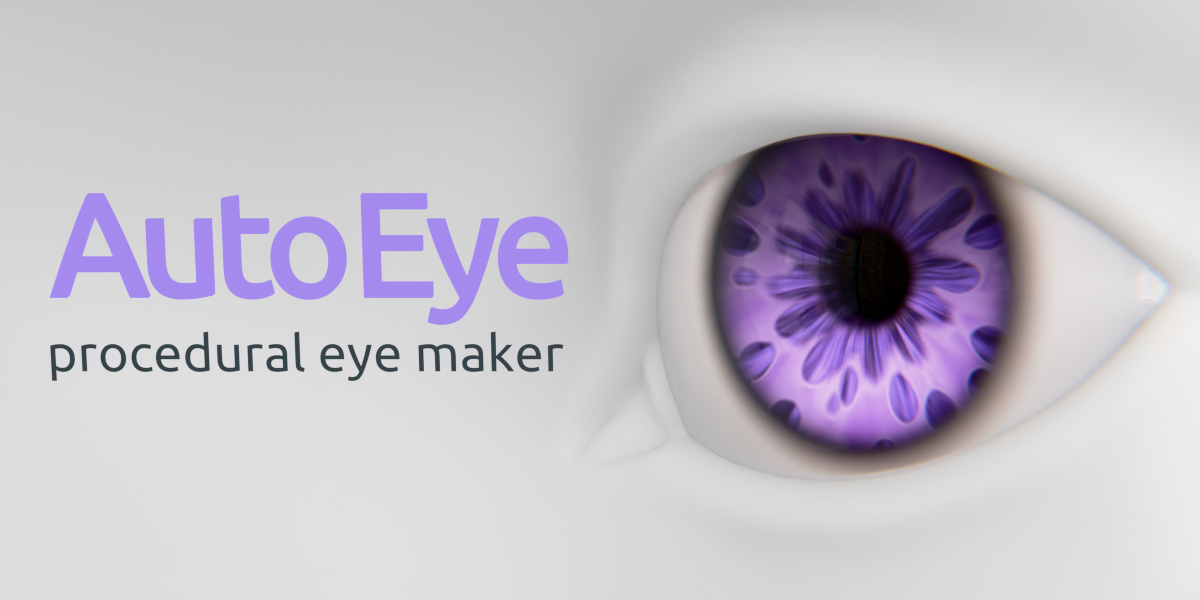
Auto Eye is a procedural eye add-on for Blender by Lucas Falcao. It uses procedural textures for eye detail that holds up in close-up views without relying on a fixed texture resolution. It supports Cycles and Eevee, with eight shape keys and customizable material parameters. The developer’s documentation covers the node controls, while the product FAQ covers baking, mirroring, and Eevee or Material Preview issues.
Adjust the iris, pupil, sclera, and cornea
Auto Eye includes shape keys for customization, with iris and pupil shape controls. Its iris material exposes controls for fiber color variations, scale, rotation, distortion, and contrast. Separate parameters adjust the collarette, crypts, pupillary region, dark ring, and pupil edge hardness. Node parameters are available in Full and Lite versions.
The cornea and sclera material has controls for front and back sclera colors, veins, surface imperfections, roughness, cornea reflection, index of refraction, and mask hardness. Artists can tune the eye materials for realistic, cartoon, or animal styles.
Use it with Cycles and Eevee
Auto Eye supports both Cycles and Eevee, and the product listing describes a real-time preview in Cycles. The developer’s documentation includes setup steps for the preview and the related Eevee material settings. For Eevee, the product page recommends a dedicated graphics card: the add-on uses many nodes, and onboard graphics may cause Blender to freeze or crash.
Check gaze and bake maps
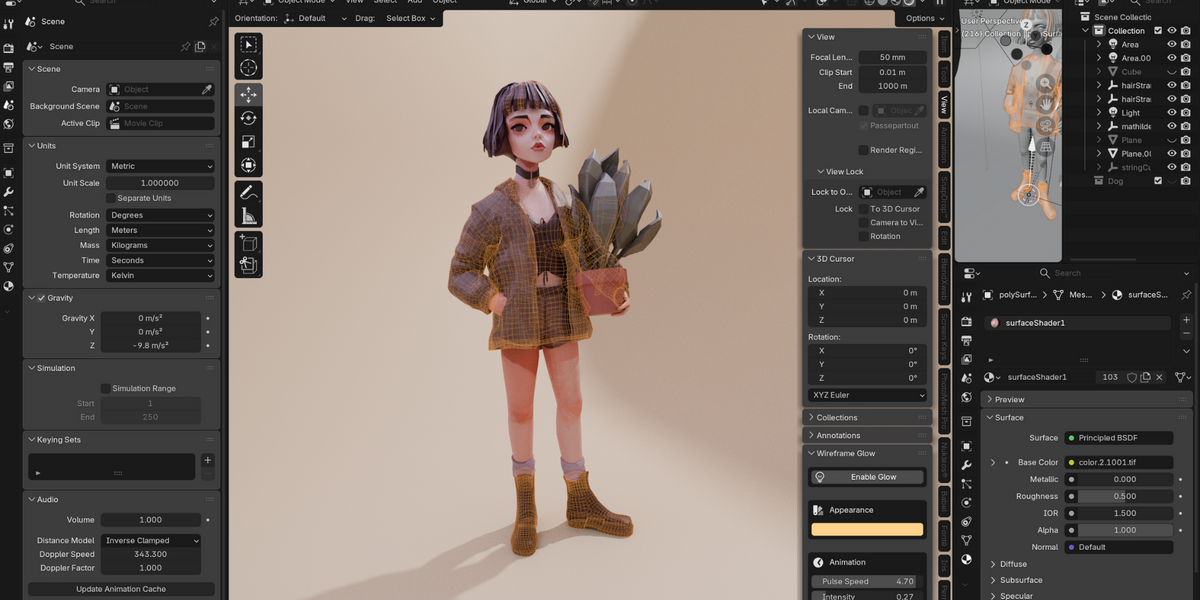
For animation work, the Cornea Mask modifier can hide the cornea in the viewport so you can check where a character is looking in Solid mode. Use its display control only in the viewport; leave the modifier off for rendering. The fake shadow setting is documented for static eyes and rendered images, not animation.
Auto Eye can bake Color, Specular, Roughness, and Bump maps. The version 3.0 changelog also lists the Cornea Mask as bakeable. Three tutorials cover baking maps, setting up maps, and setting up materials, which helps when a scene needs baked textures instead of the live procedural setup.
Install and add an eye to the scene
Install the downloaded ZIP from Blender’s Edit > Preferences > Add-ons panel, then add Auto Eye from the viewport’s Add menu or with Shift + A. The product changelog says newly added eyes use the 3D Cursor position. The listing shows Blender 4.0–5.3 compatibility and a GPL license; check the current product listing before installing outside that range.