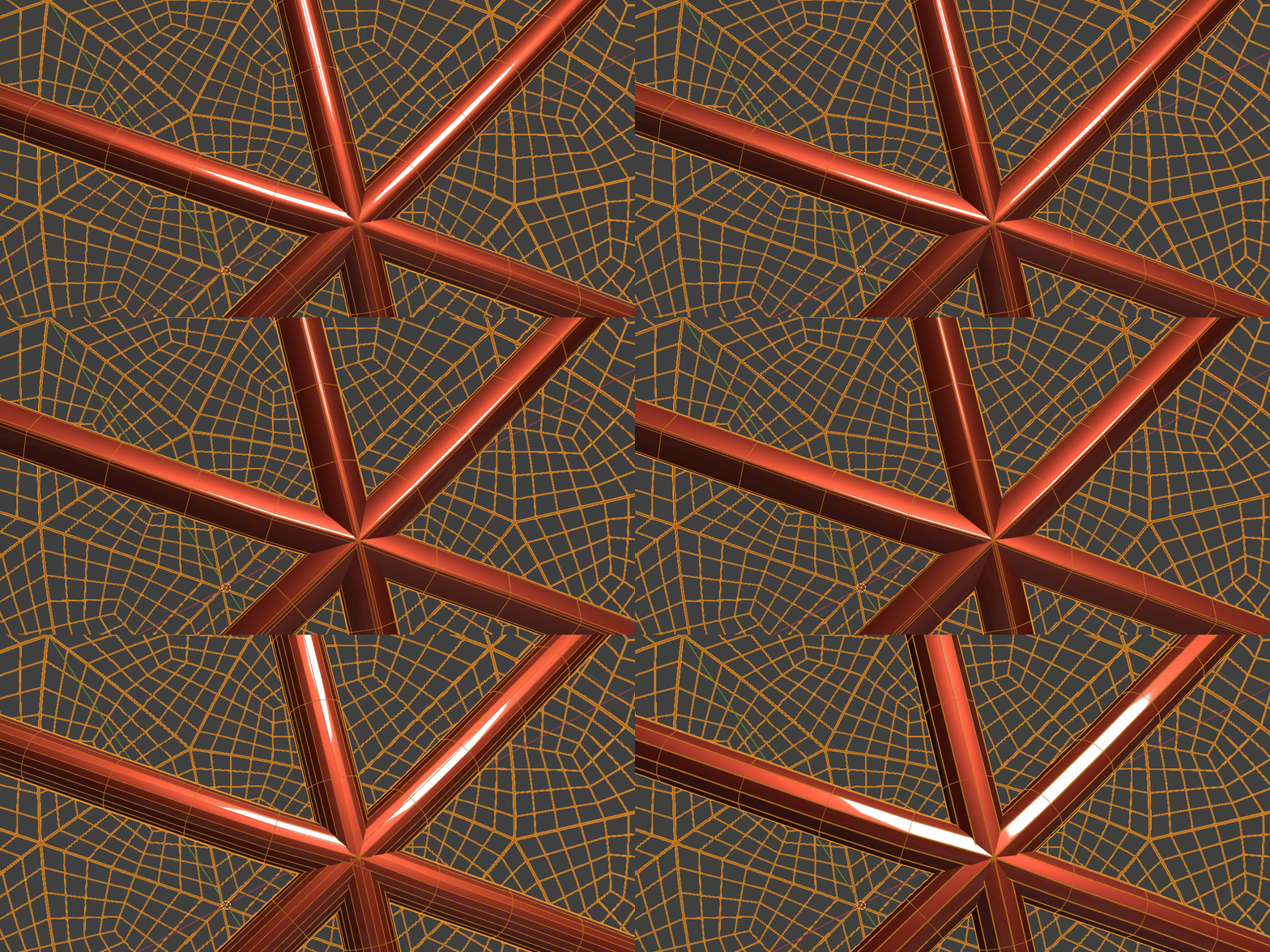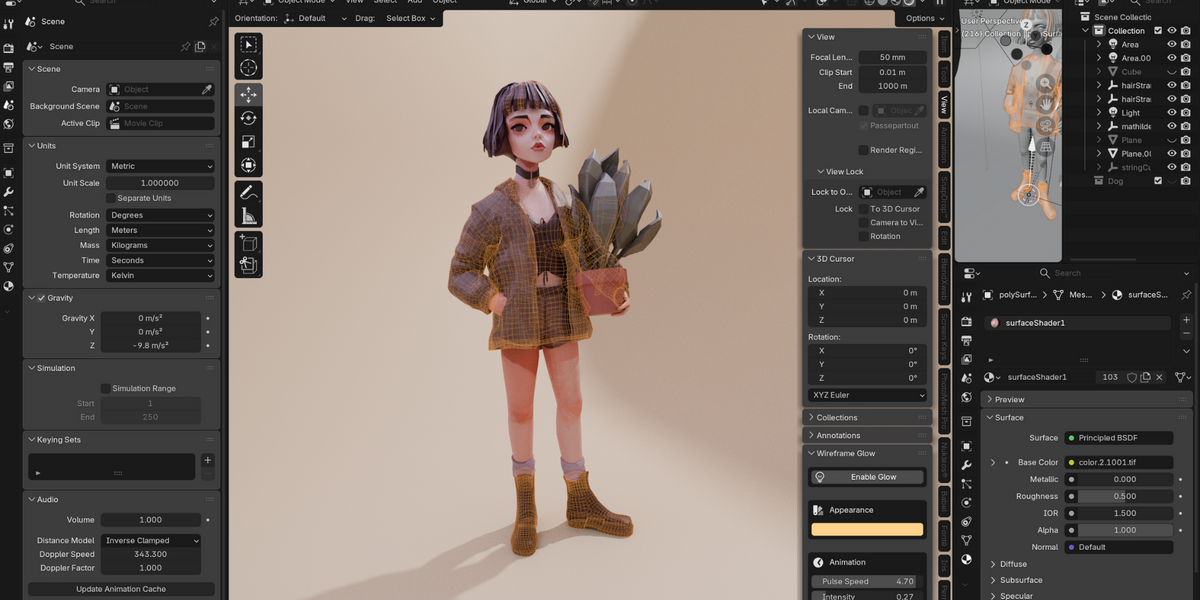
Wireframe Glow is a Blender add-on by Egret Studios LLC that adds a pulsing glow to the wireframe edges of selected mesh objects. The listing names Blender 4.0 through 5.0, Cycles and Eevee, and a GPL license.
Install and open Wireframe Glow
Download wireframe_glow.zip. In Blender, open Edit > Preferences > Add-ons, choose Install, select the ZIP file, then enable Wireframe Glow with its checkbox.
To find its controls, open the 3D Viewport sidebar with N, select the View tab, and locate the Wireframe Glow panel.
Adjust the glow
Turn on Enable Glow to show the effect on selected mesh objects. The settings update in real time:
- Glow color: choose a color with the picker. The default is cyan, RGB
(0.0, 0.8, 1.0). - Pulse speed: set a value from 0.5 to 5.0. The default is 1.5; lower values pulse more slowly.
- Intensity: set a value from 0.0 to 2.0. The default is 1.0 and controls the glow's brightness and thickness.
For a subtle highlight in a busy scene, the documentation suggests an intensity between 0.5 and 0.8. Higher pulse speeds from 3.0 to 5.0 create a faster effect for presentations.
Compatibility and troubleshooting
The marketplace listing marks Wireframe Glow as Blender Extension compatible and names Cycles and Eevee. Its documentation says the effect works in Solid, Material Preview, and Rendered viewport shading modes, and remains visible when viewport overlays are disabled. The documentation also lists Windows, macOS, and Linux, with an OpenGL-compatible graphics card.
If the panel is missing, enable the add-on, press N to open the sidebar, and select View. If the glow is not visible, select a mesh, check Enable Glow, raise the intensity, and choose a color that contrasts with the background.
See the Wireframe Glow documentation for installation details and settings, and the marketplace listing for current product information.