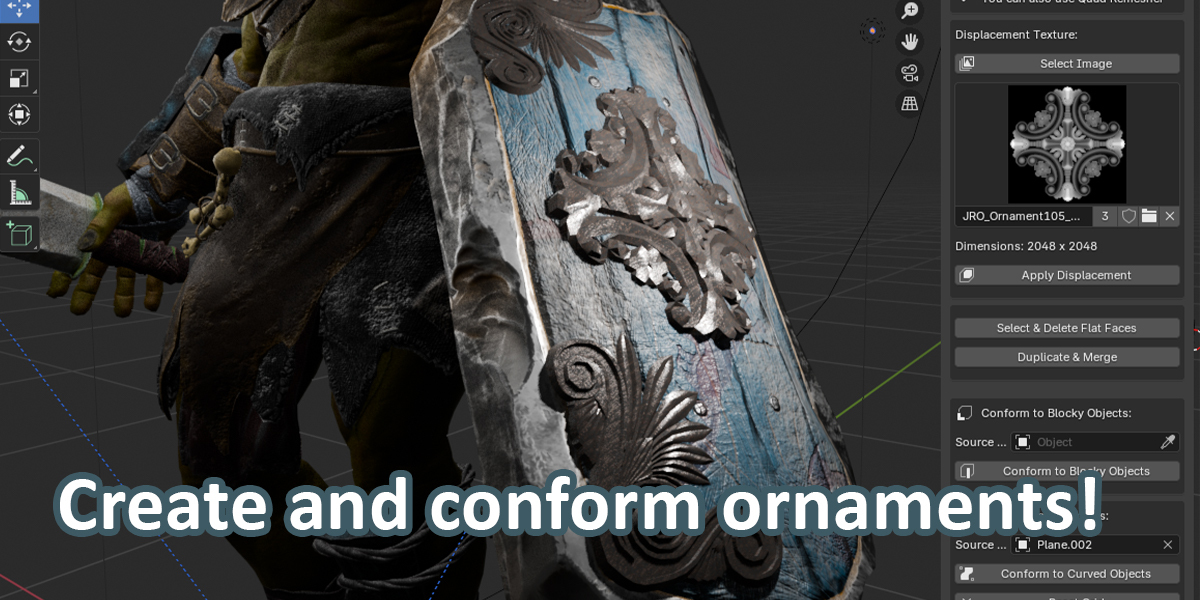
Auto Modeller Pro, made by Blender Procedural, is a Blender add-on for painting 3D geometry across a mesh using UV-based placement. Brush strokes place geometry where you paint. On the active layer, Fill All covers every face and Fill Selected Faces covers selected faces. Presets include bricks, wood planks, stone tiles, cobblestones, roof shingles, sci-fi panels, hex tiles, ceramic tiles, and dragon scales.
Use presets or custom meshes
You can add a mesh you made or imported as a layer. Repeat a single piece in a grid, adjusting its count, size, random rotation, random size, and seed, or use a complete patch as a tile. Each layer has its own geometry, paint, and settings. You can show, hide, rename, duplicate, and reorder layers. A painted upper layer covers the layers below it where it has been applied.
Paint and bake
- Select the mesh to paint on, open the Auto Modeller tab in the 3D Viewport sidebar with N, choose a preset, and click Set Up Auto Modeller.
- Paint on the surface. Hold Ctrl to erase. Fill All, Fill Selected Faces, Invert, and Clear act on the active layer.
- Adjust UV Scale, Z Scale, and other layer settings, then click Bake Again when a setting needs a new bake. The product documentation says baking precomputes placement so painting updates in a few milliseconds rather than about a second.
When the result is ready, Finish > Make Real Mesh Copy turns it into ordinary geometry while leaving the original editable.
Compatibility and UV behavior
Superhive lists Blender 4.5 to 5.3 as the supported range, identifies the add-on as Blender Extension Compatible, and lists its license as GPL. Auto Modeller Pro accepts any UV map name and creates a UV map for a mesh that has none. Because the geometry follows the UV map, check Options > UV Map and the mesh unwrap if placement looks stretched or missing. For low-poly custom pieces on curved surfaces, the product tips recommend increasing Subdivide.
Version 1.2 adds unlimited layers, custom-object layers, seven new presets, and fill tools. Scenes made with versions 1.0 or 1.1 convert to layers in one click, with their paint and settings preserved. See the Auto Modeller Pro documentation for setup steps and controls, and the Superhive listing for the stated compatibility and license details.