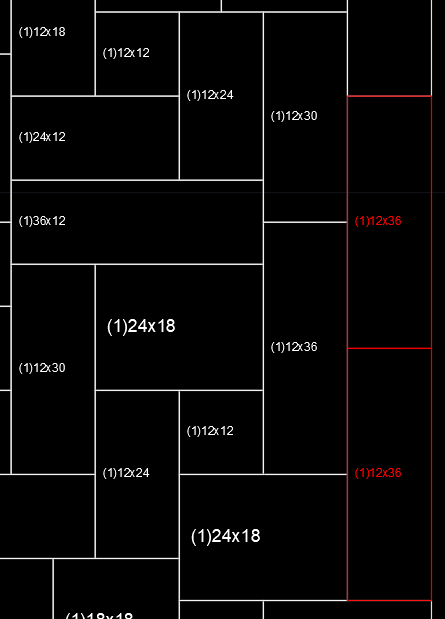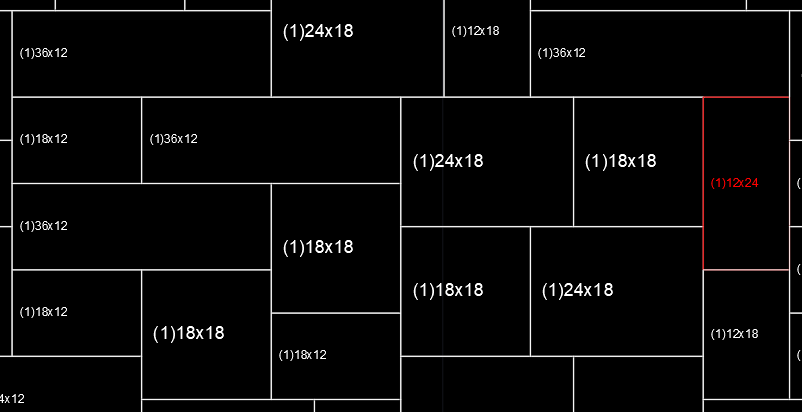
JTB FlagStone Trial creates random flagstone patterns inside selected straight AutoCAD polylines. JTB World describes each result as a proposal: review the tiles and adjust the layout before using it as a finished drawing.
How the layouts are formed
You can choose a set containing up to 12 flagstone sizes. JTB lists rules that shape the pattern:
- The limit is four tiles in a row or column, except at the edge of the area.
- Neighboring tiles in a row should be different sizes.
- Four tile corners should not meet at one point.
The command offers two layout modes. Rectangle creates four straight edges and aligns the flagstones along those edges. Freestyle fills a polyline area, but its edge tiles are not aligned to fit. The tool supports straight polylines. See JTB World’s product documentation for its general usage instructions.
Run a layout in AutoCAD
- Start FlagStone from the Add-ins tab on the Ribbon or enter the
FlagStonecommand. - Choose a set of flagstone sizes. JTB notes that a larger set gives the command more options for filling the layout.
- Choose Rectangle or Freestyle, then select the straight polylines to fill.
- Review the progress window. When the command finishes, the AutoCAD Text Window shows logs and a schedule of how many tiles of each size were placed.
Review tile fit and adjust the result
A layout may have a position where no tile fits. The Autodesk listing says it marks the position with a red error tile and continues, while JTB World's product page says the command can stop when it cannot find a tile; neither page explains whether the outcomes depend on version or condition. Treat the output as a draft: JTB recommends manually adjusting tiles where needed. Copy the input and run the command three or five times to choose a result, then combine or refine layouts.
Rectangle results depend on the polyline’s dimensions. If the fit is awkward, adjust it manually or run the command again. JTB also suggests shrinking or enlarging the input polyline by a few inches to get more varied results.
Trial and installation
JTB World says the trial license lasts 30 days from first use, with support available during the trial and after purchase. The Autodesk Marketplace listing notes that installation requires elevated user privileges and uses a custom installer rather than the standard App Store installer.