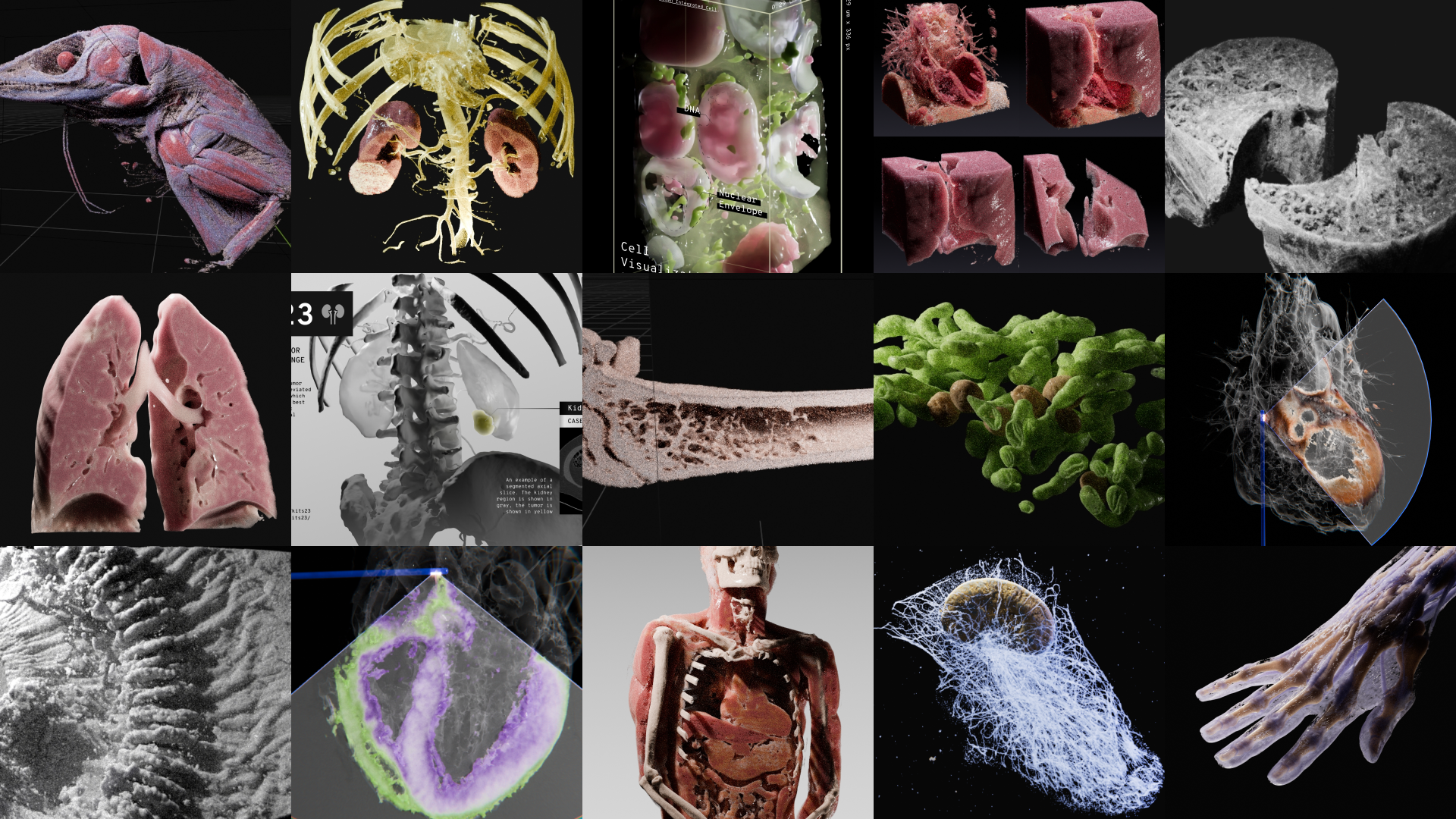
Bioxel Nodes is OmooLab’s Blender add-on for importing and visualizing scientific volumetric data. It uses Geometry Nodes and Cycles, supports 4D volume data and EEVEE NEXT rendering, though EEVEE NEXT is limited to one cutter and produces weaker results than Cycles. The product listing describes its features and render limitations.
Supported data and import workflow
The add-on lists support for DICOM, BMP, JPEG, PNG, TIFF, Nifti, Nrrd, and HDF5 files. It can also import 4D volumetric data into Blender. For a first volume, the Getting Started documentation demonstrates importing a DICOM file as a Bioxel Layer. You can use File > Import > Volume Data as Bioxel Layer or drag a .dcm file into the 3D viewport.
After import, Bioxel Nodes creates the object and geometry nodes needed for the volume. The guide’s example adjusts the Mask by Threshold node, adds a Slime Shader node, and renders with Cycles. Threshold, color, and density controls can be changed to adjust the preview and shader effect.
Render engines and limitations
Bioxel Nodes lists support for Cycles on CPU, Cycles on GPU with OptiX, and EEVEE NEXT. EEVEE NEXT supports only one cutter, and the listing says its result is not as strong as Cycles. The product page also notes that a section surface cannot currently be generated when converting to a mesh.
Blender versions and installation
The product listing names Blender 4.1 and 4.2. Its installation documentation describes an Extension package for Blender 4.2 or later and an Add-on package for Blender 4.0 or 4.1. For the Extension package, install the downloaded ZIP from Edit > Preferences > Extensions > Install from Disk. For the Add-on package, use Edit > Preferences > Add-ons > Install. That route also requires installing the SimpleITK dependency in Blender. Check the latest release and documentation for compatibility with your Blender version.
Saving and updating projects
If you are archiving a project, the product listing recommends running Bioxel Nodes > Save Staged Data before updating the add-on so its nodes become permanent. If an older project stops working after an update following Save Staged Data, use Bioxel Nodes > Relink Nodes to Addon to sync its nodes with the updated add-on. To move a project to another computer, save the Blender file, then use Scene > Bioxels > Save All Bioxels and Scene > Custom Nodes > Save All Custom Nodes before packing the entire directory; the recipient can open it without Bioxel Nodes installed. Older shaders that do not use OSL may also need Open Shading Language enabled in Render Settings if volumes fail to render.
Bioxel Nodes is suited to Blender workflows that need to inspect or render volumetric datasets with node-based controls. Confirm the current package and renderer requirements before building a project around a specific setup.