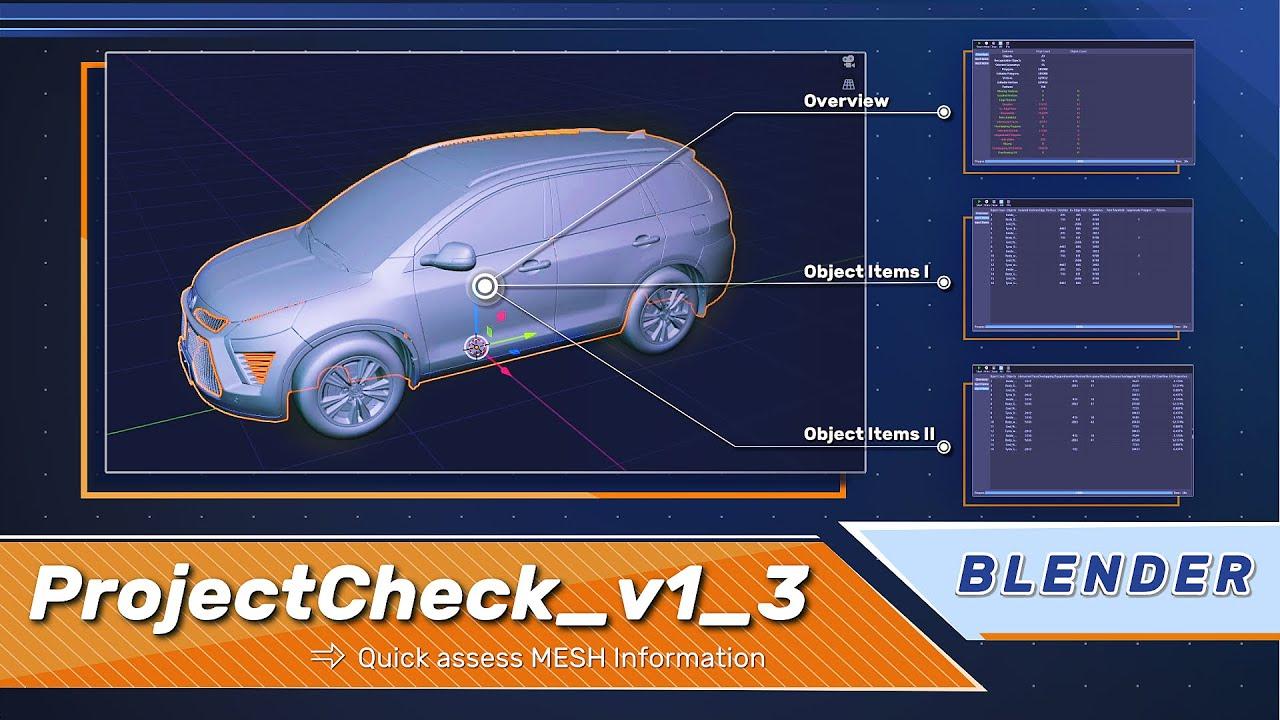
Projectcheck is a Blender add-on for pre-flighting models and assessing their quality. It checks geometry, UVs, normals and missing textures. Results appear in a table; clicking an entry takes you to the model location and switches to edit mode.
What Projectcheck checks
- Mesh geometry: isolated points, edge vertices, doubles, boundaries, N-gons, intersected faces, overlapping polygons, non-plane geometry, degenerate polygons, 6+ edge poles and non-manifold geometry.
- UVs: overlapping UV vertices, overflowing UV and UV proportion.
- Other checks: normal direction and missing textures.
Choose the checks you need in Settings. If processing is slow, the documentation suggests unchecking some items. See the Projectcheck instructions for the full list and controls.
Review results and choose what to scan
Turn on All to check every object. With All off, Projectcheck checks the selected objects. Click a result to go to the corresponding model location and switch to edit mode. The Clean action removes unused nodes, and Pin keeps the window on top. Projectcheck can also show elapsed time and sort results; its version 1.3 changelog records those features.
Installation and Blender compatibility
In Blender, open Preferences, choose Add-ons, select Install and locate the add-on file. Run Projectcheck from its start window. In Settings, click Accept or close the window to save changes.
The setup notes list Windows releases from Blender 2.80 through 4.2, and Linux releases from 2.80 through 3.4. The version 1.4 changelog, dated April 15, 2022, records support for Blender 3.1. Check the product page for the listed releases and confirm compatibility with your operating system before installing.
Working with large projects
The documentation recommends checking only some items or objects in a large project to reduce the risk of Blender crashing during processing.