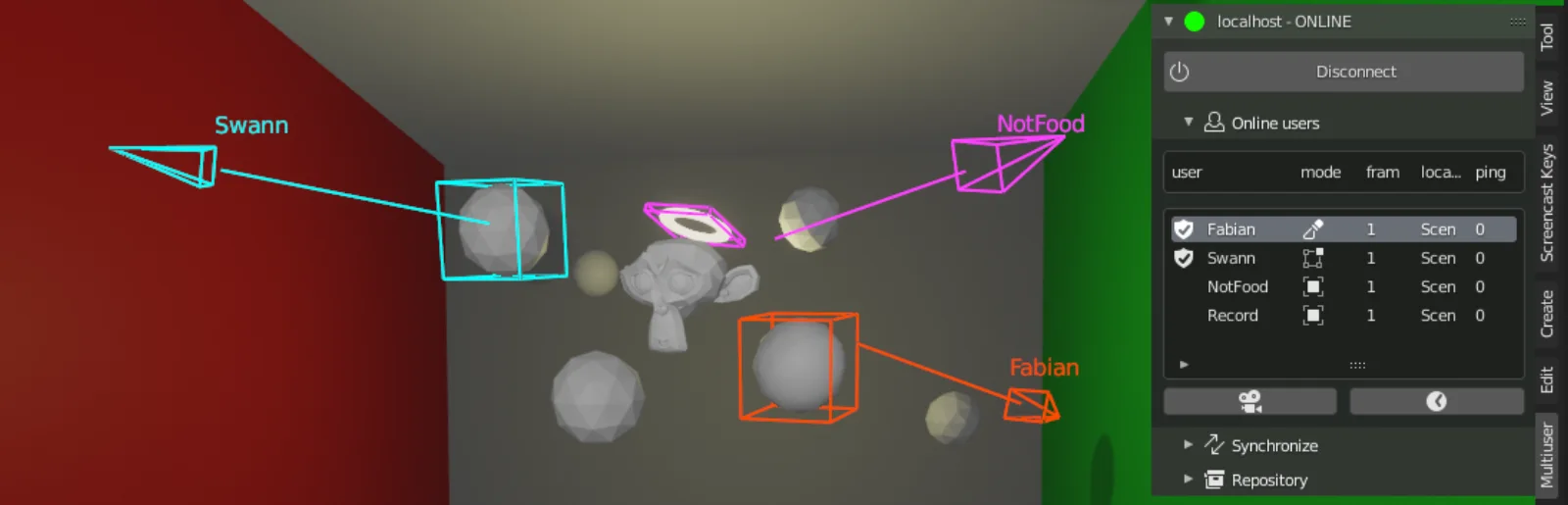
Blender Collab Pro is a Blender add-on by Skava for editing one scene with other people in a shared session. It synchronizes object transforms, mesh edits, materials, modifier changes, and object creation or deletion. Object locks, change history, chat, and user presence give collaborators ways to coordinate inside Blender.
What syncs between collaborators
The product documentation lists these synchronized changes and session tools:
- Move, rotate, and scale transforms, plus mesh edits and material assignments.
- Modifier changes and object creation or deletion.
- Object locks that show who holds a lock and help prevent overlapping edits.
- History with usernames and timestamps, plus undo and redo controls.
- A chat panel, connected-user list, colored cursors, selection highlights, and a follow mode.
Start a shared session
- Install the downloaded ZIP file through Blender’s Edit > Preferences > Add-ons, enable Blender Collab Pro, and restart Blender as the documentation recommends.
- Open the Collab tab in the 3D View sidebar. For the documented local-network setup, the host clicks Host Session, enters a username, and shares the host computer’s IP address.
- Other users in that local-network session click Connect and enter the host’s IP address, port, and their usernames. The default port is 5555.
The manual identifies TCP as the connection protocol. The host’s firewall must allow incoming connections on the selected port.
Check network and workflow limits
The Superhive product overview says sessions can use a local network or connect remotely. Its documentation describes local-network sessions and says there is no internet relay. Confirm the intended setup with Skava before relying on a connection across the internet.
Superhive lists Blender 4.0 through 5.0, while the documentation says Blender 4.0 or newer. Ask Skava to confirm support for releases beyond the listed range. The documentation recommends a maximum of 10 users, notes that large mesh edits may be delayed, and says animation playback is not synchronized. It also says the host must save the project file, so plan for the host to save during the session.