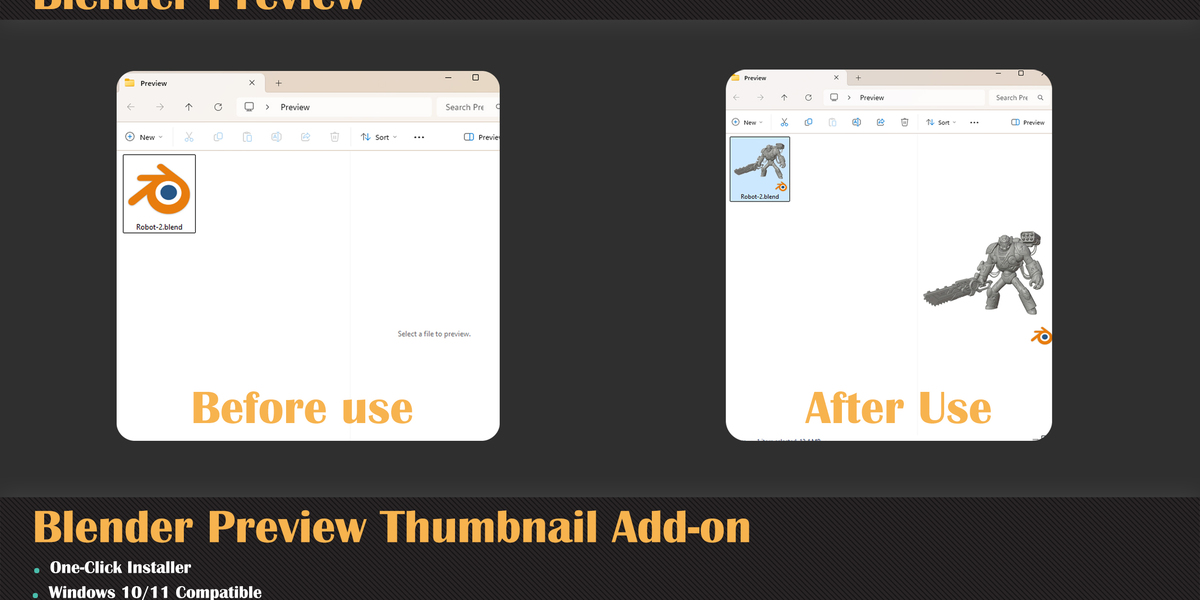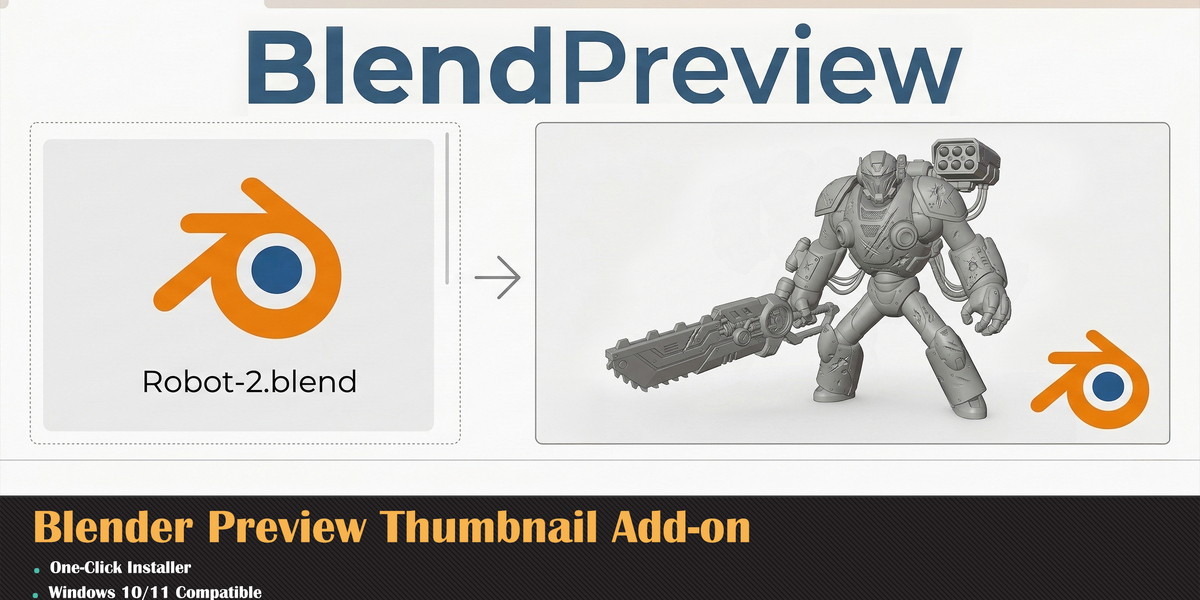
Blender Preview Thumbnail, also called BlendThumb, is a Windows thumbnail handler for .blend files. It lets Windows Explorer show previews from .blend files saved with File Preview enabled instead of the Blender logo, so you can scan a folder of scenes by appearance before opening them.
The developer says the installer registers Blender’s built-in thumbnail handler and detects the Blender installation automatically. It has one-click installation and uninstallation, runs no background processes, and is listed as having no performance impact. It reads the preview stored in each file, so the .blend file must be saved with File Preview enabled.
Requirements and preview setting
The developer lists Windows 10 or 11 and Blender 3.0 or newer as requirements. In Blender, check that File Preview Type is set to Auto under Preferences > Save & Load. Files saved without a preview may not show a thumbnail in Explorer.
Install and view thumbnails
- Install BlendThumb with its one-click installer. It detects the Blender installation during setup.
- Open a Windows Explorer folder containing .blend files.
- Set the folder view to Large Icons or Extra Large Icons to see the previews.
- If thumbnails do not appear right away, press F5 to refresh the folder. The developer says a computer restart may be needed for the change to take full effect.
To remove it, open Windows Settings, go to Apps, search for BlendThumb, and choose Uninstall.
Compatibility and license
The developer’s listing states that Blender 3.0 or newer is required. Its version details show Blender 3.0–5.0, while the feature list describes support as 3.0–5.0+. If you use a version newer than 5.0, check the developer’s product listing for current compatibility. The listing identifies the license as GPL.
BlendThumb is suited to Windows users who browse saved Blender scenes in Explorer and want to identify files from their stored previews. Its documented task is displaying those previews in Explorer.