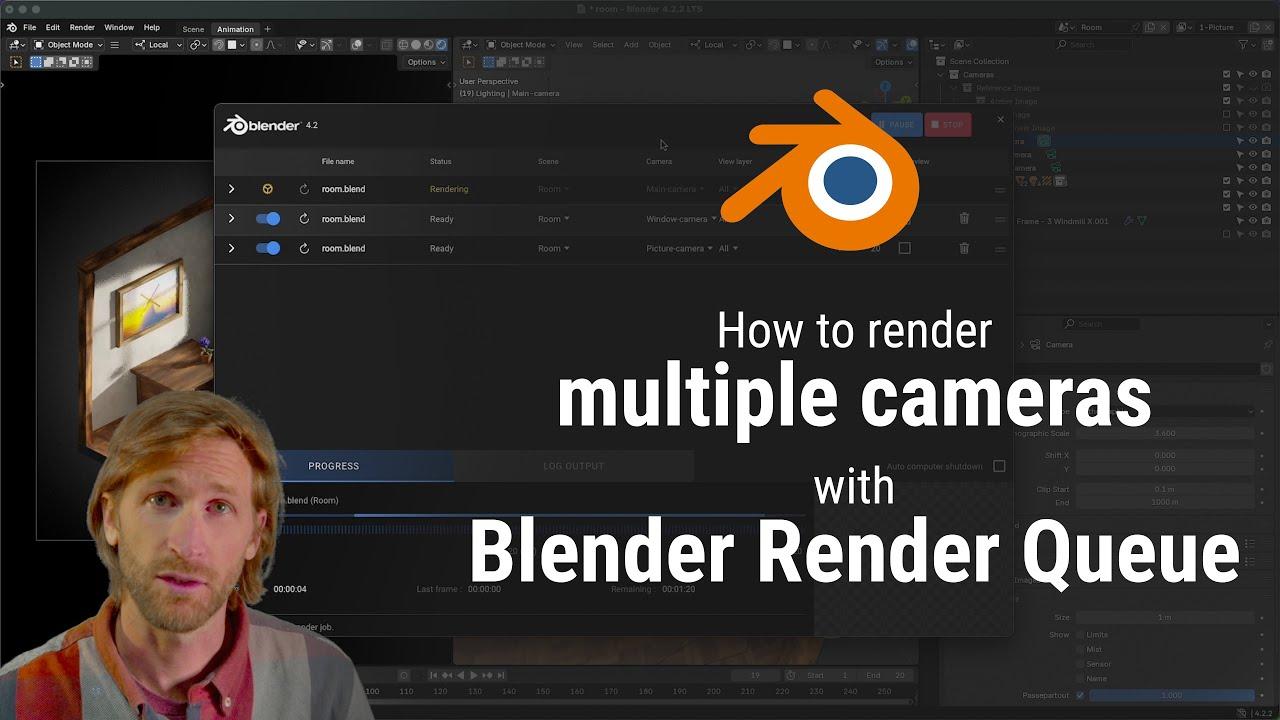
Blender Render Queue (BRQ) is a standalone desktop app by Stephane Claudon for organizing and automating Blender render batches. It lets artists queue shots, choose scenes, monitor progress, and have the machine sleep or shut down after a queue finishes. Camera, view-layer, and reusable output controls support multi-shot work, with several features marked Pro on the Superhive product listing.
Build a queue around scenes and shots
Choose which scenes to include in a render batch. With Pro, you can select one or more cameras for each scene and choose specific view layers to render to file. Pro also supports separate queues for different projects or shots. These controls help when a Blender project has several scenes or camera views to render in sequence.
Monitor progress and finish unattended
BRQ shows a full-resolution live preview of the current frame and an estimate of the remaining render time. Desktop and mobile notifications can signal when a queue finishes, and the app can put the machine to sleep or shut it down at the end. The Pro remote-monitoring web app lets you track a queue from elsewhere. The listing documents remote monitoring but does not establish whether render jobs run on a separate computer.
Reuse settings and automate steps
Pro output presets save the render engine, sample count, and file format for reuse. BRQ can also run custom Python expressions or scripts before or after renders,
Compatibility, editions, and cost
The Superhive listing says BRQ runs on Windows, macOS, and Linux, and lists Blender versions 3.0 through 5.2. It names Blender-Internal, Cycles, Eevee, Freestyle, and Octane as supported render engines. Some features described in the full documentation may not be available in the Lite version. The seller describes a one-time purchase, free updates for the purchased variation, and upgrades priced at the difference. Check the listing for current prices and edition details before choosing.
Troubleshoot Cycles and failed renders
BRQ uses its own Cycles device settings rather than Blender Preferences. Open Settings, then the Blender tab and Cycles Devices. Check the device type, such as CUDA, OptiX, HIP, or Metal, and confirm the GPUs you want to use are enabled. If a render crashes, stalls, or produces an unexpected result, try rendering the project directly in Blender. The product FAQ notes that some third-party add-ons may fail in background mode. It also explains how to save Blender rendering logs and find the main BRQ app log for troubleshooting.