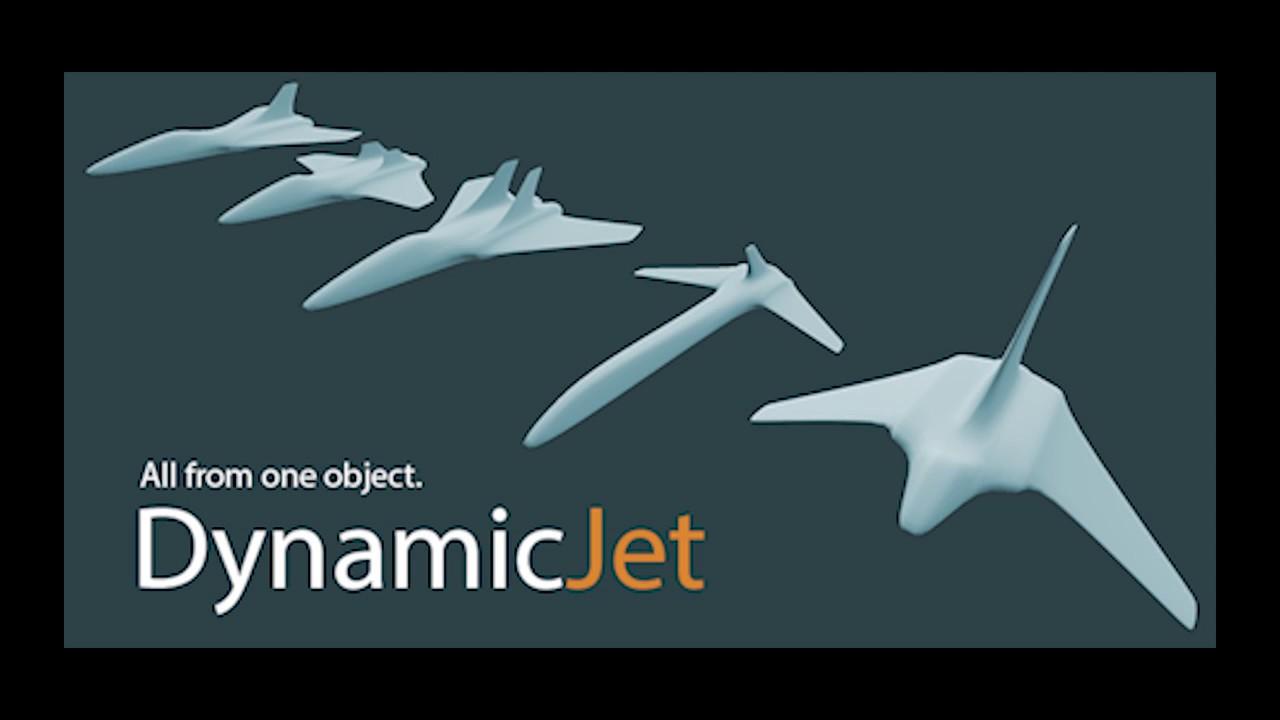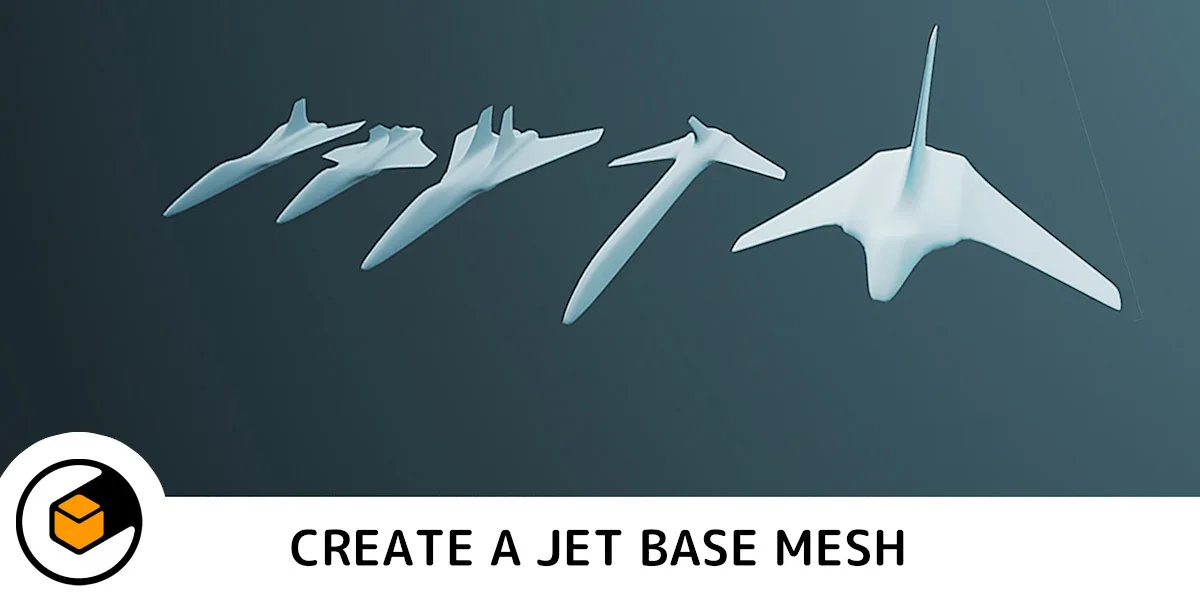
Configurable Dynamic Jet is a Blender add-on by Mark Kingsnorth for generating adjustable fighter jet and starfighter base meshes. Add it from Blender's standard mesh menu, shape the overall design with its settings, then continue editing the base mesh with the Mirror and Subdivision Surface modifiers intact.
Create a jet in the 3D View
Choose Add > Mesh > Dynamic Jet, or press Shift+A and select Mesh > Dynamic Jet. Blender places the object at the 3D cursor and opens a settings panel in the lower-left corner of the 3D View. Configure the shape there before moving on to direct mesh edits.
Adjust the aircraft shape
The controls cover the main proportions and smaller silhouette details:
- Set the nose, cockpit, midsection, sides and rear dimensions to shape the fuselage.
- Adjust the main wing's span, angle, thickness and base length, along with the tip's shape, position and rotation.
- Set the number of tail wings from zero to two and adjust their base and tip proportions.
- Set the number of rear engine shapes from zero to two, then adjust their opening width, height and depth.
- Choose the subdivision level and set the jet's location and rotation.
This range is useful for exploring different jet or starfighter silhouettes and for blocking out a plane concept before adding detail.
Continue editing the generated mesh
After configuring the shape, press Tab to enter Edit Mode and work on the underlying base mesh. The mesh uses quads, which the developer describes as helpful for extending it and using it with other operators and add-ons. The Mirror and Subdivision Surface modifiers remain available as you refine the model.
Presets, installation and compatibility
The release notes for version 1.1.0 describe presets: you can save your own configurations and install presets supplied by the developer. The documentation says Blender 4.2 and later can install the add-on by dragging its ZIP file into Blender. For earlier versions, use Edit > Preferences > Add-ons > Install Add-on from File, enable Add Mesh: Dynamic Jet Primitive, and save preferences. The marketplace listing reports Blender 2.79 through 5.2 compatibility and marks the add-on as Blender Extension Compatible.
Settings to handle before editing
Blender removes the primitive adjustment controls when you enter Edit Mode or click away from the mesh, as it does for other primitives. Finish setting the shape while the lower-left panel is available. If the engine openings look too thin, the product FAQ suggests increasing the engine width and height, or adjusting the sides or midsection dimensions.
See the installation and configuration documentation for the full parameter list. The product FAQ covers engine proportions, resetting parameter defaults and Blender's primitive controls.