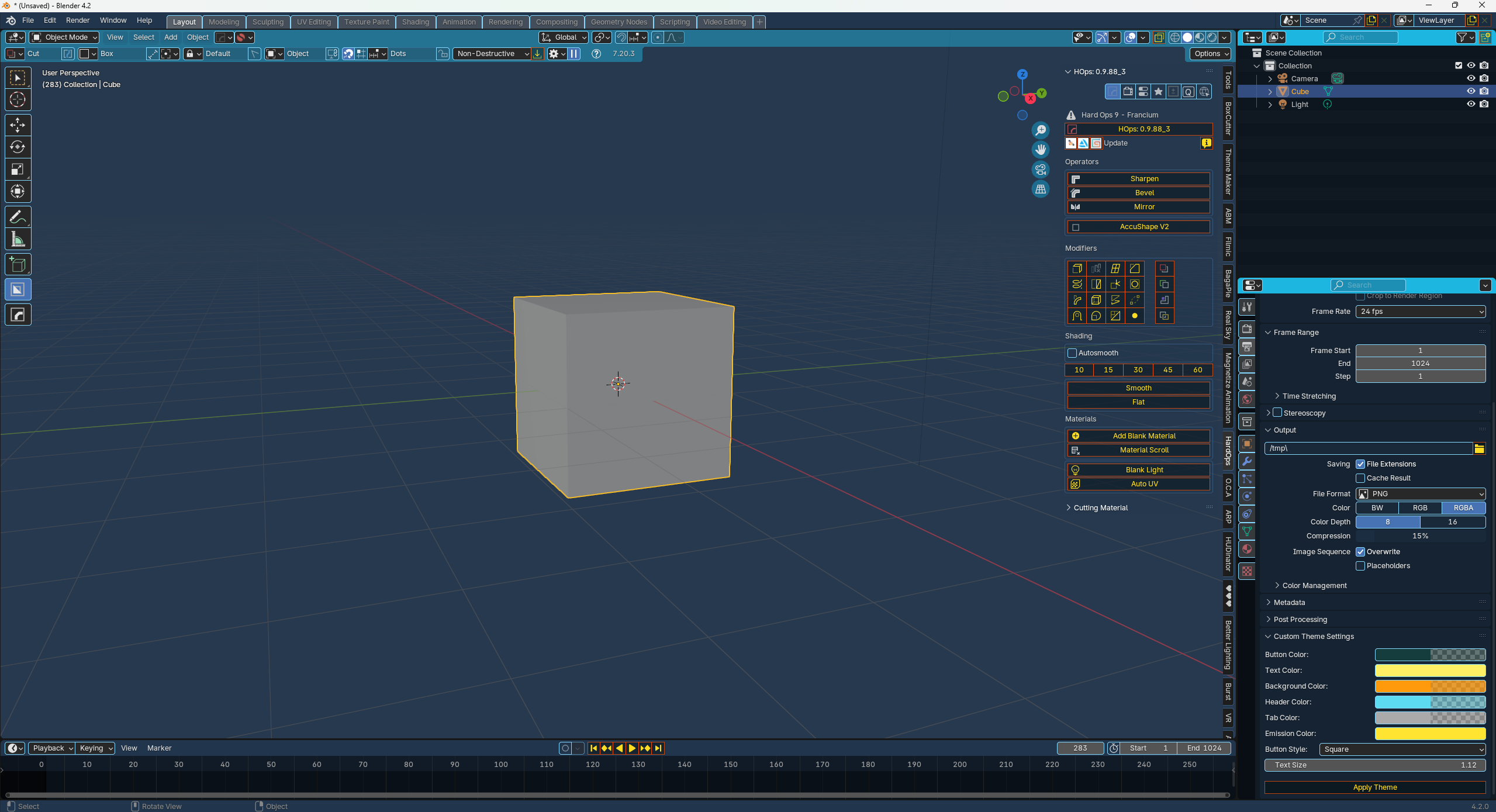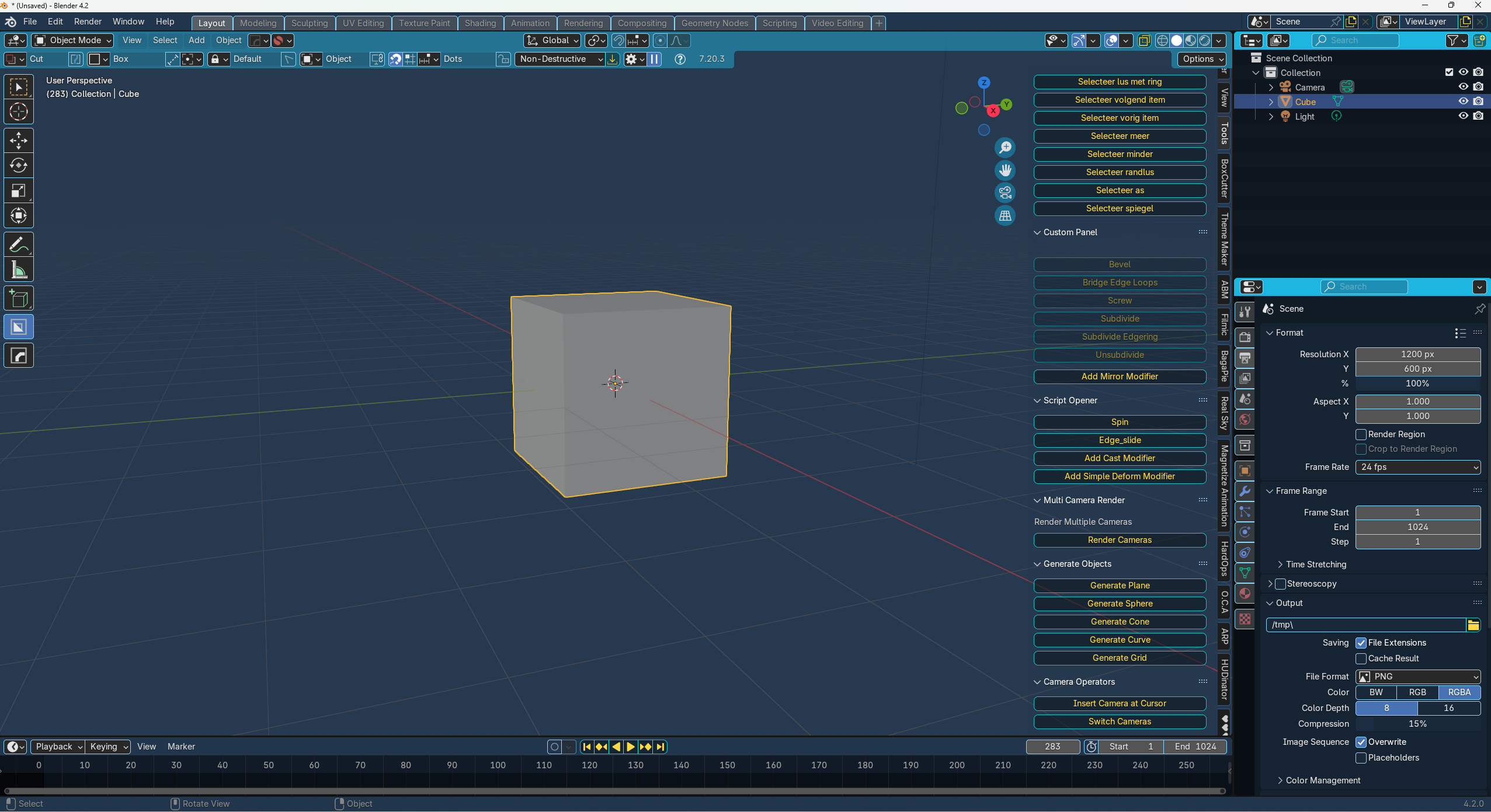
Custom Theme Settings is a Blender add-on from Team Blender for adjusting the look of the interface. It brings color controls, button styling, text size, and viewport emission settings together in one panel.
Interface and viewport controls
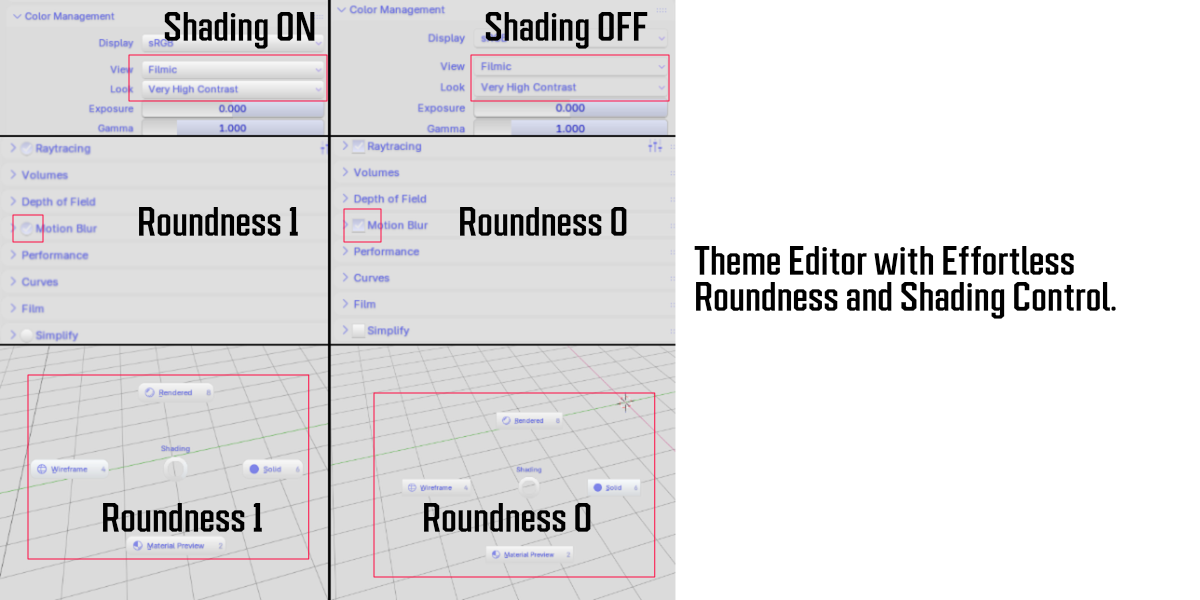
You can change button colors, text and background hues, and the appearance of headers and tabs. Button roundness and text size have their own controls. The add-on also lets you set emission colors for selected and active objects in the 3D viewport.
Install and use the add-on
The product documentation gives these setup steps:
- Download the
custom_theme_settings.pyfile. - In Blender, open Edit > Preferences > Add-ons, choose Install, select the downloaded file, and install it.
- Enable Interface: Custom Theme Settings. Find its panel in the Properties editor under the Output tab.
To adjust colors, choose the swatch for an interface element and use the color picker. The usage guide says to click Apply Theme to apply the changes. For button styling, select Rounded under Button Style and adjust its slider, and click Apply Theme. Use the Text Size slider to change text size, then click Apply Theme again.
Compatibility and license
The seller describes compatibility as Blender 2.80 and above. The product details separately list releases from 2.82 through 4.2, so check the current listing for your exact Blender version. The add-on is listed under the GPL license.