Arrange objects already in your scene
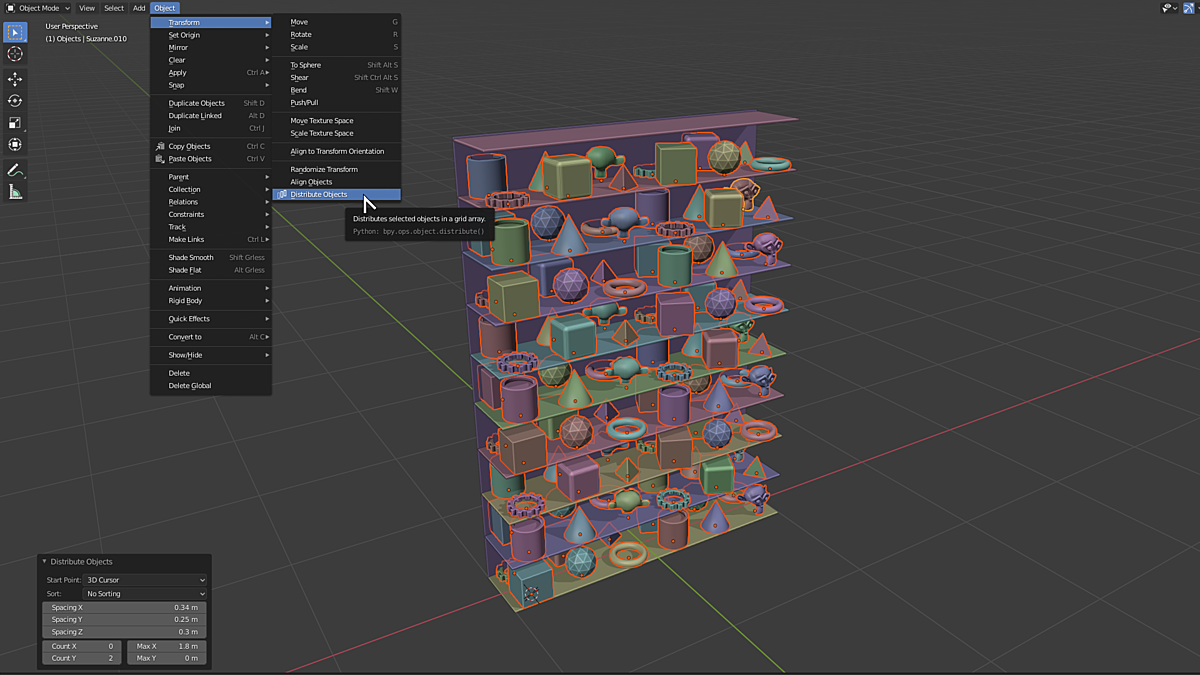
Distribute Objects Addon arranges selected objects that already exist in a Blender scene. It spaces them in an orthogonal, grid-like layout; it does not create copies. This is useful when linked Collection Instances land stacked at the 3D cursor or scene origin, when working with multiple linked or appended assets, or when laying different objects across a shelf, table, street, or wall. The product listing describes these workflows.
Set the distribution
Select objects in the 3D View and choose Object > Transform > Distribute. The Start Point can be the 3D Cursor, the active object, or the World Origin. Set spacing on the X, Y, and Z axes, then choose how objects are ordered and how the layout wraps.
The operator can sort by name, random order, or current X, Y, or Z position. Unsorted is the default and uses Blender's internal order, often the order in which objects were created. Count limits can start a new row, column, or level after a set number of objects. Maximum distance limits are available for X and Y. You can also choose an axis order, such as XYZ or ZYX. The developer's documentation lists the available settings.
Check the spacing limits
Spacing is based on object centers in world coordinates, not the size or shape of each object. Large differences in object size or origins that sit away from the geometry can make the layout look uneven or leave objects overlapping. Count limits can also cause objects to wrap onto occupied positions when there are too few slots for the selection. The add-on creates an orthogonal grid; it does not make a polar array.
Install and check compatibility
The developer's instructions say to keep the downloaded ZIP archived, then use Blender's Edit > Preferences > Extensions > Install from Disk option and enable the add-on after installation. Save Preferences if Blender's autosave is off and you want it enabled in future sessions. The Superhive listing identifies Blender 3.0 through 5.1 as compatible and marks it Blender Extension compatible. Check the current product listing if you use a newer Blender release.