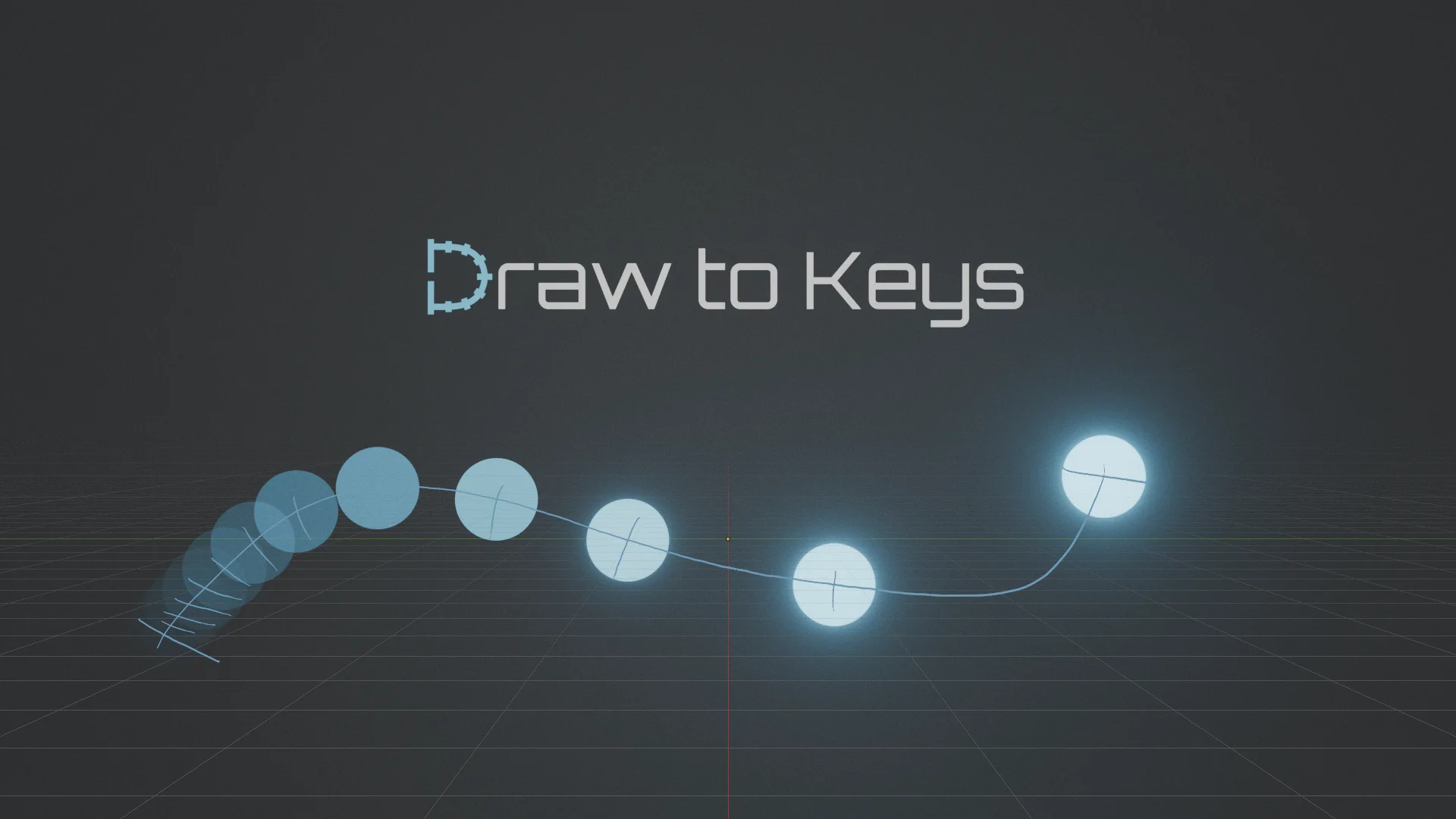
Draw to Keys turns annotation strokes in Blender’s 3D Viewport into location keyframes for a selected object or bone. You draw a main route and crossing marks, then the add-on moves the selected object or bone to each detected intersection and creates a location keyframe there. The Blender Extensions listing identifies version 1.0.1 and compatibility with Blender 5.1 and newer.
Sketch a route and mark its timing
Draw the main path with Blender’s annotation tool, then add dash strokes across it where you want keyframes. Draw to Keys detects the intersections and creates a location keyframe for each one as it moves through the selected object or bone’s route. The sketch establishes the path and keyframe positions; frame settings determine when those points occur.
Set frame spacing, axes, and interpolation
Frame Step sets the number of frames between successive keyframes. Choose a Start Frame for the first one, or use the current frame. You can also choose which location axes to keyframe. For example, if X and Y are already animated, leave only Z enabled for this operation.
For the animation curve between keyframes, choose Constant for a snap or jump, Linear for mechanical, straight transitions, or Bezier for smoother motion. You can also leave interpolation at the scene default.
Use path distance as an animation value
An optional advanced setting records the distance traveled along the main path in a custom property named stroke_value. The property can also drive values such as scale, color, and shape keys based on progress along the path. This option adds a measure of progress along the route alongside the location keyframes.
Drawing limits and installation
Intersection detection depends on how the strokes sit in space. Keep crossing dashes close to the main path or draw them in the same plane. Draw from an axial direction for the sketch. Blender’s annotation system also has limited editing tools for removing or moving strokes and moving keyframes. Support for Grease Pencil objects is under consideration.
In version 1.0.1, the panels moved from a custom category to Animation, and the advanced panels were renamed “Draw to Keys Advanced.” The extension page offers drag-and-drop installation or a download followed by Install from Disk. For problems with the add-on, use its issue tracker.