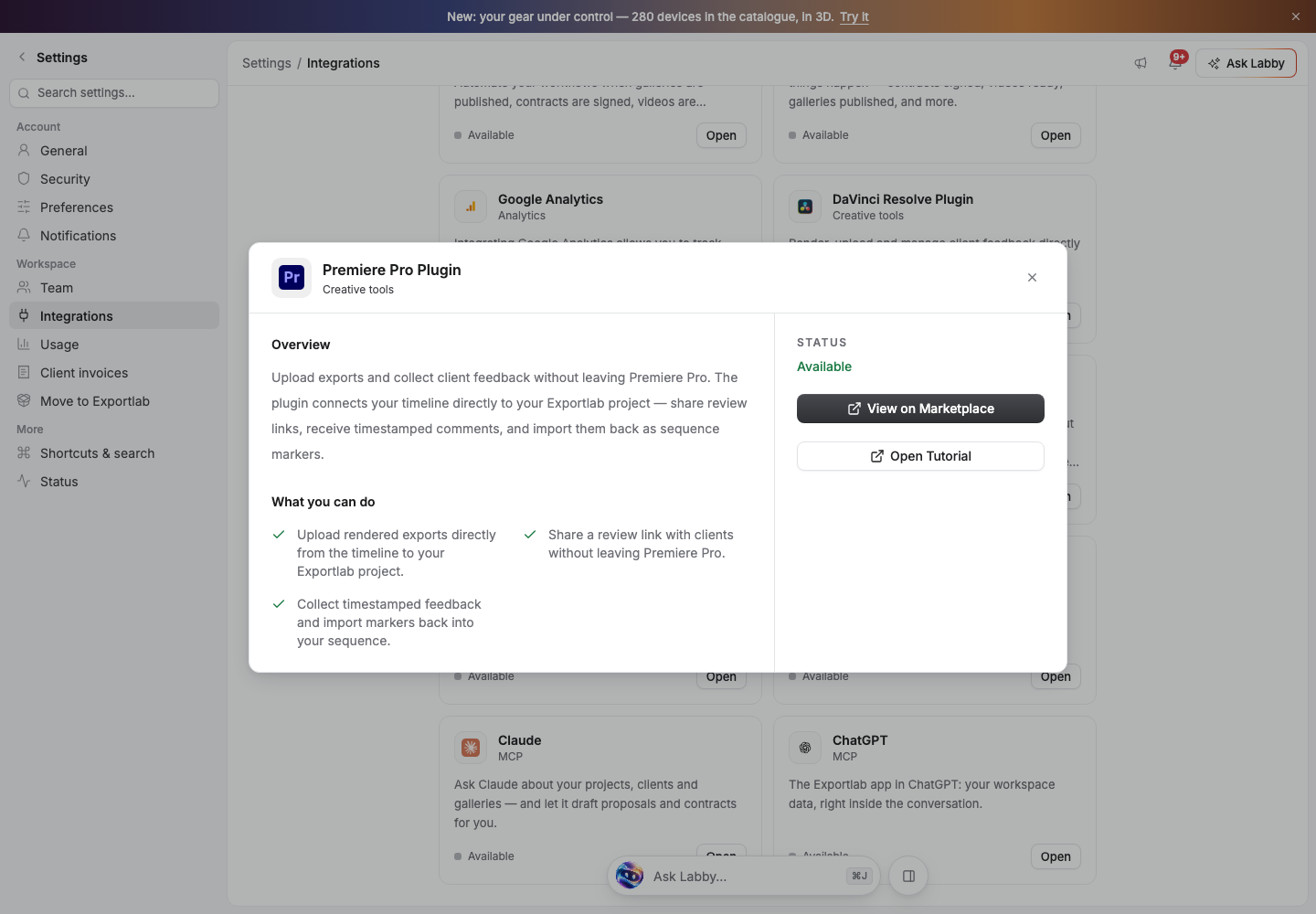
Exportlab connects video reviews in Exportlab with an Adobe Premiere Pro editing workspace. Its panel lets you view client feedback, import review notes as sequence markers where supported, and upload revised video versions from Premiere Pro.
How the review workflow works
When a client returns feedback in Exportlab, open the Premiere Pro panel to review it alongside the edit. Import supported review notes as sequence markers, then work through the relevant parts of the timeline. After making changes, upload a revised video version to the existing video project from the plugin.
Marker placement depends on timecode. The Premiere Pro sequence timecode must match the reviewed video for markers to line up. Check that match if an imported note appears at the wrong point.
Who the integration suits
Exportlab suits editors who handle client video reviews in Exportlab and want feedback available while revising a cut in Premiere Pro. The integration connects that review process to the editing workspace. You need an Exportlab workspace to authenticate, and the plugin runs inside Premiere Pro rather than as a separate desktop application.
Install and connect Exportlab
Before installing, download the Premiere Pro .ccx package and create an API key in Exportlab under Settings and Integrations. Note the workspace slug, which the plugin calls the Tenant Slug during setup.
- Install the
.ccxpackage. - In Premiere Pro, open Window, Extensions, then Exportlab.
- In the plugin settings, enter the Tenant Slug and API key.
Exportlab supports multiple keys for separate devices or integrations and allows keys to be revoked if compromised. Keep the API key private. If authentication fails, check that the workspace slug and key are correct.
Compatibility and limits
The plugin listing, with facts verified in July 2026, gives version 1.0.0 and a Premiere Pro 26.2.0 minimum. The developer's integration documentation covers the Premiere Pro plugin. It does not provide a standalone desktop application or an After Effects plugin.
Common setup issues
- The plugin does not appear: Restart Premiere Pro and confirm Exportlab is enabled under Window > Extensions.
- Markers are misaligned: Check that the sequence timecode matches the video used for the Exportlab review.
- Authentication fails: Confirm the Tenant Slug and API key in the plugin settings.
For the developer's installation steps and troubleshooting details, see the Exportlab Premiere Pro integration guide.