Browse FBX files before importing
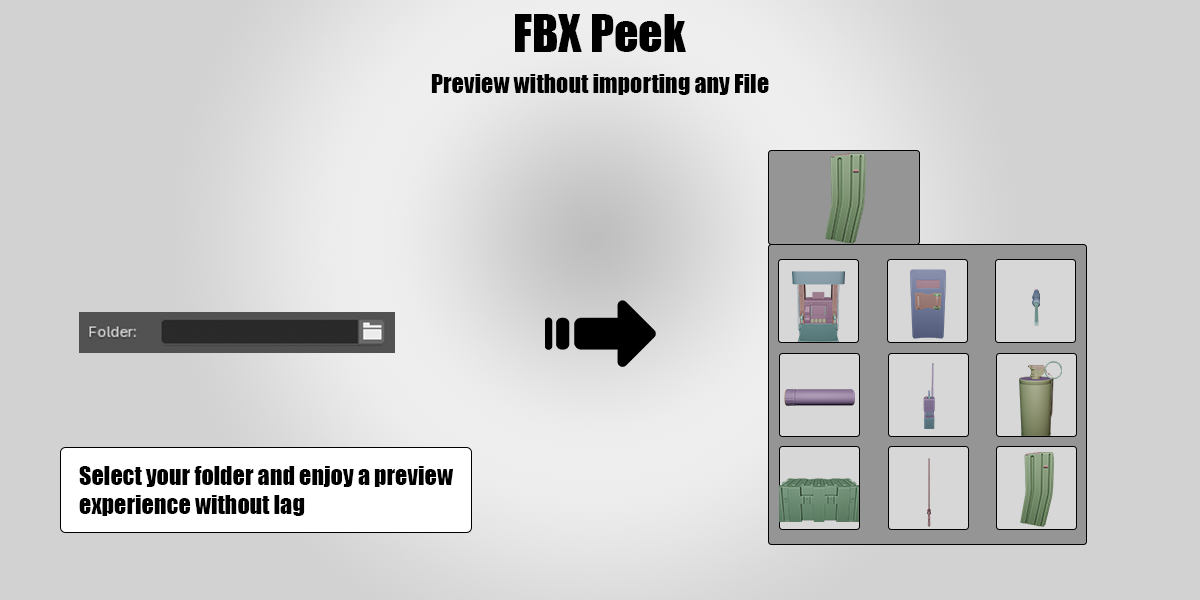
FBX Peek is a Blender add-on for browsing files in a selected folder and checking models before adding them to the active scene. It generates previews in a separate background scene, so you can look through candidates without importing each one. Thumbnails use matcap and cavity shading to show a model’s shape and edges; they do not show its final materials and lighting. See the FBX Peek listing for the seller’s feature details.
Open the FBX Peek tab in the 3D Viewport sidebar, select a folder and browse its grid of assets. Preview rendering runs in the background, and clicking a file that is still waiting moves it to the front of the queue. Favorites, a Favorites Only filter, nested-folder browsing and name search help narrow a larger library. The product FAQ says previews update when an existing FBX file changes; use Refresh Cache to update the list after adding files while Blender is open.
Inspect and place an asset
Select an FBX file to view its Asset Specs: triangle and vertex counts, mesh component count, bone and animation clip counts, disk size and material count. This lets you check the file’s contents before placing it.
For mouse placement, choose Mouse Raycast from the Import At menu and click Import & Place FBX. Move the model over a surface, use Scroll to scale it or Shift + Scroll to rotate it in 15-degree increments, then left-click to place it. The screen-space HUD updates both values; press Esc or right-click to cancel. You can also place an asset at the 3D Cursor, at a selected Empty, or at the world origin. After placement, it is a standard Blender object that you can move, rotate and scale normally. The seller’s setup guide describes these placement options.
Link materials and prepare exports
When enabled, the Smart PBR Material Auto-Linker looks in the asset folder and common paths such as /textures and /maps for Albedo, Normal, Roughness, Metallic and Ambient Occlusion maps. The listing says it sets sRGB for Albedo and Non-Color for data maps; it connects Ambient Occlusion through a Mix or Multiply node to Base Color.
The export tab includes presets for Unreal Engine, Unity, Godot and a default Blender setup, with axis and unit scale settings. You can ask it to align origins to (0,0,0) and apply rotation and scale before export. The listing says FBX Peek restores the original origins, transforms and selections when export finishes.
Compatibility and availability
Superhive lists Blender 4.2 through 5.1 compatibility and a GPL license. The AnyPlugins listing marks FBX Peek as free. Check the seller’s page for current availability and license details.