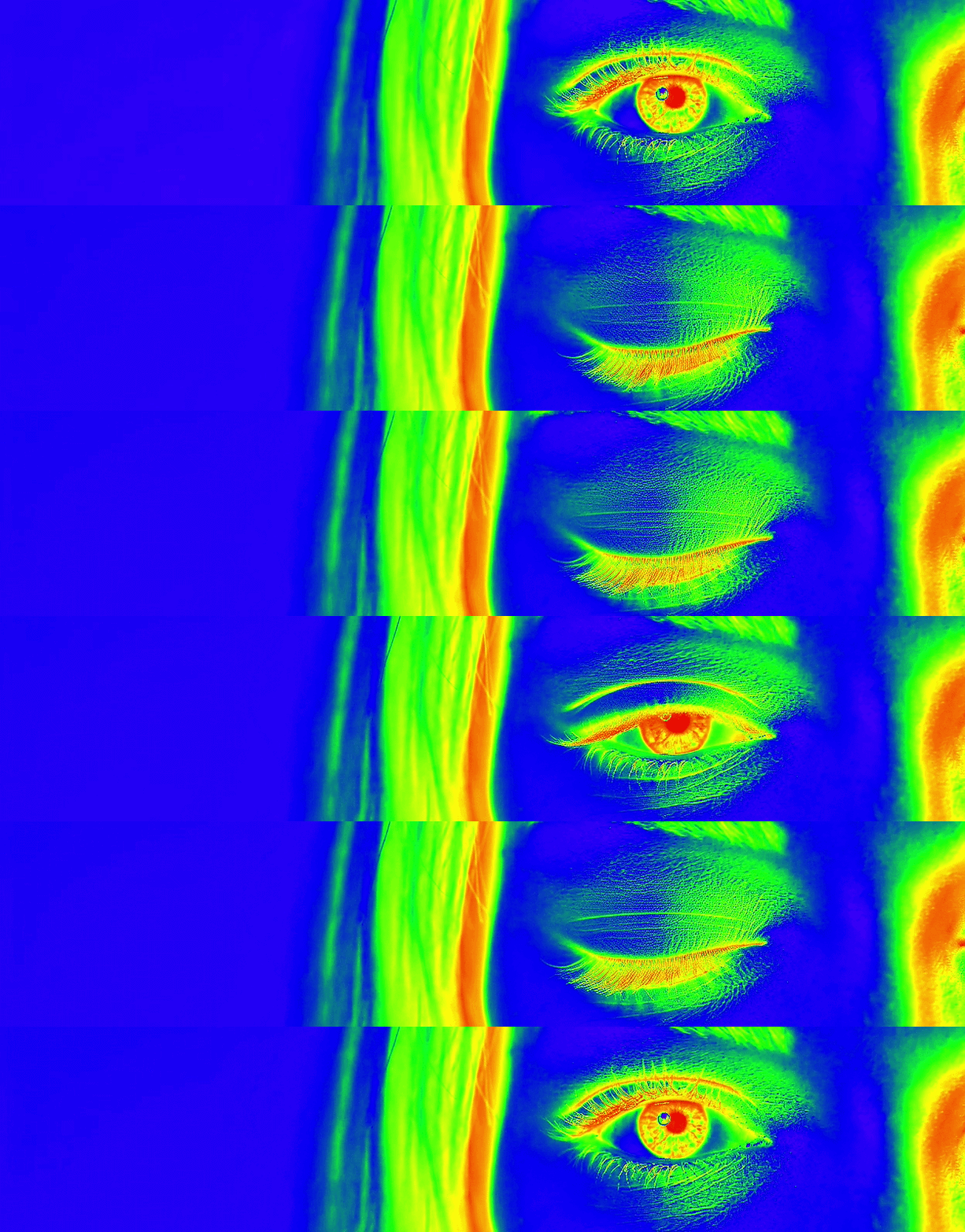
FilmConvert Halation (Standalone) adds the reddish glow associated with film around bright parts of an image, such as lamps, headlights and neon signs. It is a focused finishing effect for a color grade, available without a FilmConvert Nitrate license. Its sensitivity and strength controls let you decide which bright areas receive the glow and how strongly it blends into the footage.
Match the effect to your footage
Before adjusting the look, select the Manufacturer and Input Gamma that match your footage or timeline. The standalone version uses these settings instead of Nitrate camera packs, which lets it work with color-managed setups such as ACES, Linear, DaVinci Wide Gamut and HDR.
- For non-log footage, choose a Standard Gamma such as Rec.709 or Gamma 2.4, or select a camera profile.
- For log footage, choose the camera manufacturer's log space when applying Halation directly to camera footage or when the timeline uses that same log space.
- For HLG or PQ footage, choose HDR as the Manufacturer, then select HLG, HLG (tonemapped), PQ or PQ (tonemapped), as appropriate for the footage or timeline.
- For ACES or Linear workflows, choose Other. For DaVinci Intermediate, choose Blackmagic Design.
Target and shape the glow
View Halation Alone displays a Halation Map so you can inspect where the effect appears. Sensitivity controls which image areas qualify: raising it brings the glow into midtones as well as highlights, while lowering it restricts the effect to brighter highlights. Strength controls how much Halation blends into the image.
The Highlights slider shapes Halation across the tonal range, from blacks to the brightest highlights. Raising it brings more Halation into highlights; at zero, Halation appears on shadows surrounding bright highlights.
Hue and Green Channel adjust the effect's color. Soften creates a smoother, more diffuse glow; Spread widens it while retaining its edge. Highlights adjusts the response across tonal values. Brightness controls the effect's brightness and whether it contributes to Chroma or Luma. Saturation changes its vividness, and setting it to zero can produce a simple bloom effect. Boost can add strength to affected areas when Sensitivity is set very low.
License and host requirements
The standalone license is a one-time purchase with three activation seats. FilmConvert lists separate Adobe and DaVinci Resolve plugins, a Final Cut Pro plugin, and an all-platform standalone bundle. A standalone license does not activate the Halation add-on for Nitrate; the add-on is a separate license option for existing Nitrate users. The trial provides access to the controls without a time limit, but footage remains watermarked until a license is activated.
- After Effects or Premiere Pro: FilmConvert lists Windows 10 or 11 with Adobe CC 2018+ and CUDA 10.1+ or OpenCL 1.1+. FilmConvert's purchase page lists macOS 10.15+ with Adobe CC 2018+ and Apple Silicon compatibility; its download page lists macOS 13+ for the Adobe plugin, so check the requirement for the selected download.
- DaVinci Resolve: FilmConvert lists Resolve 16 and later. Windows requires Windows 10 or 11 with OpenCL or CUDA; FilmConvert's purchase page lists macOS 10.15+ and Resolve 16 and later with Apple Silicon compatibility; its download page lists macOS 13+ for Resolve 16 and later, so check the requirement for the selected download.
- Final Cut Pro: FilmConvert's purchase page lists macOS 11.5.1+ with Final Cut Pro 10.8+, Apple Silicon compatibility, and no support for Intel Iris Pro hardware from around 2014. Its download page also lists macOS 13+ and macOS 15 Sequoia requirements for Final Cut Pro 10.8+; check the requirement for the selected download.