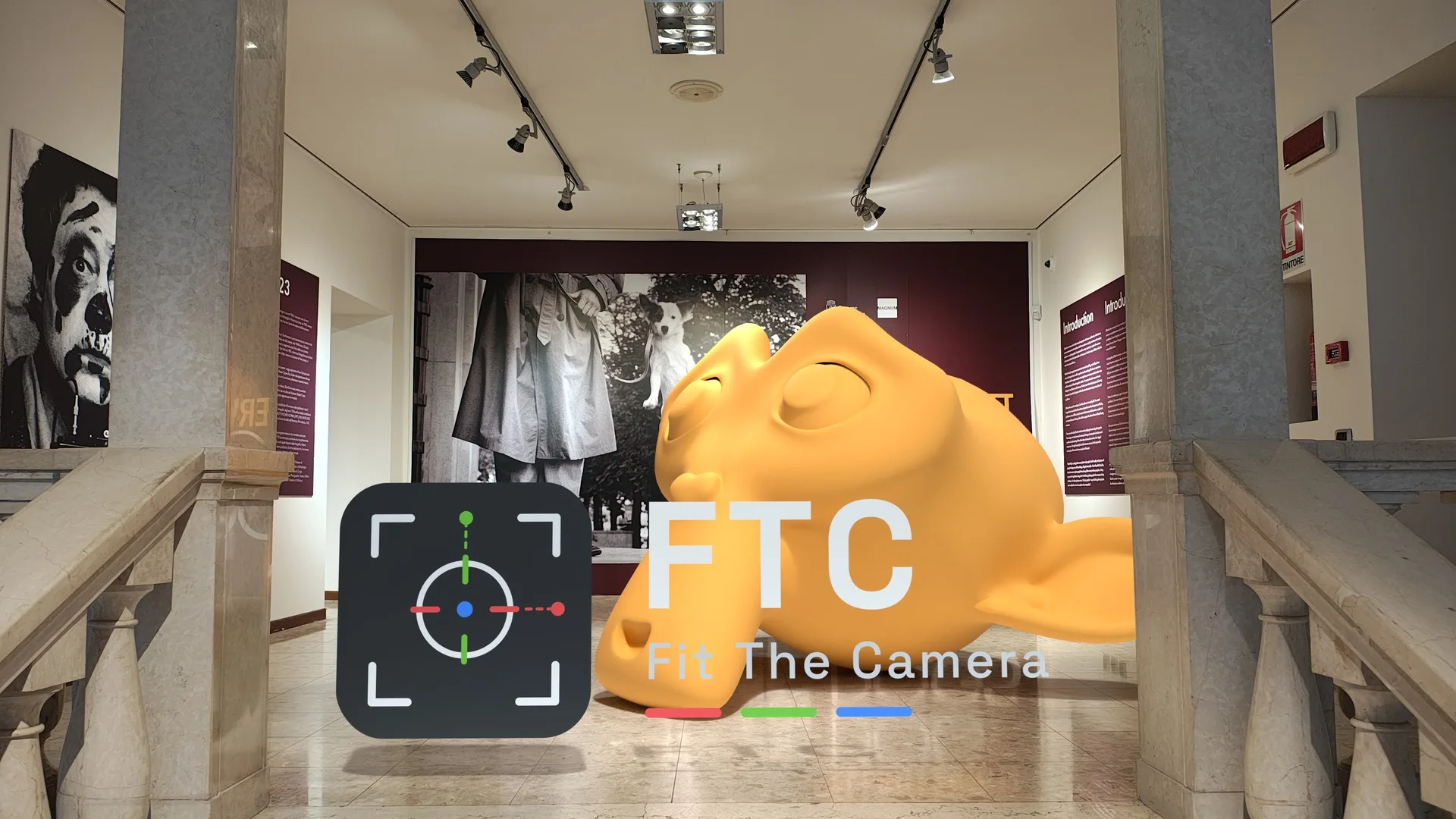
FTC – Fit The Camera matches a Blender camera to a single photo, render, or drawing. Calibrate perspective from vanishing points, a known rectangle, or the horizon, set a real-world scale, and place 3D objects into the image with their shadows.
Calibrate the camera from the image
Open the FTC panel in the 3D View sidebar with the N key and load an image. FTC places the photo on a camera and reads its focal length from EXIF when that information is available. During calibration, drag two red guides onto edges that follow the image’s X direction and two green guides onto edges that follow Y, such as floor tiles or a skirting board. Place the origin on the floor.
You can solve the camera from one, two, or three vanishing points, a known rectangle, or the horizon line. The guides can refine a focal length read from EXIF or solve for one themselves. To set scale, mark a known distance on a floor or wall and enter its length, or use a scale cube of known size. Hold Shift for finer handle movement; a magnifier enlarges the handle area by four times.
FTC reports uncertainty in the result and guide fit. It can warn when the selected lines may not be parallel, the EXIF focal length may be wrong, or a vanishing point is very far away. These checks help you judge the calibration before placing objects.
Place the camera and align the scene
Press Enter to place the calibrated camera. FTC creates one camera per photo, names it after the photo, and lets you switch between cameras in its panel. You can align the calibrated floor or wall to the 3D cursor, a face, or an object in the scene.
The FTC transform orientation lets Blender’s move, rotate, and scale tools, along with snapping, follow the photo’s axes. It remains available after you align the calibrated surface to the scene, which helps when positioning objects against the image perspective.
Composite a render over the photo
Prepare Render configures the scene for a composite: the Standard view transform leaves the photo unchanged, film transparency is enabled, Cycles is selected, and the compositor places the render over the photo with the Shadow Catcher pass. You can instead produce a transparent output for compositing in another program.
FTC also provides shadow-catcher and holdout roles for objects that represent real surfaces or objects in the photo. These roles change object settings; they do not create scene objects for you. Add the geometry you want to render, then assign the appropriate role for the composite.
Compatibility, version, and permissions
Version 1.1.1 is listed for Blender 5.2 or later, with an English and Italian interface. Its October 2026 update includes interface bug fixes and Italian translations. The changelog also notes calibration sessions that survive workspace switches and Ctrl+Space, panel changes that Ctrl+Z can undo, and fixes involving unit scale, wall rectangles, scene alignment, sun fitting, and HDRI fitting. See the Blender Extensions listing and the project’s full guide and source for current details.
The listing identifies the license as GNU GPL v3.0 or later. Its file permission is to read the photo and its EXIF metadata and save calibration reports.