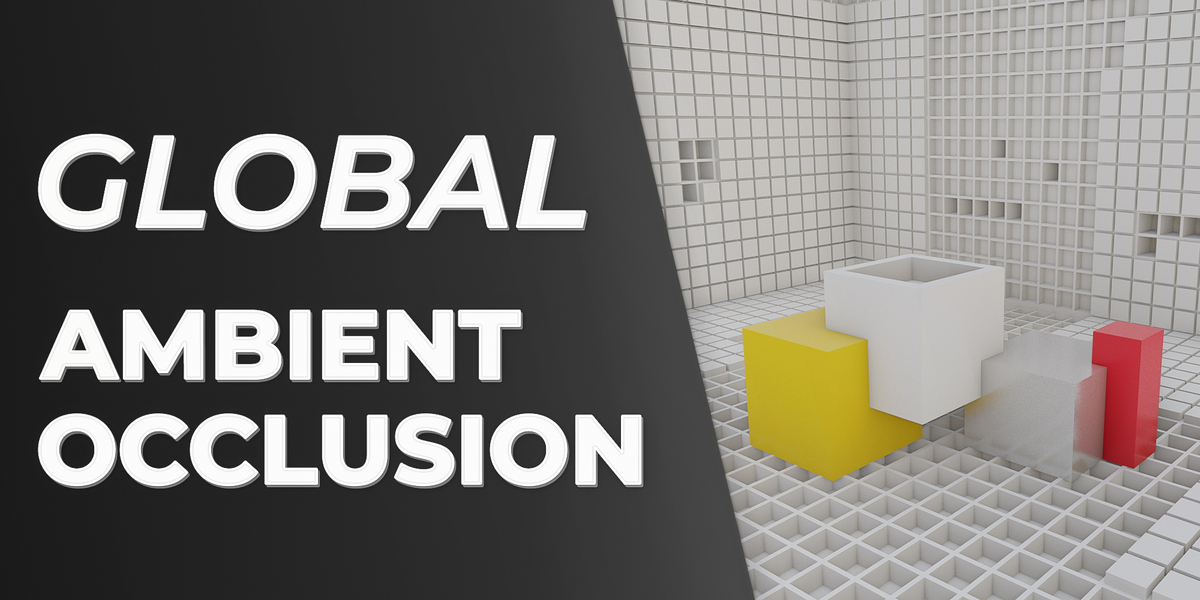
Global Ambient Occlusion Shader, also called Global AO, is a Blender add-on by Jas9r that applies an ambient occlusion shader across a project’s materials. It targets the floaty or ungrounded appearance some scenes can show with Ray Tracing (AO) in EEVEE Next, and aims for a look closer to ambient occlusion in earlier EEVEE versions.
Addressing the floaty look in EEVEE Next
Instead of adding an AO shader to each material by hand, Global AO applies it across the project. You can then adjust its strength to suit the scene.
Global AO is especially intended for EEVEE Next projects where objects appear ungrounded with Ray Tracing (AO). Its goal is to produce a more grounded look; the result depends on the scene and settings.
Apply AO across a scene or selected objects
Choose whether to apply the shader to all materials in the scene or only to materials used by selected objects. The add-on can also add a material to objects that have no material slots. If you want to remove the effect, Global AO provides a one-click removal option. A debug mode is available while working with the setup.
Adjust settings in Blender’s N-Panel
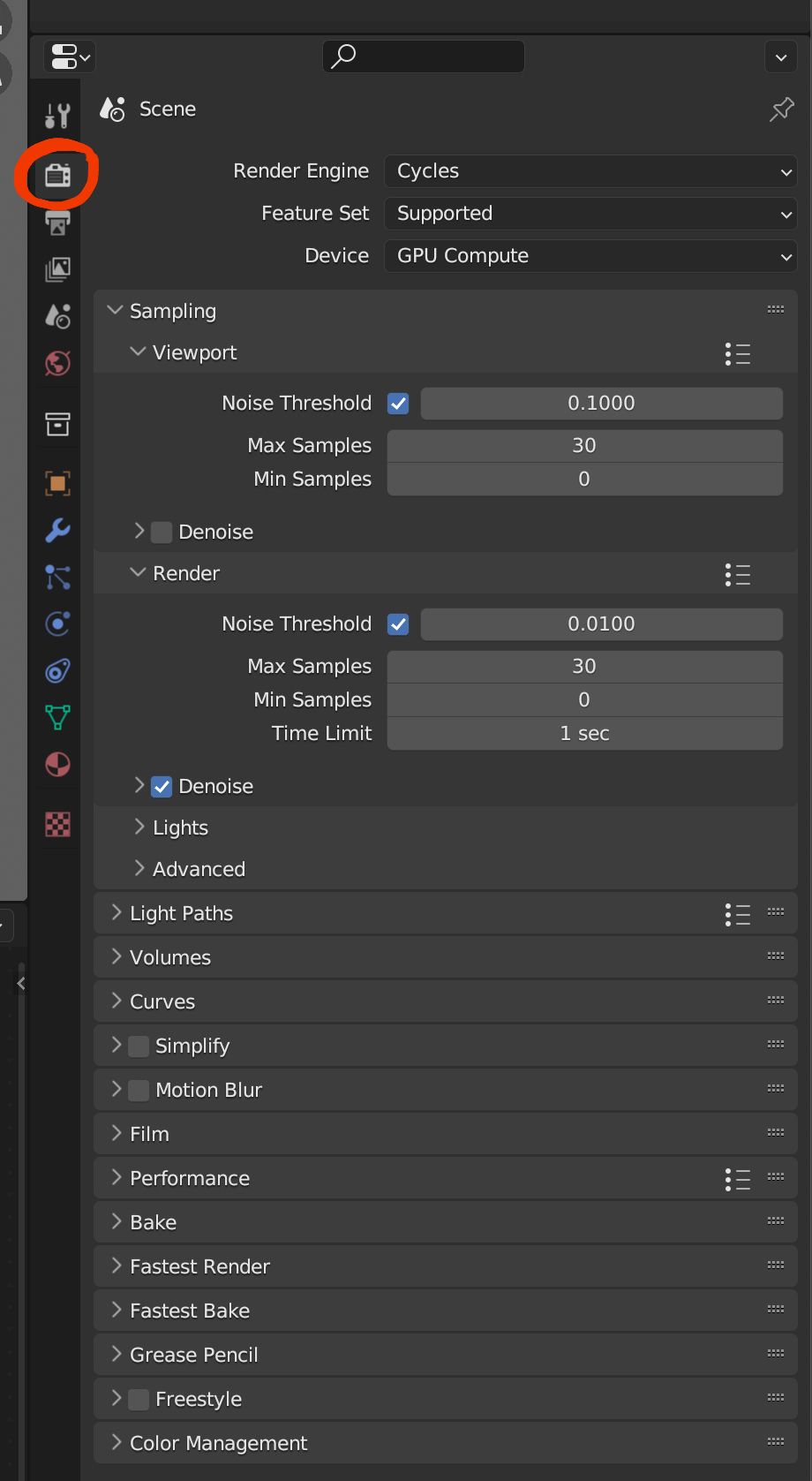
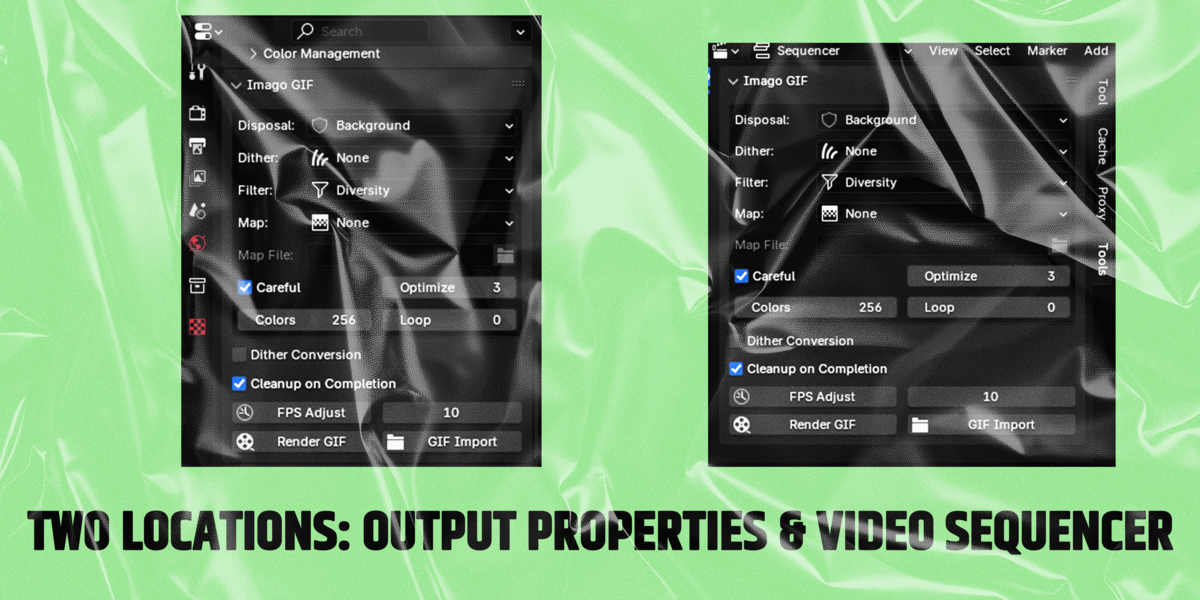
The controls are in Blender’s N-Panel. They let you change AO strength, sample count, and distance. These settings give you a way to tune the effect for your scene rather than using one fixed strength everywhere.
Compatibility and installation
The product description requires Blender 4.2.1 or later, while the marketplace lists a Blender version range of 4.2 to 5.1. The listing also notes that Blender 5.2 changed the internal Ambient Occlusion node, so Global AO may produce slightly different results than in earlier Blender versions. Check the product listing and documentation for current compatibility and setup details.
The documentation’s Blender 4.2 installation steps are to open Edit > Preferences, select the Add-ons tab, choose Install from Disk, and select the downloaded ZIP file.
The listed version is 1.0.2.