Goodbye Greenscreen 2 creates mattes to separate people or objects from footage for compositing. It offers automatic matting, clean-plate matting, and AI color keying, so the right workflow depends on the subject and background you have.
Choose a matting workflow
- Automask: Choose a model tuned for people or generic objects to create a matte from the shot. Automasking covers portrait and full-body shots.
- Background: Use a clip or image with the subject and a still image of the empty scene. Similar lighting helps; keep the subject's colors out of the clean plate. If the two images do not align and contain enough visual clues, Match Perspective can align them using details visible in both.
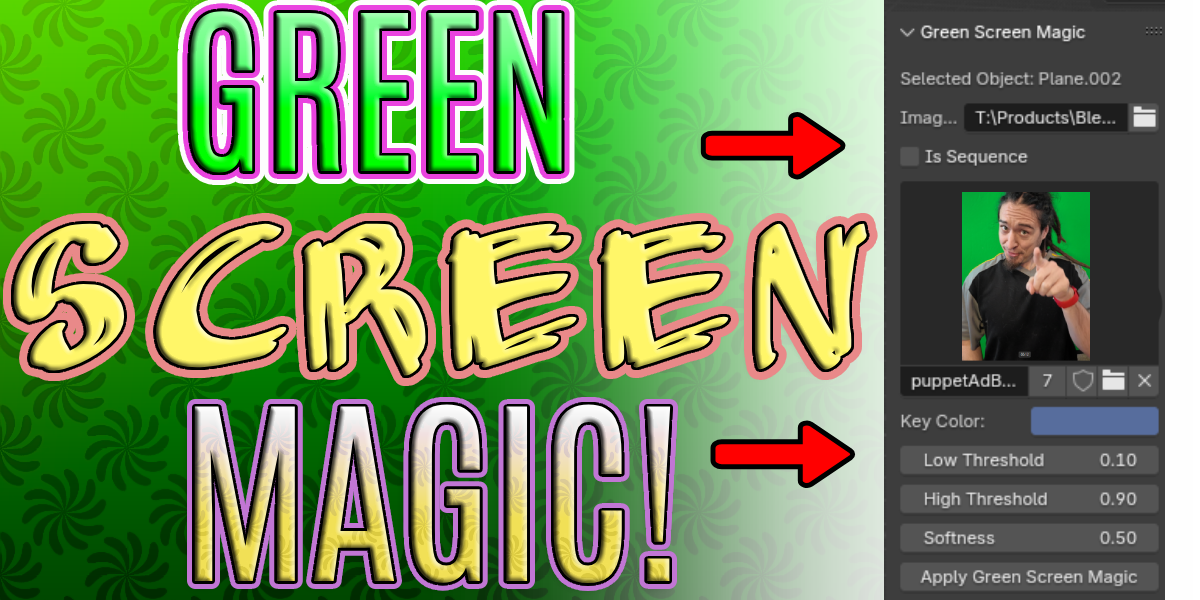
- Color: Select a color to key when the backdrop is uniform. This mode does not need a separate clean plate.
Check and refine the matte
You can view the result or the matte itself. For clean-plate footage, Warped Background and Matchpoints views help inspect perspective alignment. Matte refinement and Filter Width adjust edge treatment; high-resolution refinement uses more GPU memory, and increasing edge refinement can cost performance.
Compatibility and processing
Blace lists Goodbye Greenscreen 2 for After Effects and Premiere Pro and says processing runs locally, without server-side processing. Its product page does not specify Adobe release numbers, so confirm compatibility with your installed host version before buying.
Under system requirements, Blace lists Windows systems with an NVIDIA GPU of at least 8 GB, and Windows systems with a non-NVIDIA GPU of at least 8 GB. For non-NVIDIA cards, the listed supported models are Generic 2022 and Human 2024. The page also lists Apple Silicon on macOS Sequoia or later with at least 16 GB RAM; other macOS is marked unsupported. GPU model support varies, and the documentation describes CPU fallback when a model cannot run on the GPU.