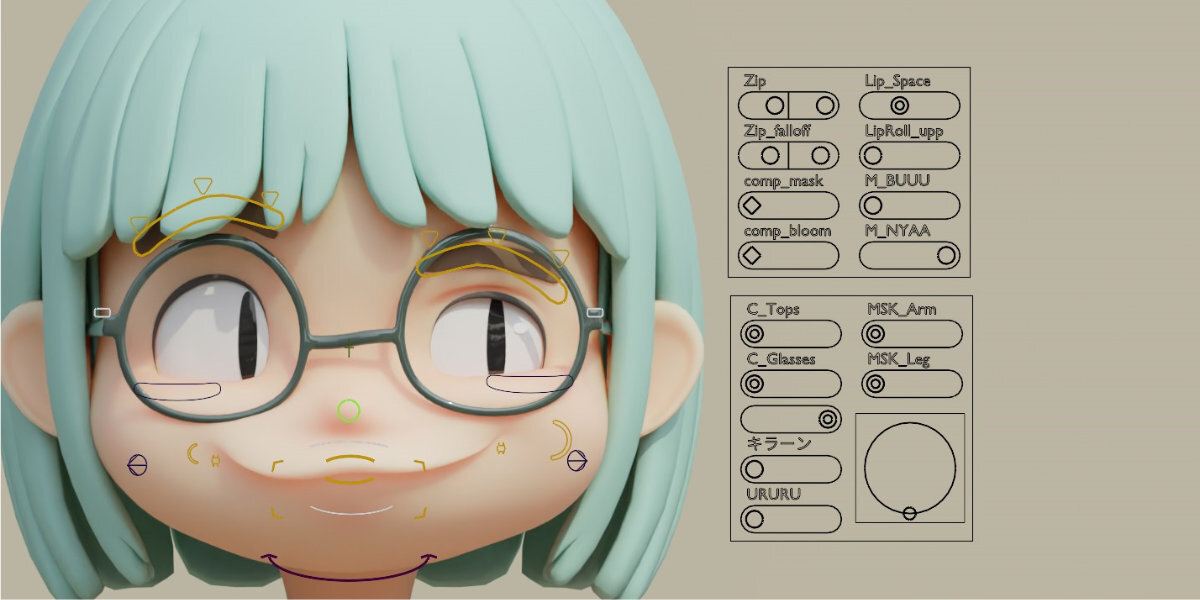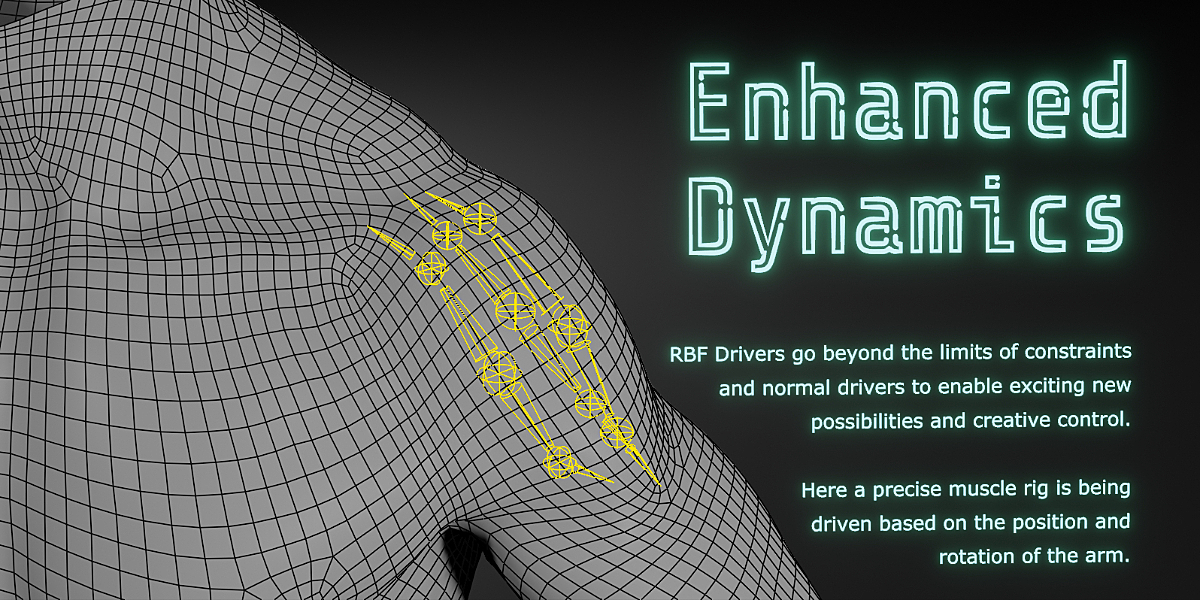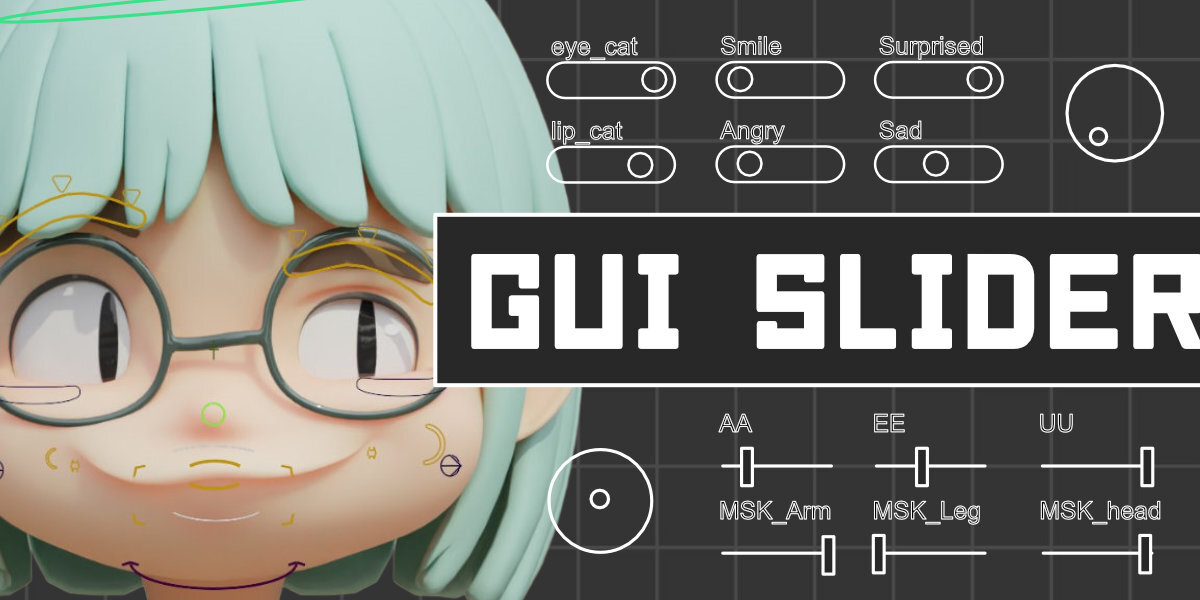
Gui Slider puts controls for shape keys, bone custom properties, and other driver-ready settings directly on an armature in Blender’s viewport. It works with Auto Rig Pro, custom rigs, and scenes with multiple armatures, without requiring a rebuild. You can add sliders in a few clicks, then adjust the controls while working in Pose Mode.
Connect sliders to Blender properties
The Data Path target supports numeric Blender properties (Boolean, floating-point, or integer) that allow Add Driver; string properties are not supported. Supported targets include shape keys, bone custom properties, node settings, modifier and constraint values or their on/off states, object visibility, and camera and light properties.
You can also create a slider from a drivable property’s right-click menu. A Linked Driver attaches another property to an existing slider, with its own output range, so one control can drive several properties.
Arrange controls in the viewport
Quick View displays all sliders at once from wherever you are in the viewport. Its grid can be adjusted as the collection grows. Choose Capsule or Line styles and set each slider’s scale, width, and height. Containers support multiple columns, which can keep controls grouped by category.
Mirror pairs Shape Keys by their L/R suffix and bone Custom Property targets by the target bone’s suffix. It supports .L/.R, _L/_R, and -L/-R (case-insensitive), which is useful for facial controls. The live value overlay can show the selected slider’s name and target value in the viewport; its position and automatic fade-out can be set in the add-on preferences.
Joystick and dual-controller setups
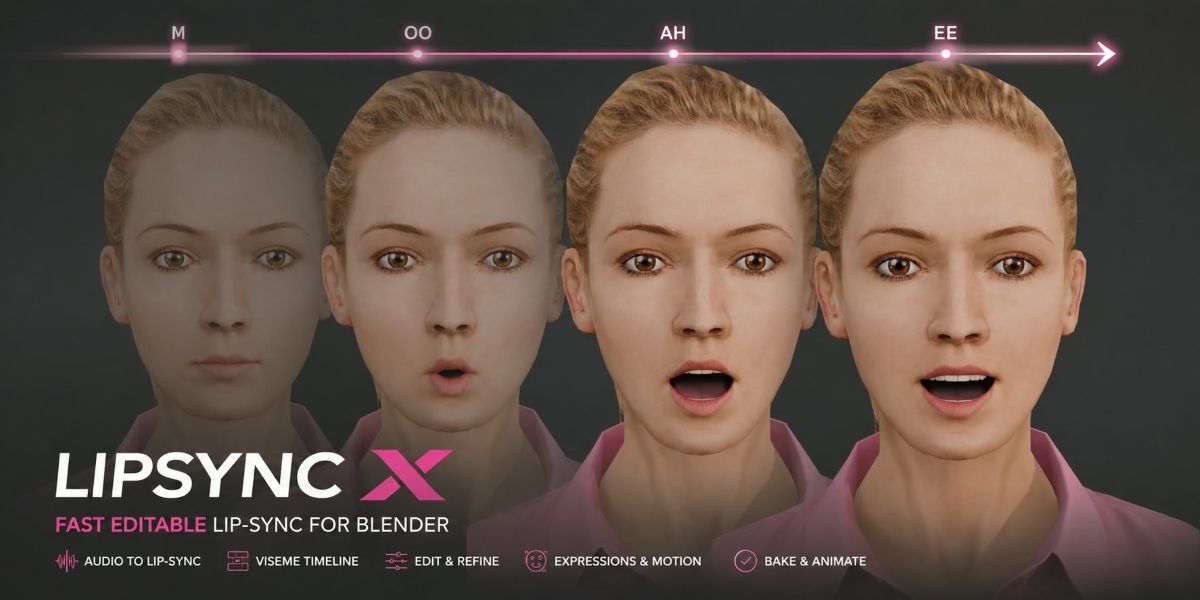
A joystick maps a shape key to each direction, such as up, down, left, and right, so a set of facial movements can be controlled from one place. The Dual Controller layers two controls on one bone: moving the main bone controls its position while the sub-slider drives a shape key or another parameter.
Install the add-on
- Download the .zip package and leave it compressed.
- Before installing, check the version information below against your Blender release. In Blender, open Edit > Preferences > Get Extensions. Open the dropdown at the upper right and choose Install from Disk, then select the package and click Install from Disk.
- Switch an armature to Pose Mode, press N to open the sidebar, and look for the GUI tab.
The Superhive documentation gives these installation steps and lists Blender 5.0 or later under Requirements. The product listing shows Blender 4.2 to 5.3; its v1.2 release history, dated 31 July 2026, says Blender 4.2 and later remain supported. The developer’s user manual also says Blender 4.2 and later are supported and notes verification on Blender 5.2.0 LTS. The 5.0 minimum conflicts with those 4.2 statements, so check the developer manual for your Blender release. The listing identifies Gui Slider as a Blender Extension compatible add-on under the GPL license.